> For the complete documentation index, see [llms.txt](https://guide.prismlive.com/llms.txt). Markdown versions of documentation pages are available by appending `.md` to page URLs; this page is available as [Markdown](https://guide.prismlive.com/desktop-beta/guides/sources/lens-filter.md).
# Lens Filter
Windows
Starting with PRISM Live Studio Beta, **Lens** is provided as an **Effect Filter** instead of a separate PRISM Source. Apply the Lens Filter to a Video Capture Device or Mobile source in your scene to use f**ace retouching, color filters, face effects, advanced camera settings**, and more.
The Lens Filter is added per source, and the settings for each source are managed independently.
***
## Adding the Lens Filter
### Method 1. Adding Quickly from the Sidebar
{% stepper %}
{% step %}
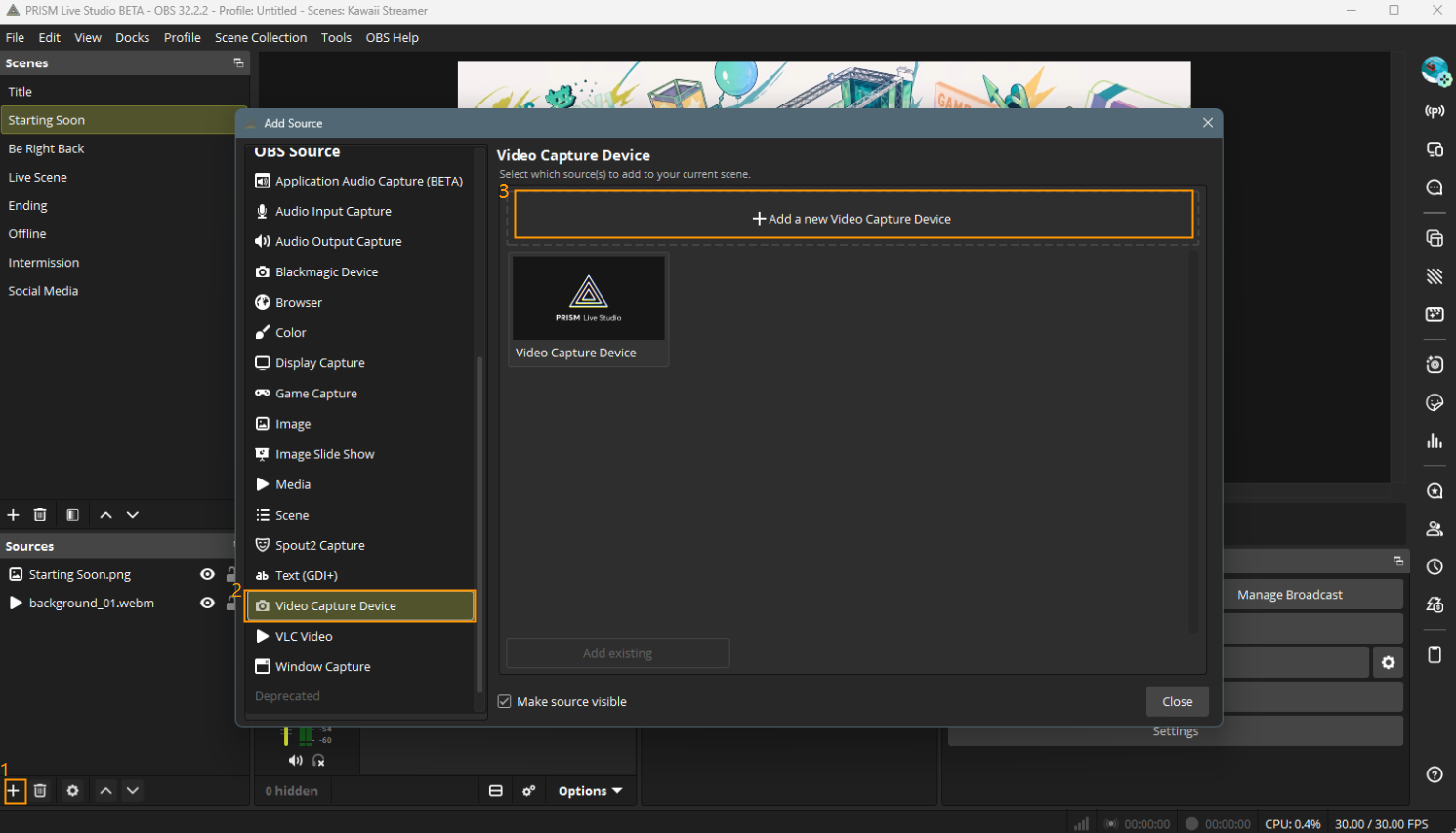
In the Sources area of the current scene, click the Add Source icon, then click Add a new **Video Capture Device** or **Mobile** to add the source.
{% endstep %}
{% step %}
Click the Lens icon on the right sidebar, then select **Enable Lens** in the Lens window.
{% endstep %}
{% step %}
Once the Lens Filter is added, you can use four features:
* Face Retouch Effects
* Color Filter
* Face Effects
* Advanced Camera Settings
The selected effects are applied right away to the Video Capture Device or Mobile source in the scene and to the preview.
{% endstep %}
{% endstepper %}
### Method 1. Adding from the Filters Window
You can also add the Lens Filter the same way as in OBS, and check the filter settings and the results in one window.
{% stepper %}
{% step %}
In the **Sources** area, right-click the **Video Capture Device** or **Mobile** source you want to apply Lens to and select Filters.
{% endstep %}
{% step %}
In the **Filters** window, click the + button under the **Effect Filters** section.
{% endstep %}
{% step %}
Select **Lens** from the filter list.
{% endstep %}
{% step %}
Enter a filter name in the **Filter name** window and click OK.
{% endstep %}
{% step %}
Check that Lens is added to the **Effect Filters** list and the Lens settings appear on the right. Settings are applied to the selected source right away, and you can see the results in the preview.
{% endstep %}
{% endstepper %}
***
## Lens Features
### Using Face Retouch Effects
**Face Retouch Effects** lets you apply skin smoothing and brightness adjustment, style and makeup presets, and detailed adjustments for each part of the face.
1. Select the Face Retouch Effects tab at the top of the Lens window and turn on the switch on the right.
2. Check the items you want to use under Skin and Brightness, then adjust the intensity with the sliders.
3. Scroll down and adjust the values for each part of the face in Advanced Adjustments. Check the preview to make sure the face shape still looks natural.
* **Face Shape:** Slim Face, Smaller Cheekbones, Shorter Jaw, V-shaped Jaw, Smaller Face, Smaller Head, Nasolabial Fold Reduction
* **Eyes:** Bigger Eyes, Dark Circle Reduction
* **Nose:** Slimmer Nose
* **Mouth:** Lift Mouth Corners, Teeth Whitening
{% columns %}
{% column %}
{% endcolumn %}
{% column %}
{% endcolumn %}
{% endcolumns %}
#### Applying STYLE and MAKEUP
**Face Retouch Effects** offers a variety of retouch presets. Choose combined skin and face retouching presets on the **STYLE** tab, and makeup presets on the **MAKEUP** tab.
{% columns %}
{% column %}
{% endcolumn %}
{% column %}
{% endcolumn %}
{% endcolumns %}
#### Saving to MY Effects
{% stepper %}
{% step %}
Select a STYLE or MAKEUP, adjust the skin retouching and Advanced Adjustments values, then click **Save to My Effects** at the bottom of the window.
{% endstep %}
{% step %}
Enter a name for the effect in the **My Effect Name** window and click OK.
{% endstep %}
{% step %}
You can find your saved effects on the **MY** tab and apply them again from there.
{% endstep %}
{% endstepper %}
{% hint style="info" %}
Some **STYLE, MAKEUP, face effect**, and **advanced adjustment items** may require a **PRISM Plus** subscription.
{% endhint %}
***
### Using Color Filter
**Color Filter** lets you quickly change the overall color tone and mood of your camera feed.
**1.** Select the Color Filter tab at the top of the Lens window and turn on the switch on the right.
**2.** Choose a filter from the **RECENT, PREMIUM,** or **BASIC** tab. The selected filter is applied to the source immediately.
**3.** Drag the Density slider to adjust the filter intensity.
* **RECENT**: Shows the filters you have used recently.
* **PREMIUM**: Shows the premium filters available with PRISM Plus.
* **BASIC**: Shows the default filters.
{% columns %}
{% column %}
{% endcolumn %}
{% column %}
{% endcolumn %}
{% column %}
{% endcolumn %}
{% endcolumns %}
### Using Face Effects and Face Mosaic Effects
#### Applying Face Effects
1. Select the **Face Effects** icon at the top of the Lens window.
2. Turn on the switch to the right of **Face Effects**.
3. Select the face effect you want, such as **Kids, Chubby, Villain**, or **Drippy**, and check the result in the preview.
#### Applying Face Mosaic Effects
1. Turn on the switch to the right of **Face Mosaic Effects**.
2. Choose a mosaic type: **Pixel, Blur,** or **Sticker**.
3. Adjust the mosaic intensity with the slider.
4. Select Mosaic effect on everyone to apply it to every face on screen. Select Mosaic effect on surrounding people to apply it only to the people around the main subject.
***
### Using Advanced Camera Settings
Select the **Advanced Camera Settings** tab at the top of the Lens window. Turn on the switch for the feature you want to use, then adjust the value with the slider that appears.
1. **Automatic face tracking**
* Automatically detects your face in the video and keeps it in view.
* Speed: Adjusts how quickly the view follows your face.
* Scope: Sets how far the view can move while following your face.
2. **Improved Portrait Lighting**
* Brightens the subject as if a light were shining on them. Turn on the switch, then adjust the effect intensity with the slider.
3. **Motion Blur**
* Adds a blur effect to movement captured by the camera. Turn on the switch, then adjust the intensity with the slider.
4. **Sharpen**
* Sharpens the outlines in the video. Setting the value too high can make the video look unnatural, so check the preview as you adjust it.
5. **Color Correction**
* Adjust the color values directly to fine-tune the color tone of the source.
* Gamma: Adjusts the mid-tone brightness range.
* Contrast: Adjusts the difference between the bright and dark areas.
* Intensity: Adjusts the overall strength of the color correction.
* Saturation: Adjusts the vividness of the colors.
* Hue Change: Shifts the overall hue.
* Color Multiply: Multiplies the original colors by the selected color to change the overall tone.
* Add Colors: Adds the selected color to the video to correct the tone.
***
### Resetting Settings and Removing the Background
* Use the **Reset All Effects** icon at the top of the Lens window to reset the Lens settings of the currently selected source to their defaults.
* Use the **View Original** icon to compare the video with Lens effects applied against the video without them.
* Use the **Background Removal** icon to make the current background transparent.
***
### Changing the source to which the lens filter is applied
Once the Lens Filter is added, click the Lens icon on the right sidebar. Select a source from the list at the top of the Lens window to change the Lens Filter settings applied to that source.
[DESKTOP Beta](/desktop-beta/overview.md), [Guides](/desktop-beta/guides.md), [Sources](/desktop-beta/guides/sources.md)
---
# Agent Instructions
This documentation is published with GitBook. GitBook is the documentation platform designed so that both humans and AI agents can read, navigate, and reason over technical content effectively. Learn more at gitbook.com.
## Querying This Documentation
If you need additional information that is not directly available in this page, you can query the documentation by asking a question.
Perform an HTTP GET request on the following URL with the `ask` and `goal` query parameters:
```
GET https://guide.prismlive.com/desktop-beta/guides/sources/lens-filter.md?ask=&goal=
```
`ask` is the immediate question: it should be specific, self-contained, and written in natural language.
`goal` is what the user is ultimately trying to achieve, the reason they need the answer. Sharing it helps GitBook give you a better, more relevant answer. A goal is most helpful when it describes the outcome the user wants rather than restating the question. For example, with `ask=how do I create an API token`, a goal like `automate deployments from our CI pipeline` lets GitBook tailor the answer to that use case.
The response will contain a direct answer to the question and relevant excerpts and sources from the documentation.
Use this mechanism when the answer is not explicitly present in the current page, you need clarification or additional context, or you want to retrieve related documentation sections.