> For the complete documentation index, see [llms.txt](https://guide.prismlive.com/llms.txt). Markdown versions of documentation pages are available by appending `.md` to page URLs; this page is available as [Markdown](https://guide.prismlive.com/desktop/guides/error-solution/others/handling-an-unknown-error-occurred-issue.md).
# Handling "An unknown error occurred" Issue
Windows, Mac
{% hint style="danger" %}
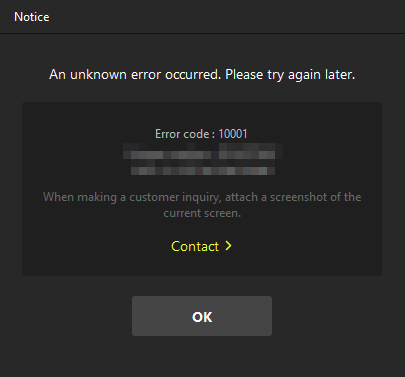
Error Message: An unknown error occurred. Please try again later. (Error Code: 10001)
{% endhint %}
While using PRISM Live Studio, you may encounter this message due to communication issues with streaming platforms (such as YouTube) or account authentication problems. This guide explains the primary causes and provides step-by-step solutions.
***
### Cause
This issue typically occurs due to the following technical or policy-related reasons:
1.Temporary Platform API Rejection:
* When a streaming platform's server (e.g., YouTube) temporarily denies access, often returning a "Forbidden" error.
2.Age Restrictions & Identity Verification:
* According to platform policies, broadcasting may be restricted for accounts under the age of 14 or those that have not completed identity verification.
3.Channel Data Synchronization Errors:
* Specifically occurs when an error arises while refreshing SOOP channel information, often because the data format provided by the platform cannot be processed normally.
4.Authentication Session Errors:
* When login information does not match the platform's server due to temporary network instability or expired sessions.
### Solution
**1.Re-register Broadcast Information & Restart the App**
Most "unknown errors" are caused by temporary network glitches.
* Close the live information window and try **registering the broadcast information again** after a few moments.
* If the problem persists, **completely close and restart the PRISM app** before trying again.
**2.Verify Account Age & Identity Verification**
The PRISM PC app complies with each platform's operating policies. Generally, live streaming is available for users **aged 14 and older.**
* Check the account settings of your platform (YouTube, Twitch, NAVER, etc.) to ensure **identity verification** is complete.
* Verify that your account's **age information** is correctly set to 14 or older.
**3. Specific Solutions for SOOP Channel**
If the error occurs specifically while syncing with the SOOP channel, please follow these steps:
* Log in to the SOOP website directly and verify if the dashboard page opens normally and if there are any issues with your account status.
* In the PRISM settings, **Disconnect** the SOOP channel. **Log in again** to reconnect the channel, then restart the PRISM app and try again.
**4.Re-login to the Live Platform Account**
Refreshing your account's authentication session can resolve connection conflicts.
* Go to the channel management menu in the PRISM app and **log out** of your current account.
* **Log in again** to reconnect the channel and attempt to start your live stream.
### Additional Information
If the issue continues even after following all the steps above, a detailed log analysis may be required.
* **Contact Us:** Please reach out to us via the **PRISM info(i) > Contact us** menu at the bottom right of the app.
* **Note:** When submitting an inquiry, providing the **name of the platform** you are using and the **exact time the error occurred** will help us assist you much faster.
[Desktop](/desktop/overview.md), [Guides](/desktop/guides.md), [Error Solution](/desktop/guides/error-solution.md), [Others](/desktop/guides/error-solution/others.md)
---
# Agent Instructions
This documentation is published with GitBook. GitBook is the documentation platform designed so that both humans and AI agents can read, navigate, and reason over technical content effectively. Learn more at gitbook.com.
## Querying This Documentation
If you need additional information that is not directly available in this page, you can query the documentation by asking a question.
Perform an HTTP GET request on the following URL with the `ask` and `goal` query parameters:
```
GET https://guide.prismlive.com/desktop/guides/error-solution/others/handling-an-unknown-error-occurred-issue.md?ask=&goal=
```
`ask` is the immediate question: it should be specific, self-contained, and written in natural language.
`goal` is what the user is ultimately trying to achieve, the reason they need the answer. Sharing it helps GitBook give you a better, more relevant answer. A goal is most helpful when it describes the outcome the user wants rather than restating the question. For example, with `ask=how do I create an API token`, a goal like `automate deployments from our CI pipeline` lets GitBook tailor the answer to that use case.
The response will contain a direct answer to the question and relevant excerpts and sources from the documentation.
Use this mechanism when the answer is not explicitly present in the current page, you need clarification or additional context, or you want to retrieve related documentation sections.