> For the complete documentation index, see [llms.txt](https://guide.prismlive.com/llms.txt). Markdown versions of documentation pages are available by appending `.md` to page URLs; this page is available as [Markdown](https://guide.prismlive.com/desktop/guides/error-solution/streaming/how-to-fix-band-channel-broadcasting-permission-errors.md).
# How to Fix BAND Channel Broadcasting Permission Errors
Windows, Mac
{% hint style="danger" %}
Error Message: You can no longer broadcast to this channel as you do not have permission. Please check the BAND.
(Error code: 33003)
{% endhint %}
If you encounter a permission-related error when starting a broadcast to your BAND channel, you need to check the Live Streaming permission settings of that BAND. This guide explains the cause of the error and how to reconfigure permissions on the BAND website.
***
### Cause
This error occurs when the currently signed-in account does not have Live Streaming permission on the connected BAND channel. By default, Live Streaming permission is granted only to the BAND Admin, and the Admin can change the permission scope at any time.
Common causes include:
* The current account is not an Admin of the BAND, and Live Streaming permission is restricted to Admin only.
* The BAND Admin changed the Live Streaming permission scope.
* The user has left the BAND or their membership status has changed.
### Solutions
#### 1. Reconfigure Live Streaming Permission on the BAND Website
Only a BAND Admin can change the Live Streaming permission settings. If you are not an Admin of the BAND, please ask the Admin to expand the permission scope following the steps below.
{% stepper %}
{% step %}
Go to the **BAND website** ([https://band.us](https://band.us/)) and sign in with the Admin account of the BAND you want to broadcast to.
{% endstep %}
{% step %}
Navigate to the target BAND, then click **\[Band Settings]** in the left menu.
{% endstep %}
{% step %}
On the Band Settings page, locate the \[Member Privileges and Subgroups] section and click the **\[Change]** button next to \[Privileges].
{% endstep %}
{% step %}
On the Privileges page, scroll to the \[Content Creation] section and click the **\[Change]** button next to **\[Live Streaming]**.
{% endstep %}
{% step %}
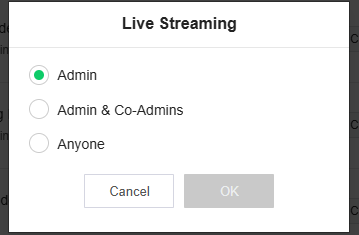
In the permission scope popup, select the desired option (**Admin / Admin & Co-Admins / Anyone**), then click \[OK]. Selecting Anyone is recommended to ensure all broadcasting accounts have the required permission.
{% endstep %}
{% step %}
Once saved, return to PRISM Live Studio and try broadcasting again.
{% endstep %}
{% endstepper %}
#### 2. Reconnect the BAND Channel in PRISM Live Studio
If the error persists after updating the BAND permission settings, reconnect the BAND channel in PRISM Live Studio.
1. Remove the connected BAND channel in PRISM Live Studio.
2. Add BAND again from the channel list and sign in.
3. Save the settings and click \[Go Live] to retry broadcasting.
#### 3. Check Your Membership Status
If the issue is not resolved with the steps above, please confirm that you are still a registered member of the BAND. Live Streaming is not available if you have left the BAND or have been removed by the Admin.
[Desktop](/desktop/overview.md), [Guides](/desktop/guides.md), [Error Solution](/desktop/guides/error-solution.md), [Streaming](/desktop/guides/streaming.md)
---
# Agent Instructions
This documentation is published with GitBook. GitBook is the documentation platform designed so that both humans and AI agents can read, navigate, and reason over technical content effectively. Learn more at gitbook.com.
## Querying This Documentation
If you need additional information that is not directly available in this page, you can query the documentation dynamically by asking a question.
Perform an HTTP GET request on the current page URL with the `ask` query parameter, and the optional `goal` query parameter:
```
GET https://guide.prismlive.com/desktop/guides/error-solution/streaming/how-to-fix-band-channel-broadcasting-permission-errors.md?ask=&goal=
```
`ask` is the immediate question: it should be specific, self-contained, and written in natural language.
`goal` is optional and describes the broader end goal you are ultimately trying to accomplish on behalf of the user. GitBook uses it to tailor the answer towards what is most useful for that goal.
The response will contain a direct answer to the question and relevant excerpts and sources from the documentation.
Use this mechanism when the answer is not explicitly present in the current page, you need clarification or additional context, or you want to retrieve related documentation sections.