Using Add Source

Windows, Mac

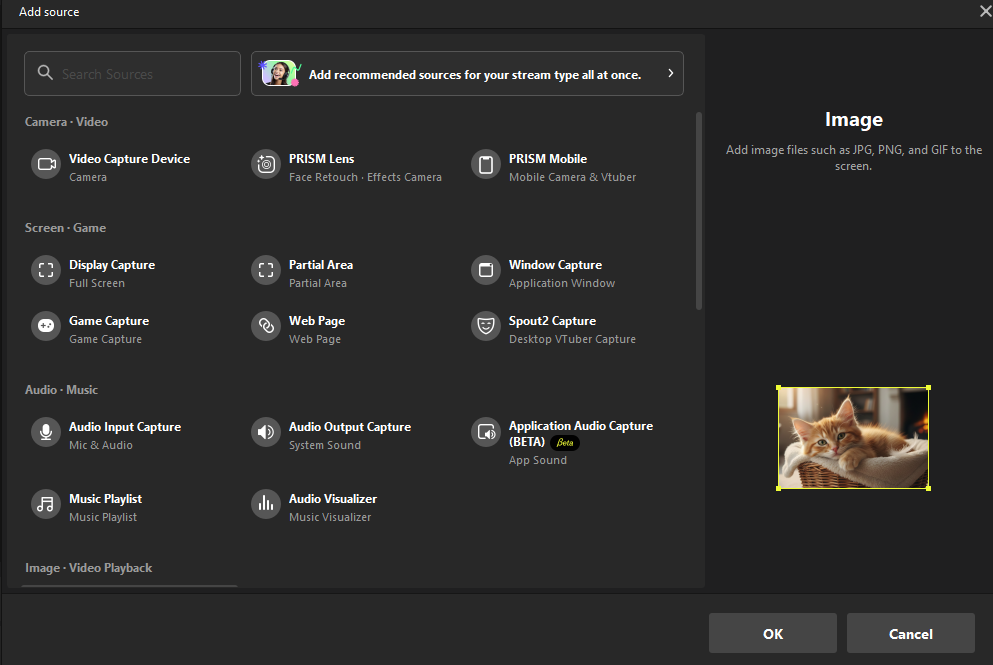
The Add Source feature allows you to add various elements such as cameras, game screens, images, and chat windows to a scene for broadcasting or recording. With this update, the interface has been improved so you can intuitively find sources and set up essential elements for your specific stream type all at once.

Use-Case Centered Source Guide

The source list has been redefined into eight categories based on user purpose and usage type. Each source now includes helpful descriptions and images to help beginners understand their functions immediately.

Category Type
Source Name
Description

Camera · Video

Video Capture Device

Camera

Camera · Video

PRISM Lens

Face Retouch · Effects Camera

Camera · Video

PRISM Mobile

Mobile Camera & Vtuber

Screen · Game

Display Capture

Full Screen

Screen · Game

Partial Area

Partial Area

Screen · Game

Window Capture

Application Window

Screen · Game

Game Capture

Game Capture

Screen · Game

Web Page

Web Page

Screen · Game

Spout2 Capture

Desktop VTuber Capture

Audio · Music

Audio Input Capture

Mic & Audio

Audio · Music

Audio Output Capture

System Sound

Audio · Music

Application Audio Capture (BETA)

App Sound

Audio · Music

Music Playlist

Music Playlist

Audio · Music

Audio Visualizer

Music Visualizer

Image · Video Playback

Image

Single Image

Image · Video Playback

Image Slideshow

Image Slideshow

Image · Video Playback

Media

Video / Audio File

Text · Info · Chat

Text

Text

Text · Info · Chat

Text Template

Styled Text

Text · Info · Chat

Background Template

Background Image

Text · Info · Chat

Color Source

Solid Color Background

Text · Info · Chat

PRISM Chat

Chat Overlay

Text · Info · Chat

Viewer Count Widget

Viewer Count

Text · Info · Chat

Clock Widget

Clock / Timer

Stickers · Graphics

PRISM Sticker

PRISM Stickers

Stickers · Graphics

GIPHY Sticker

Free Stickers

Scene · Layout

Group

Source Group

Scene · Layout

Scene

Scene Source

Advanced · Plugin Sources

Blackmagic Device

-

Advanced · Plugin Sources

VLC Source

-

Advanced · Plugin Sources

Image Reaction

-

Advanced · Plugin Sources

NDIPlugin.NDISourceName

-


You can quickly set up your stream by following these steps to access optimized source configurations

1

Click the Plus (+) button in the Sources area at the bottom of the PRISM Live Studio main screen to open the Add Source window.

2

Click the banner "Add recommended sources for your stream type all at once" located at the top of the Add Source window.

3

Select your broadcast type from Chat, Game, Mobile Game, VTuber, Live Shopping, or Presentation.

  • A layout preview image and a list of recommended sources for the selected stream type will be displayed.

Cover

Chat

Cover

Game

Cover

Mobile Game

Cover

VTuber

Cover

Live Shopping

Cover

Prsentation

4

Use the checkboxes to select only the sources you want and click the [Add Source] button.

5

If a recommended source set includes elements already present in your scene, an alert will appear to prevent redundant additions.

  • The "Add Without Duplicates" option is checked by default, it skips existing sources and adds only the new ones to your scene.

  • Continue adding: If you wish to use a specific source multiple times, you can uncheck "Add Without Duplicates" option to add the same source as a new instance.

Desktop, Guides, Features, Sources, Add Source,

Last updated

Was this helpful?