

How to live stream on YouTube
Android, iOS
Set up PRISM Live Studio on your phone to stream on YouTube
Stream to YouTube from your phone with PRISM Live Studio
You can take advantage of a wide range of features, including overlays, beauty effects, multistreaming, screen sharing, and avatar live.
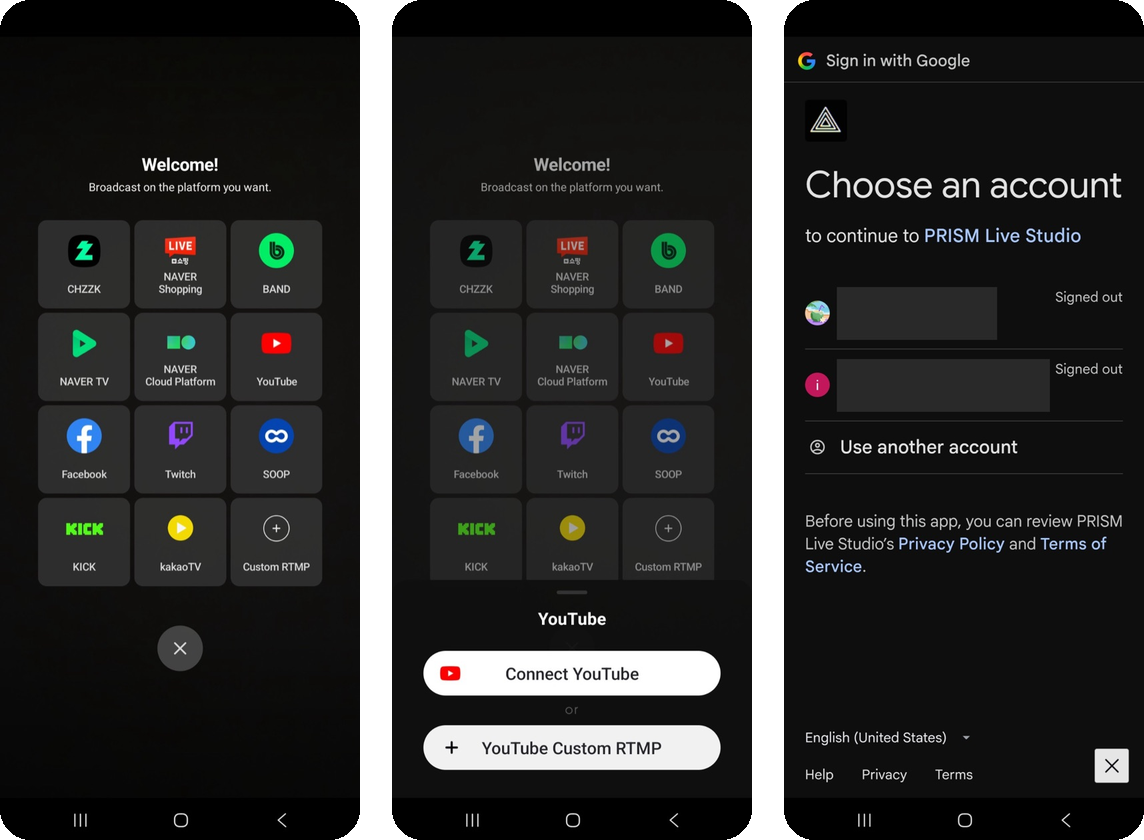
Coming from YouTube Live Control Room? Just install the app on your phone and connect your YouTube channel.
Go Live in 4 Steps
The steps are the same on Android and iOS.
Install the app
Get PRISM Live Studio from Google Play or the App Store and open it. Allow camera and microphone access when asked.
If you declined by mistake, turn them back on under your phone's Settings > Apps > PRISM Live Studio.
Choose your camera, orientation and quality
Pick LIVE at the bottom and tap Ready. Choose the front or rear camera, and hold your phone upright or sideways to set the orientation.
To change the quality, tap the quality button (such as 720p) on the channel card and choose from Stream Quality. We recommend starting at 720p.

For landscape, turn off rotation lock and hold your phone sideways before you start. You can't change the orientation once you're live.
Add a title and go live
Tap the channel card to open the stream info. Enter a title, choose Visibility (Public, Unlisted or Private) and tap Save, then tap the yellow Go Live button. While streaming, you can view YouTube chat and tap the pencil icon at the bottom of the screen to edit details such as the title and visibility.

If Your Stream Won't Start
If tapping Go Live doesn't start your stream, check that your YouTube channel meets these requirements. First-time streamers run into this most often.
You're 16 or older, and your channel has had no live streaming restrictions in the last 90 days
Your channel is verified with a phone number. Verify your channel
It can take up to 24 hours after verification before you can go live
Common Issues
Still stuck? See the YouTube streaming troubleshooting guide, or go to your profile at the top right of the app > Settings > Contact Us.
PRISM Live Studio로 간단하게 YouTube 라이브 방송을 시작해 보세요
다양한 오버레이, 뷰티 이펙트, 다중 송출, 스크린 공유, 아바타 라이브 등 다양한 기능을 활용할 수 있습니다.
YouTube 라이브 대시보드에서 오셨다면, 휴대폰에 앱을 설치하고 YouTube 채널을 연결하면 됩니다.
첫 방송까지 4단계
Android와 iOS 모두 같은 순서로 진행됩니다.
앱 설치
Google Play 또는 App Store에서 PRISM Live Studio를 설치하고 실행하세요. 카메라, 마이크 권한 요청이 나오면 허용하세요.
실수로 거부했다면 휴대폰 설정 > 앱 > PRISM Live Studio에서 다시 켤 수 있습니다.
라이브 방송이 시작되지 않는다면
Go Live를 눌러도 방송이 시작되지 않는다면 YouTube 채널이 아래 조건을 갖췄는지 확인하세요. YouTube 라이브 방송이 처음이라면 특히 확인이 필요합니다.
만 16세 이상이고, 최근 90일간 라이브 스트리밍 제한을 받은 적이 없어야 합니다
휴대전화 번호로 채널 인증을 마쳐야 합니다. 채널 인증하기
인증 후 최대 24시간이 지나면 방송할 수 있습니다
자주 묻는 문제
해결되지 않으면 YouTube 방송 문제 해결 가이드를 보거나, 앱 오른쪽 위 프로필 > 설정 > 문의하기로 문의해 주세요.
Last updated
Was this helpful?