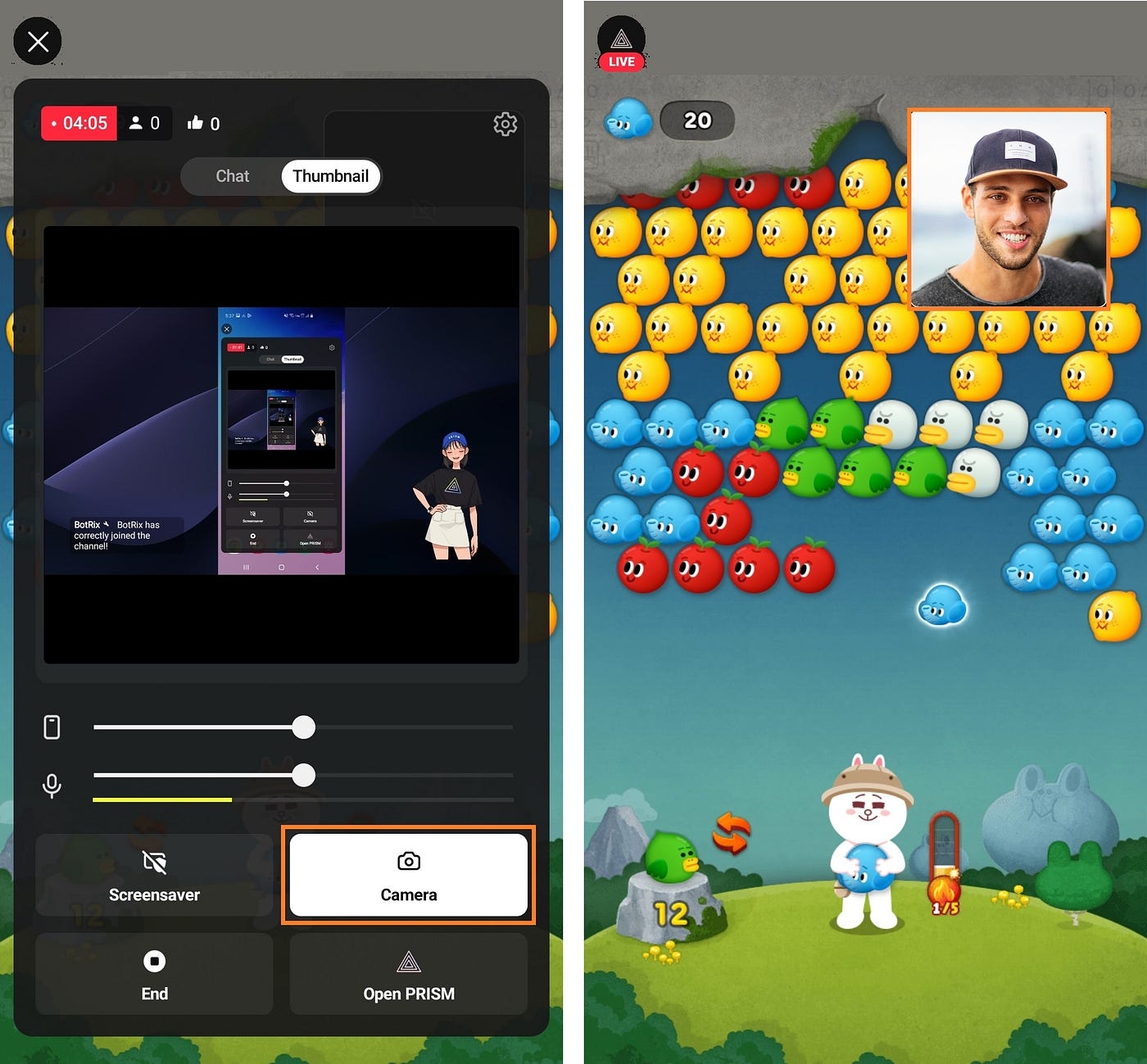
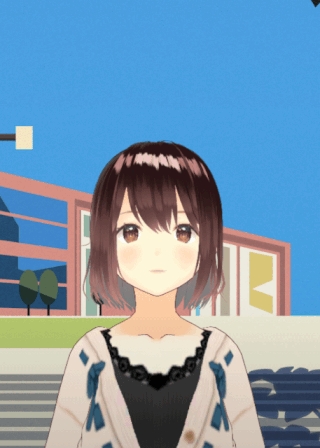
Loading...
Loading...
Loading...
Loading...
Loading...
Loading...
Loading...
Loading...
Loading...
Loading...
Loading...
Loading...
Loading...
Loading...
Loading...
Loading...
Loading...
Loading...
Loading...
Loading...
Loading...
Loading...
Loading...
Loading...
Loading...
Loading...
Loading...
Loading...
Loading...
Loading...
Loading...
Loading...
Loading...
Loading...
Loading...
Loading...
Loading...
Loading...
Loading...
Loading...
Loading...
Loading...
Loading...
Loading...
Loading...
Loading...
Loading...
Loading...
Loading...
Loading...
Loading...
Loading...
Loading...
Loading...
Loading...
Loading...
Loading...
Loading...
Loading...
Loading...
Loading...
Loading...
Loading...
Loading...
Loading...
Loading...
Loading...
Loading...
Loading...
Loading...
Loading...
Loading...
Loading...
Loading...
Loading...
Loading...
Loading...
Loading...
Loading...
Loading...
Loading...
Loading...
Loading...
Loading...
Loading...
Loading...
Loading...
Loading...
Loading...
Loading...
Loading...
Loading...
Loading...
Loading...
Loading...
Loading...
Loading...
Loading...
Loading...
Stream to live platforms simultaneously.
Connect with YouTube, Twitch, Facebook, SOOP, and NAVER Shopping Live to stream multiple channels. Increase you viewers with just one stream.
Share your screen in real-time
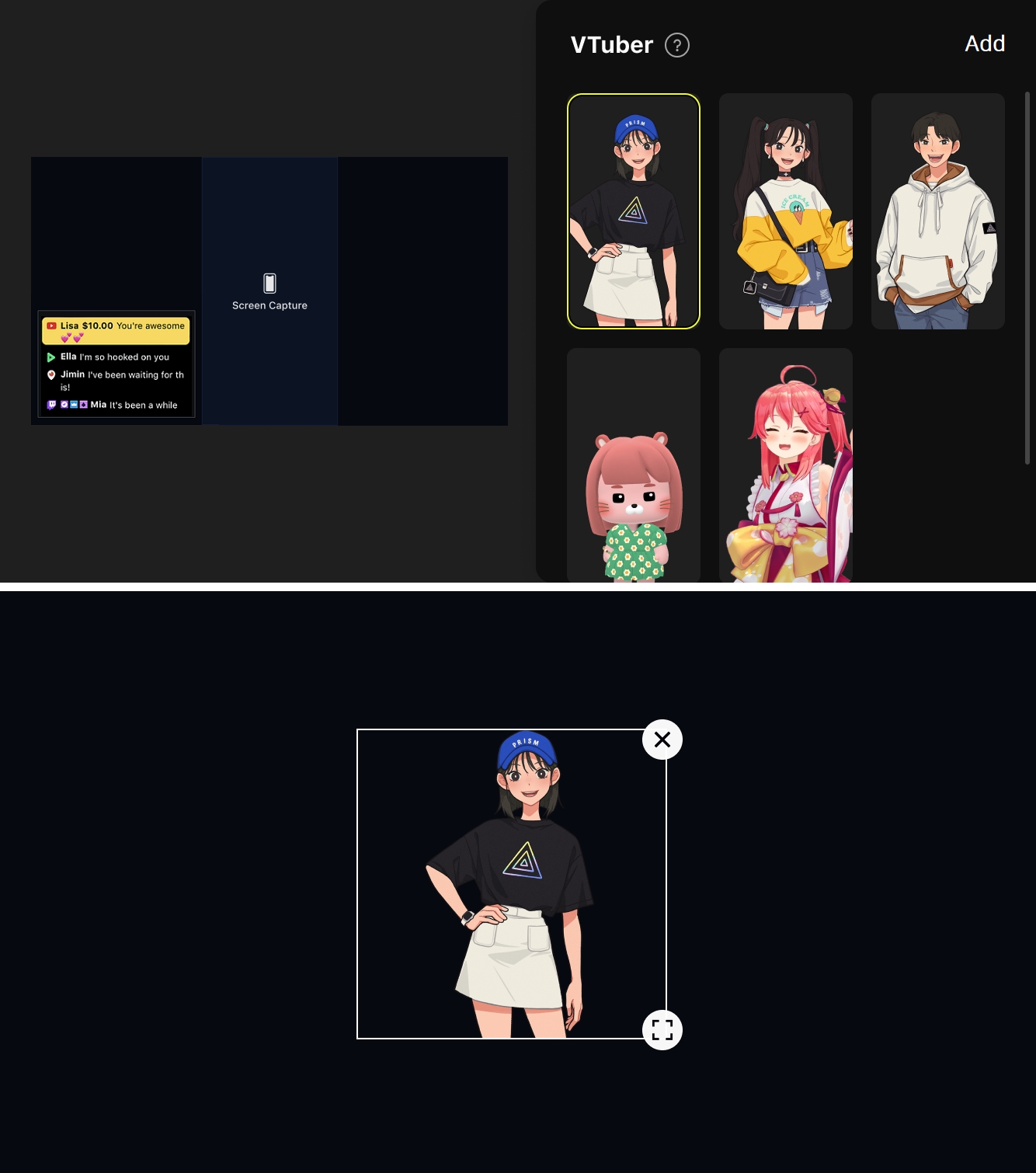
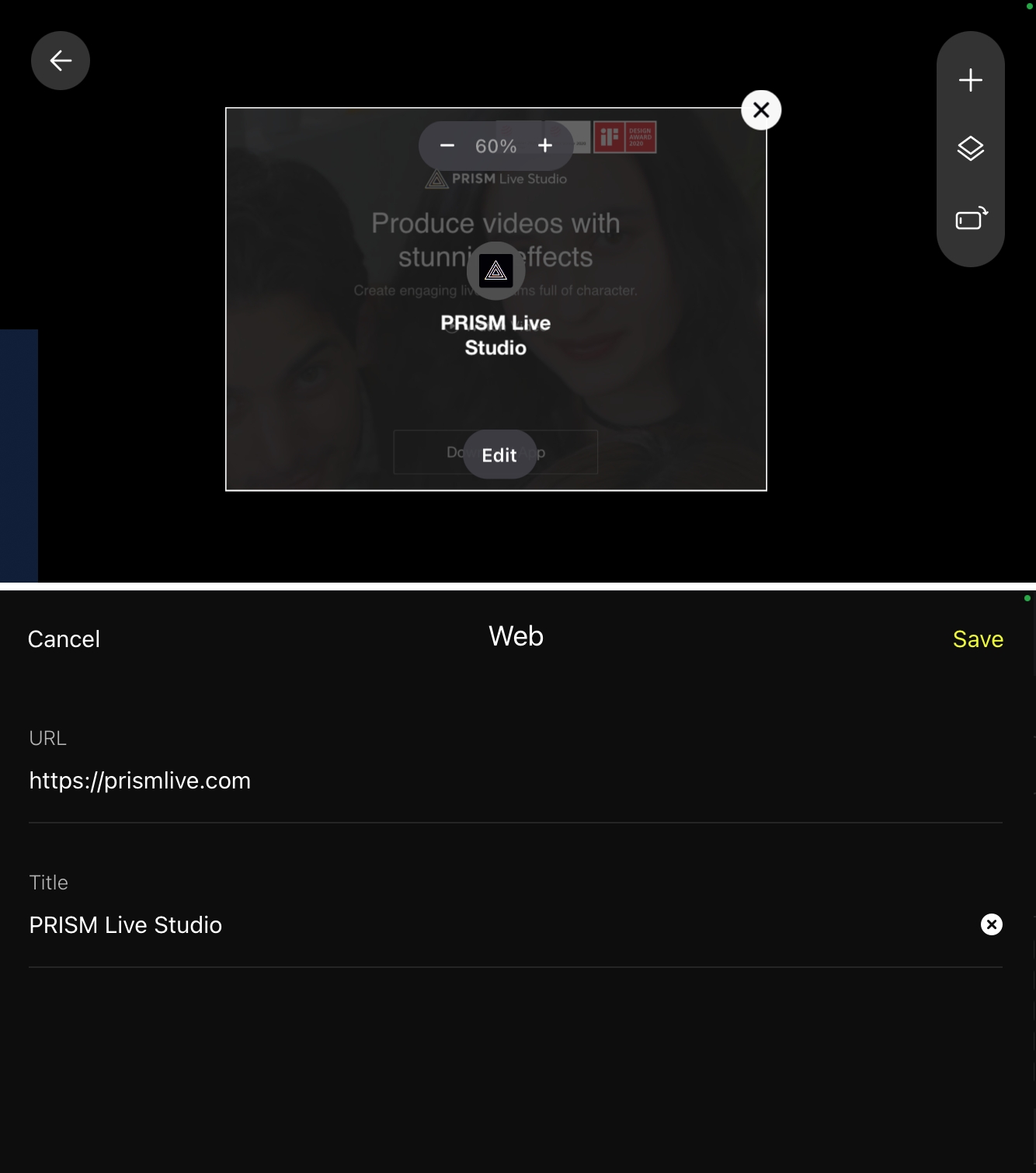
Stream on Twitch and YouTube without a PC or video game screen capturing. Enhance your gameplay screen with VTuber, images, and web sources.
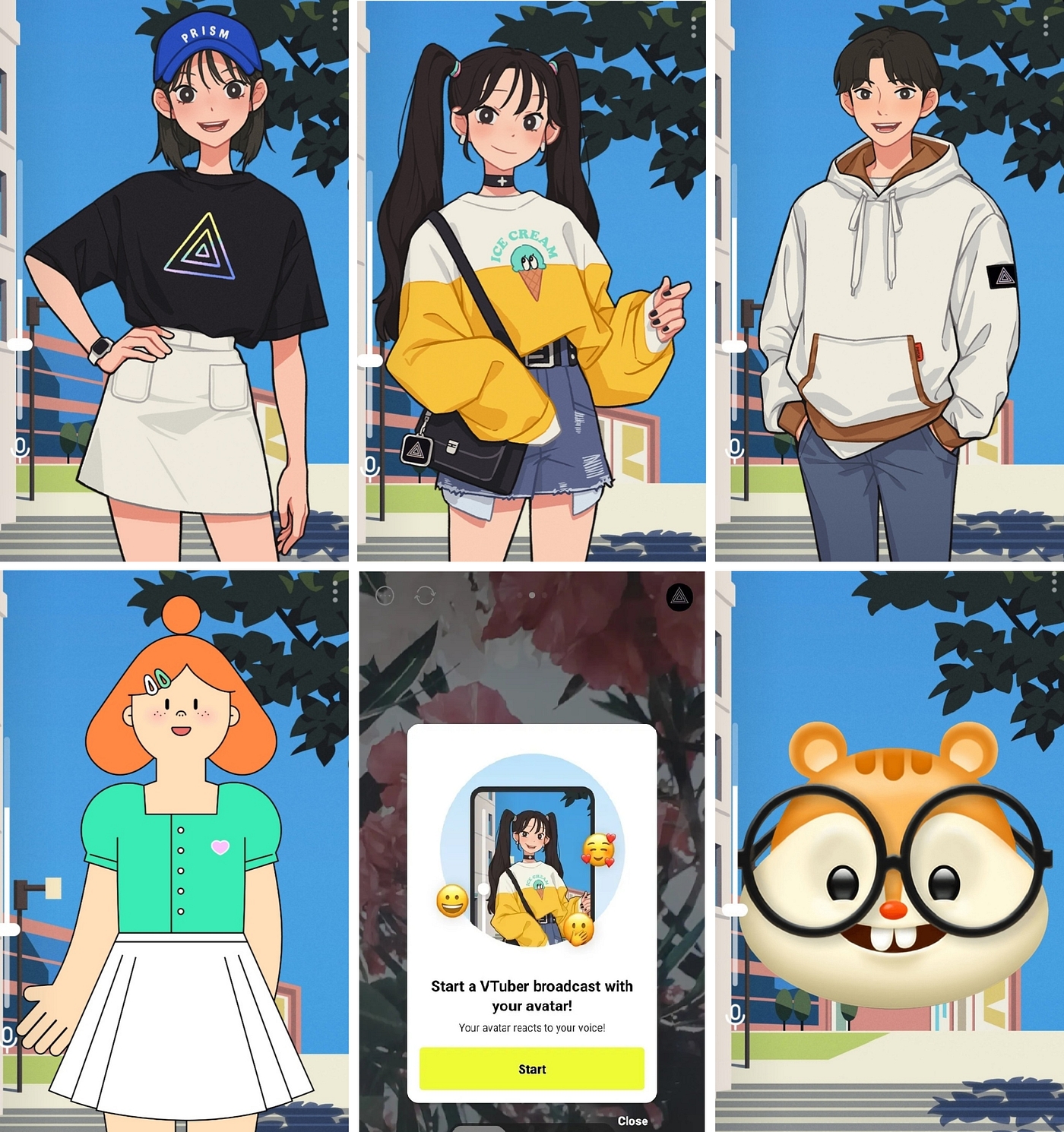
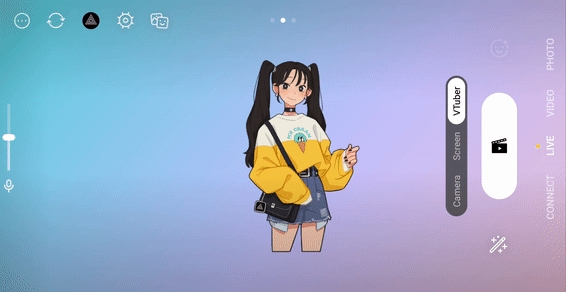
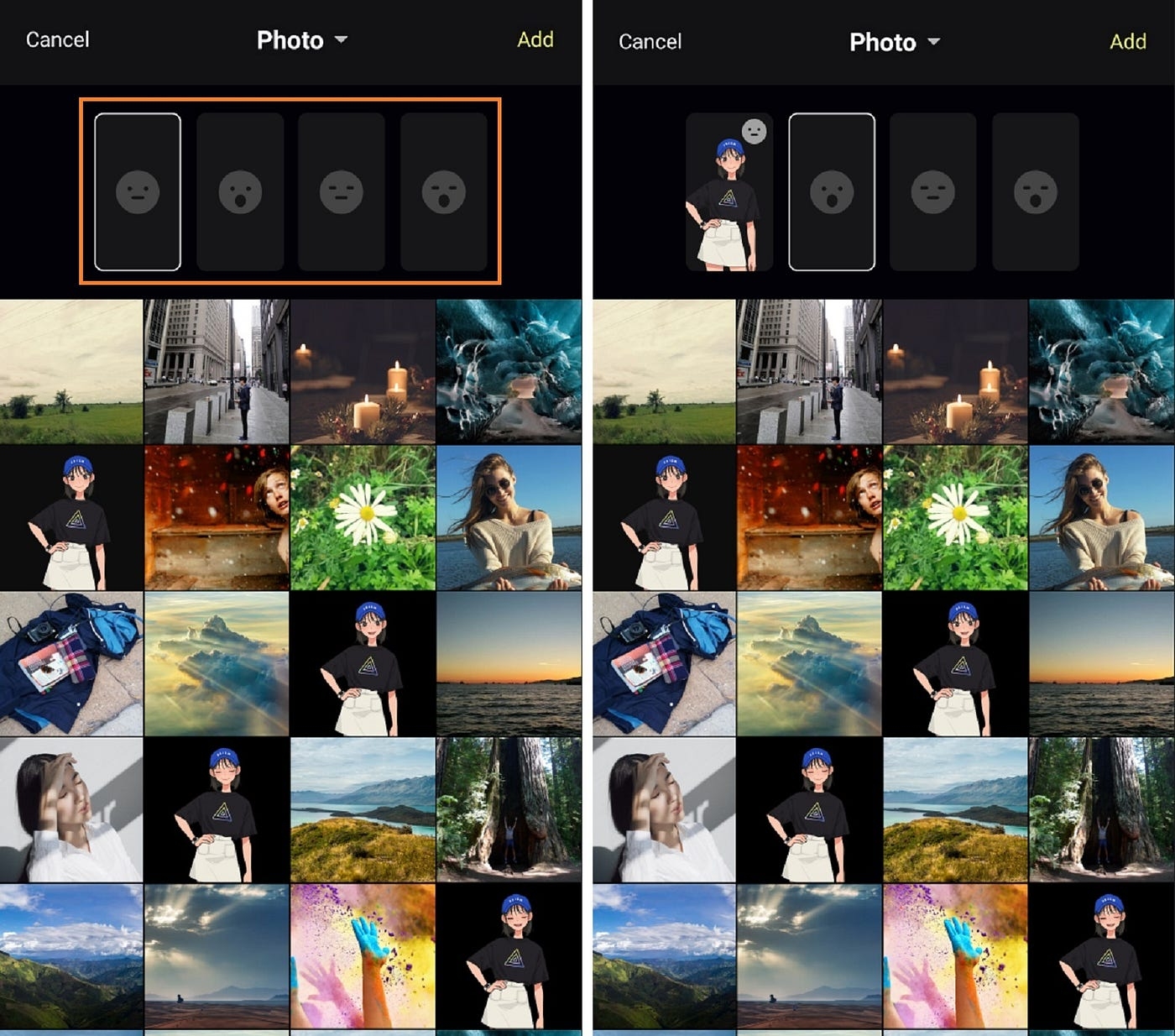
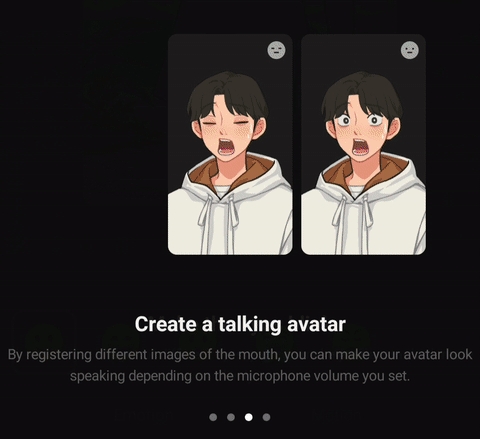
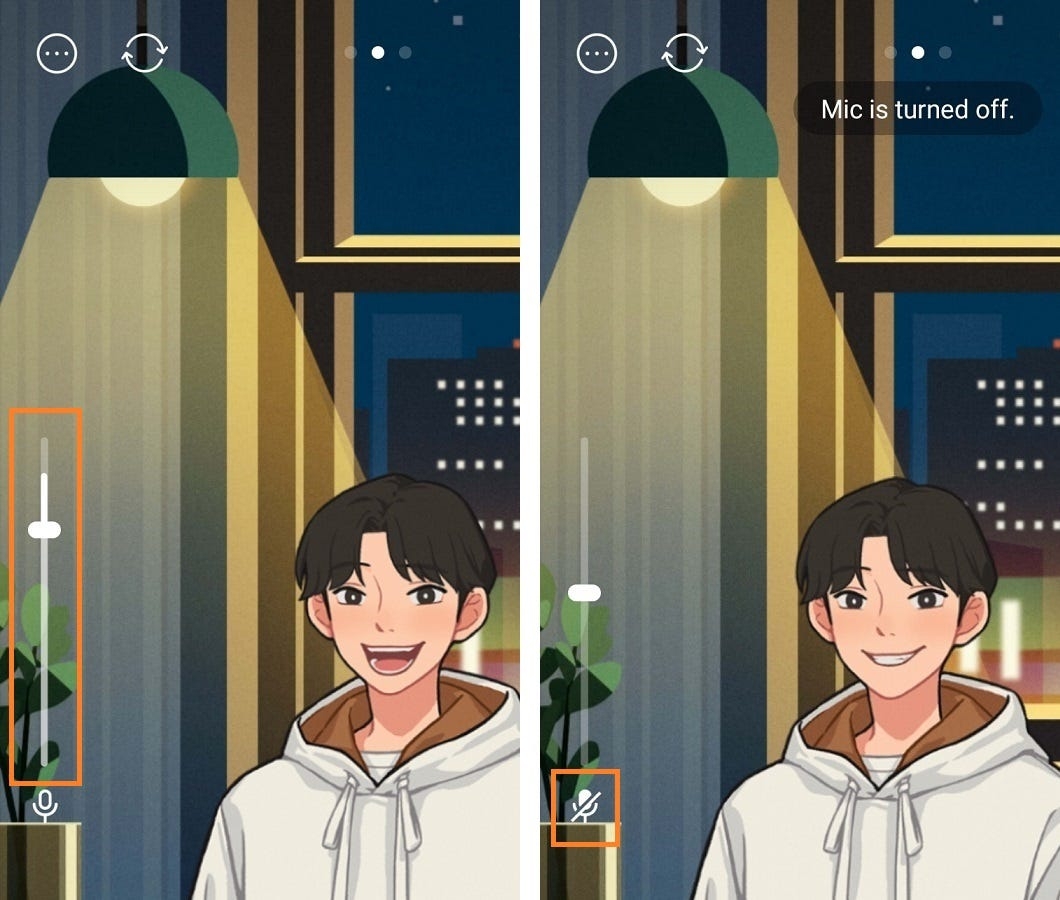
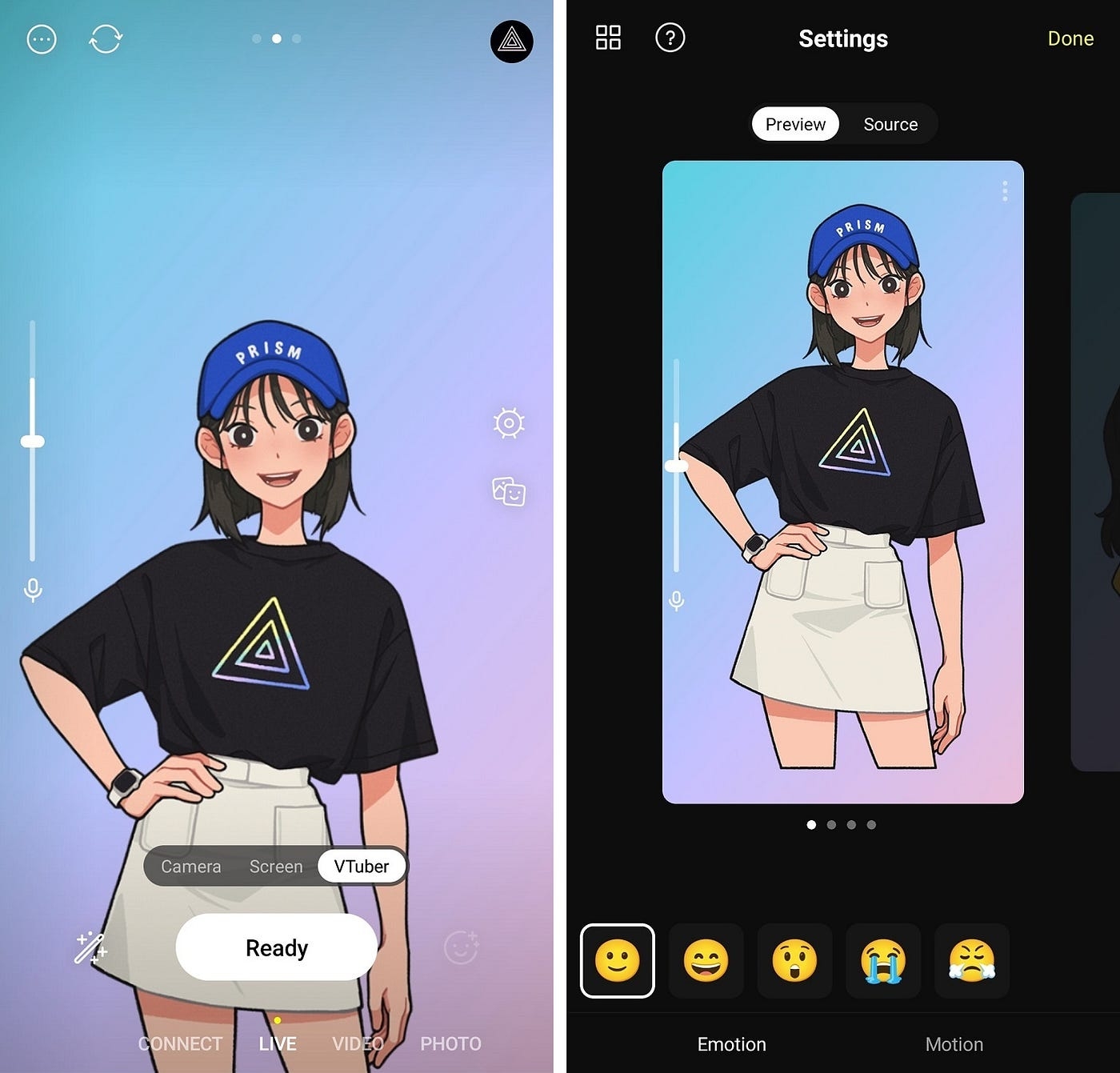
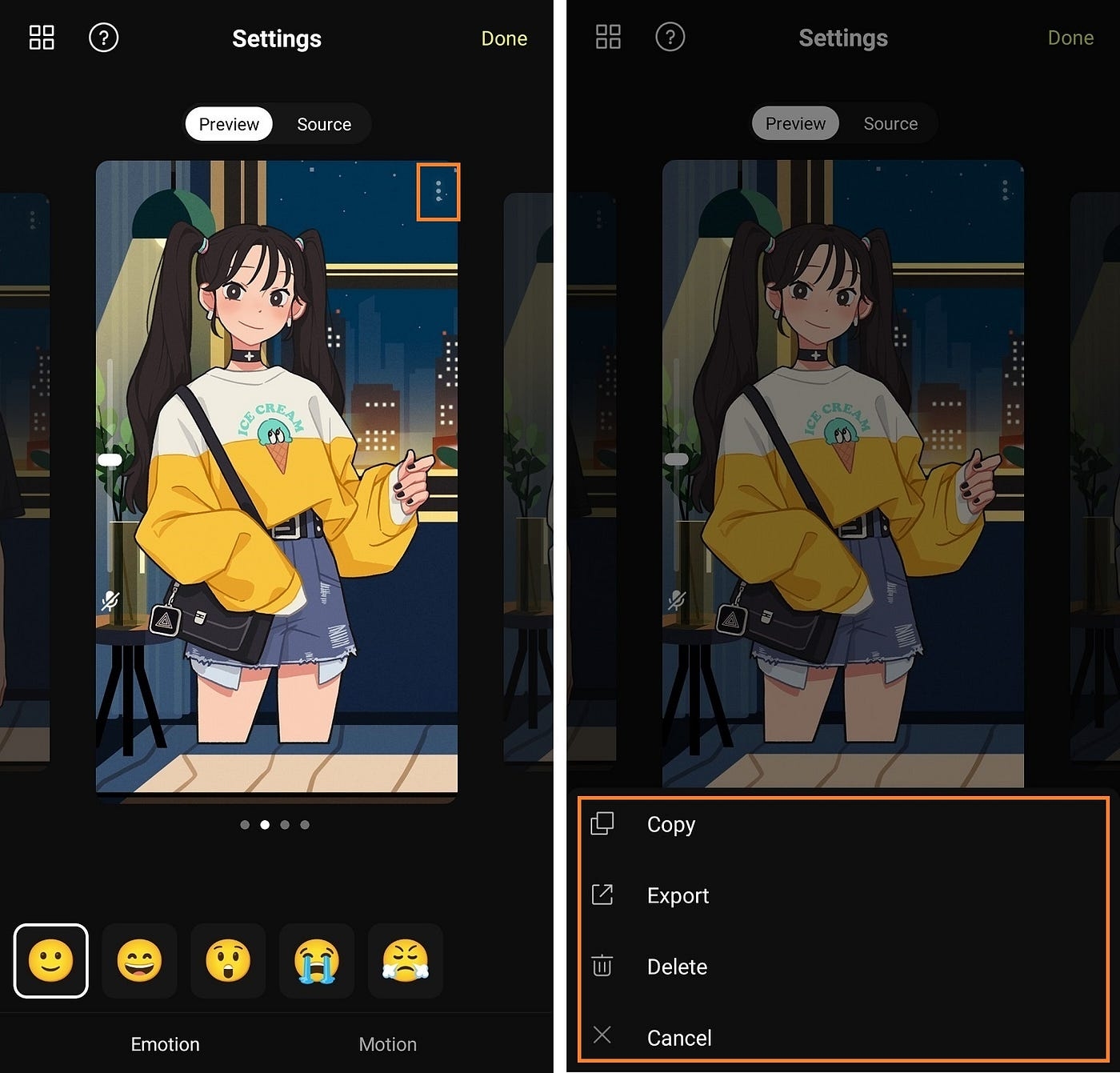
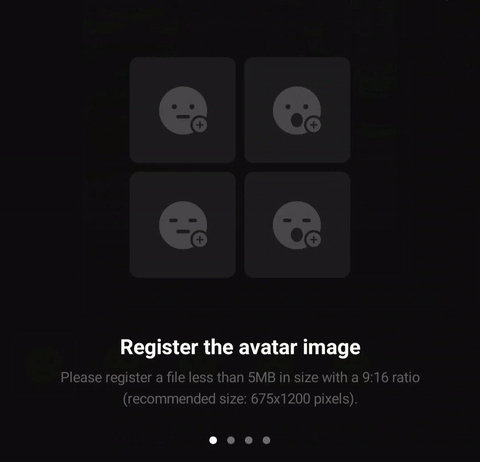
Live stream with a voice-responsive character without showing your face. All you need is a few images you’ve created. *pngtuber format supported
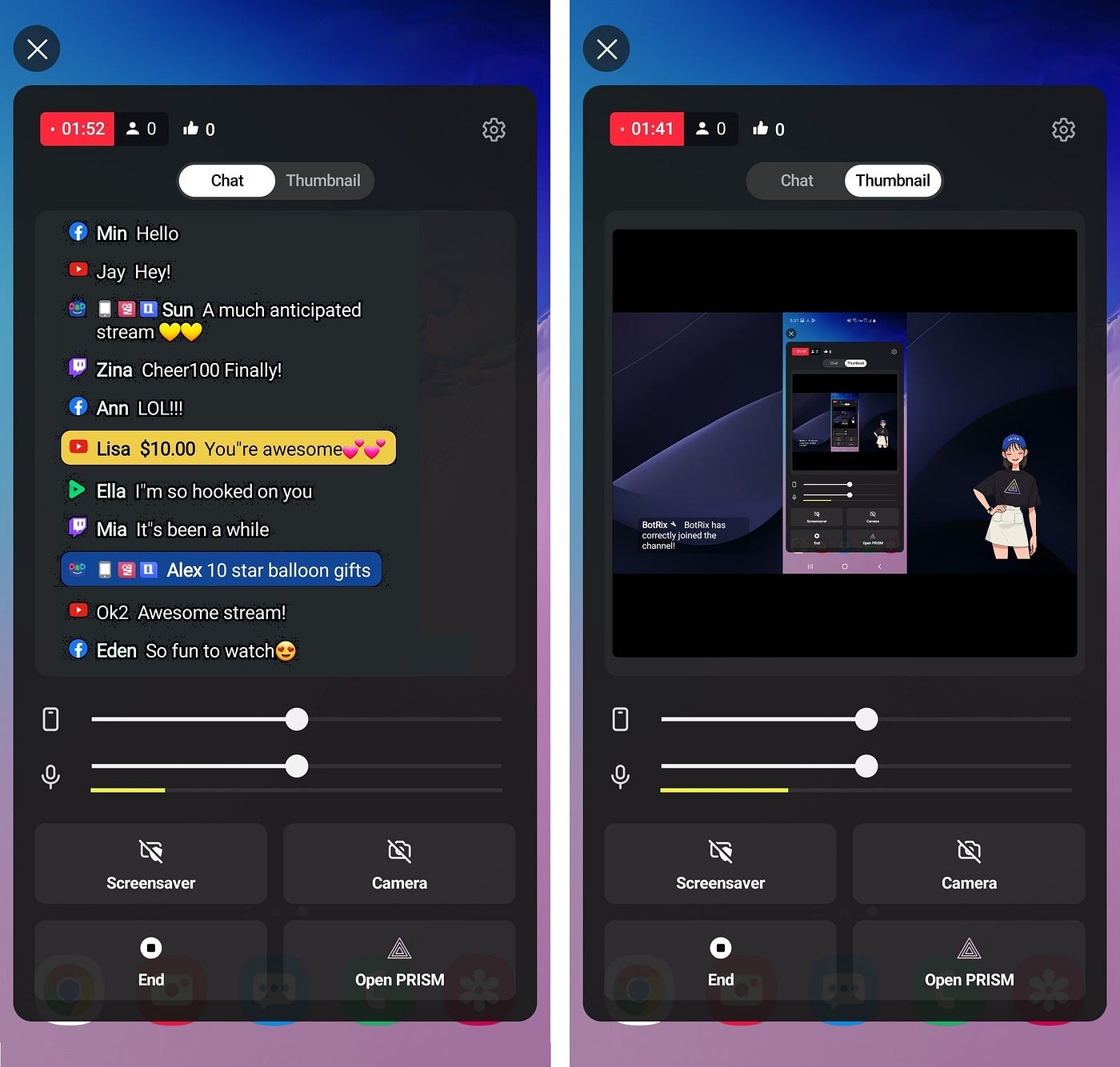
Real-time live chat with viewers.
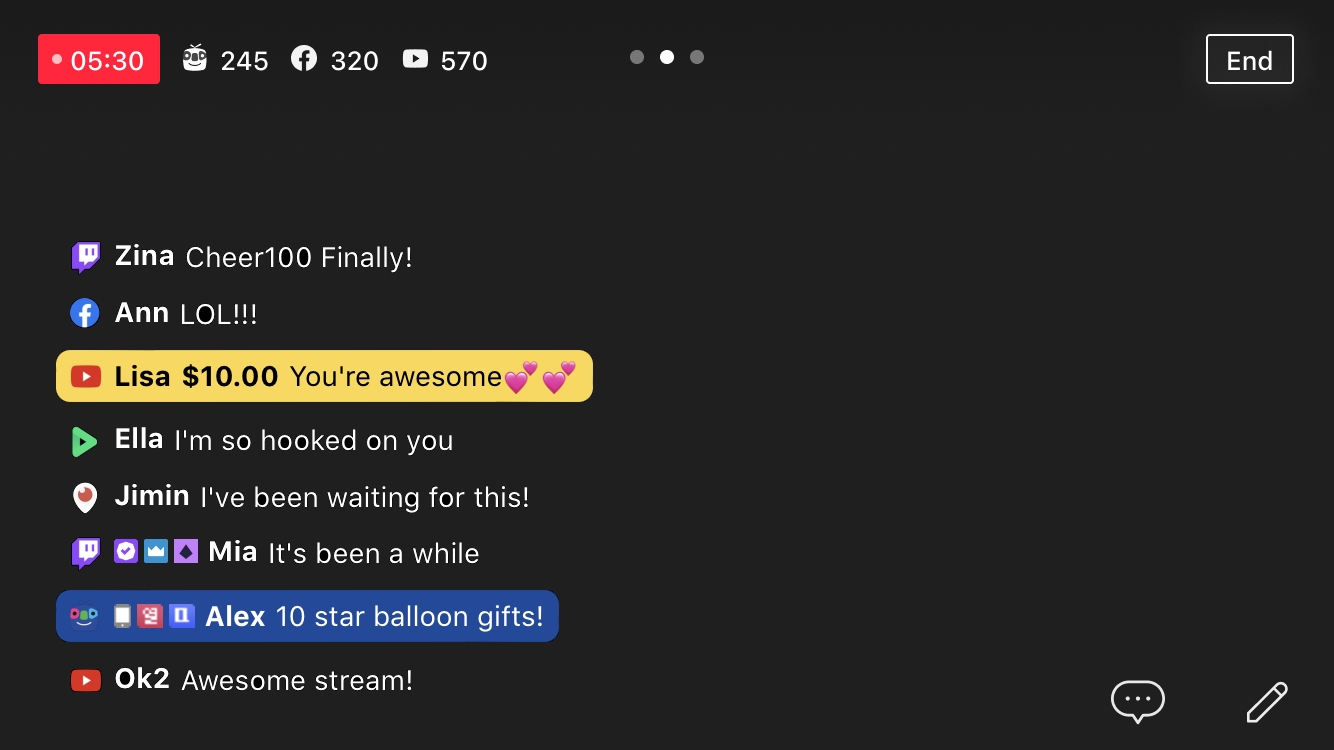
Engage with viewers using the PRISM Chat widget on your streaming screen. Enjoy chat and Superchat features without needing access to platforms.
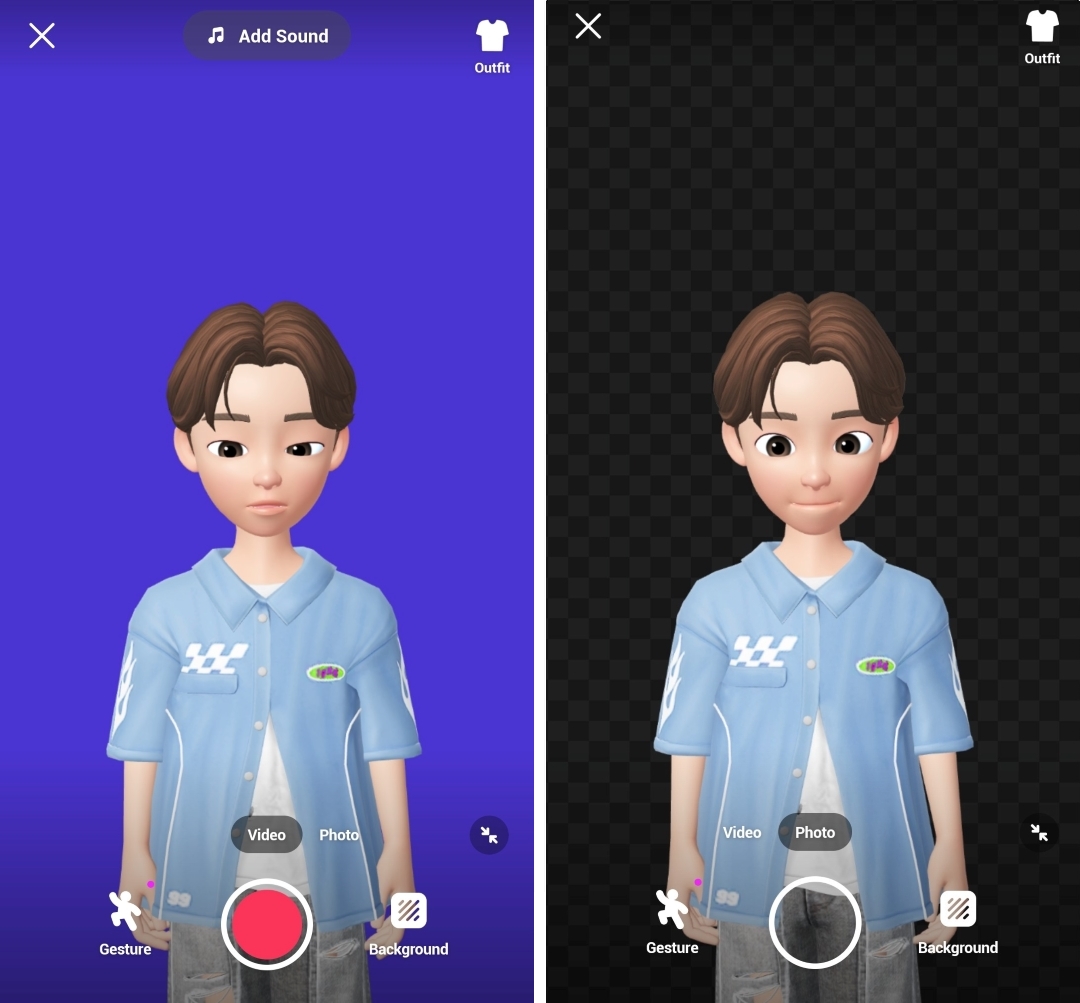
Go live, record videos, or take photos as you desire.
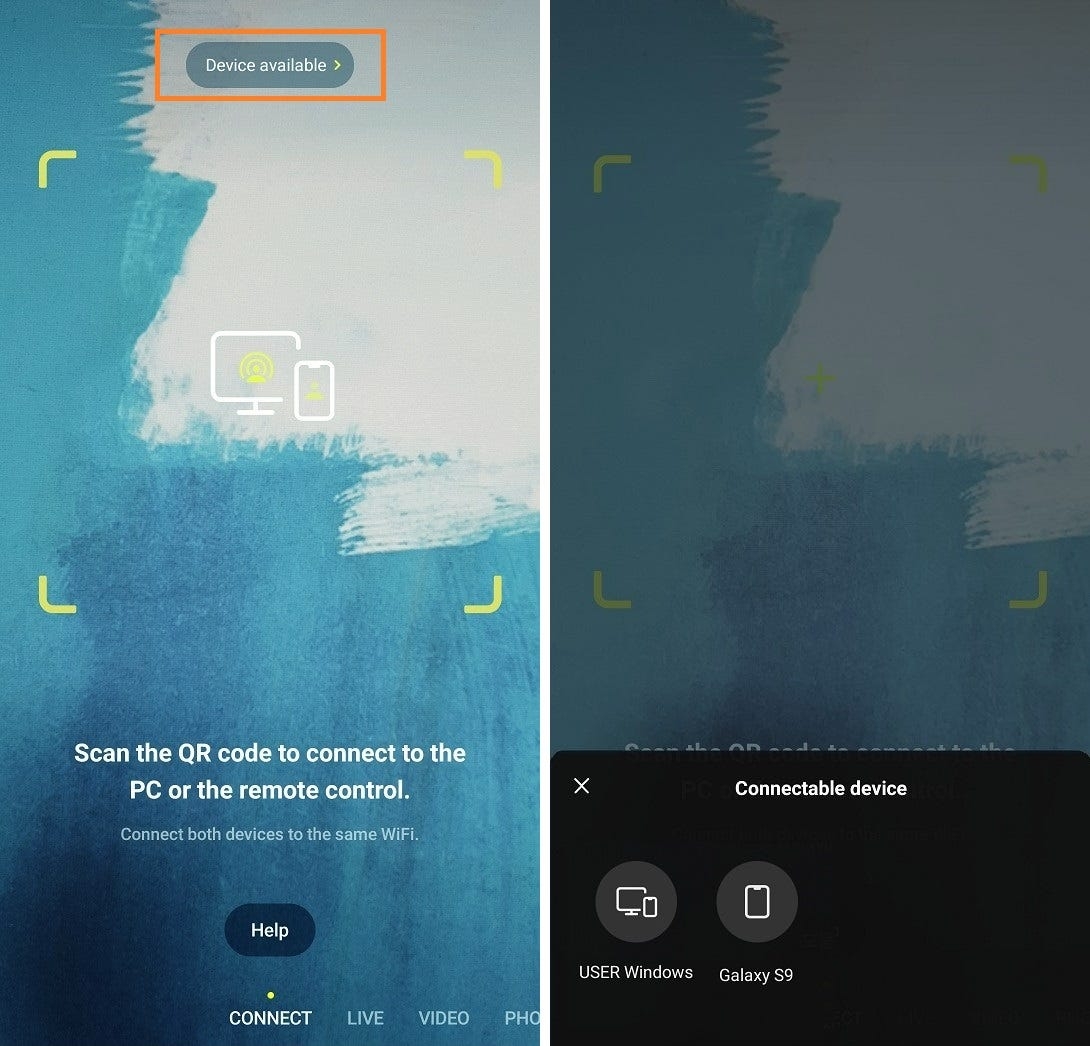
Choose between Connect or Live, Video or Photo mode, before starting. Create a spontaneous live stream, (or) a recorded video with a special atmosphere, with a webcam source, or a remote control for your PC app.
Enhance emotional expression with interactive effects.
Employ a range of effects to engage with viewers and craft narratives. Fun GIPHY GIF stickers are readily available for immediate use during your streaming.
Utilize versatile motion text templates in various ways.
Effortlessly incorporate text to elevate your streams. Utilize Motion Text Templates to brand your live channel or convey diverse information to your viewers.
Easily add handy overlays.
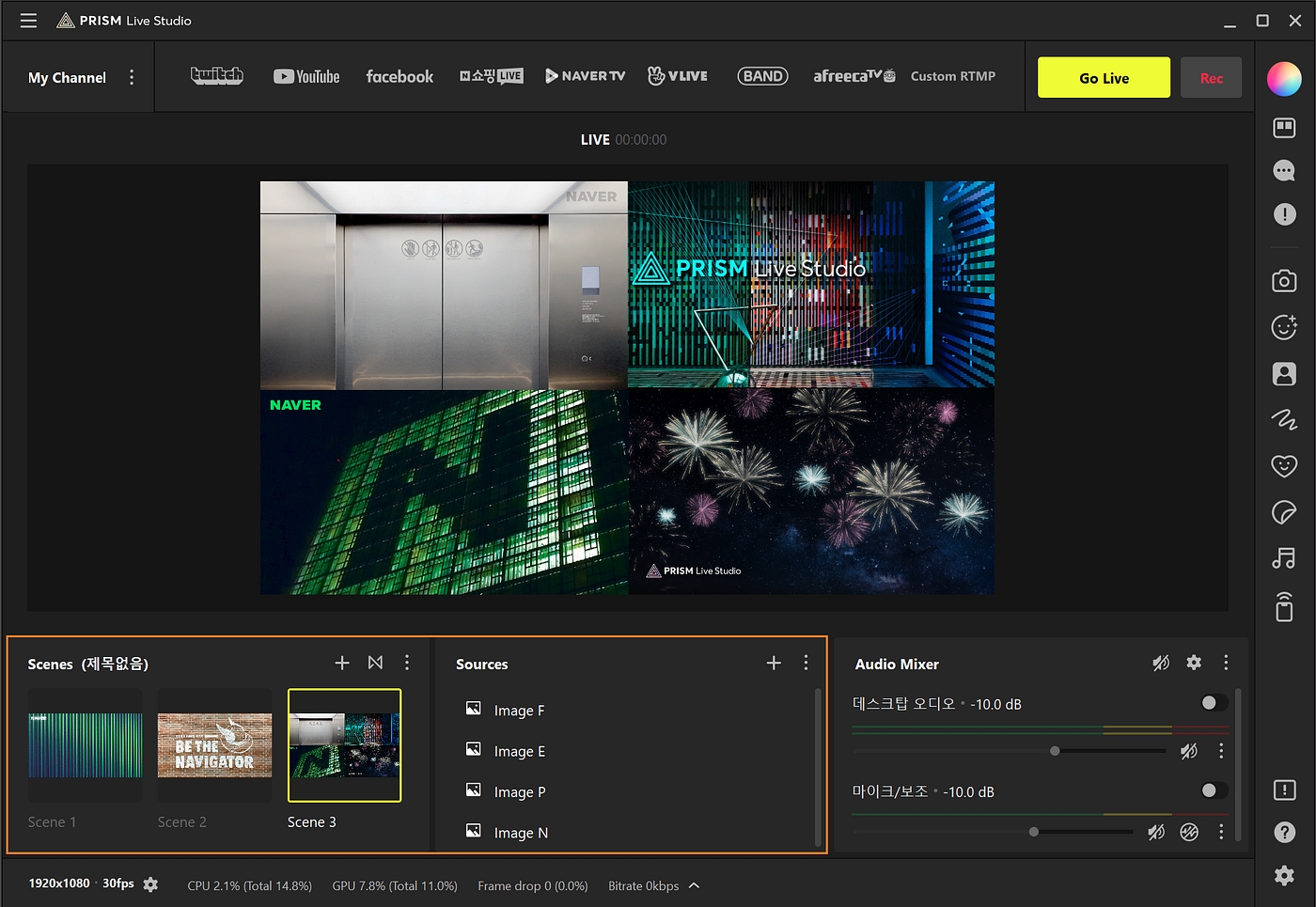
Enhance your streaming screen in My Studio with free music, chat windows, widgets, dynamic text, videos, and photos, delighting your viewers. You can even create intros with various media.
A remote control sometimes, a webcam other times. Endless utility.
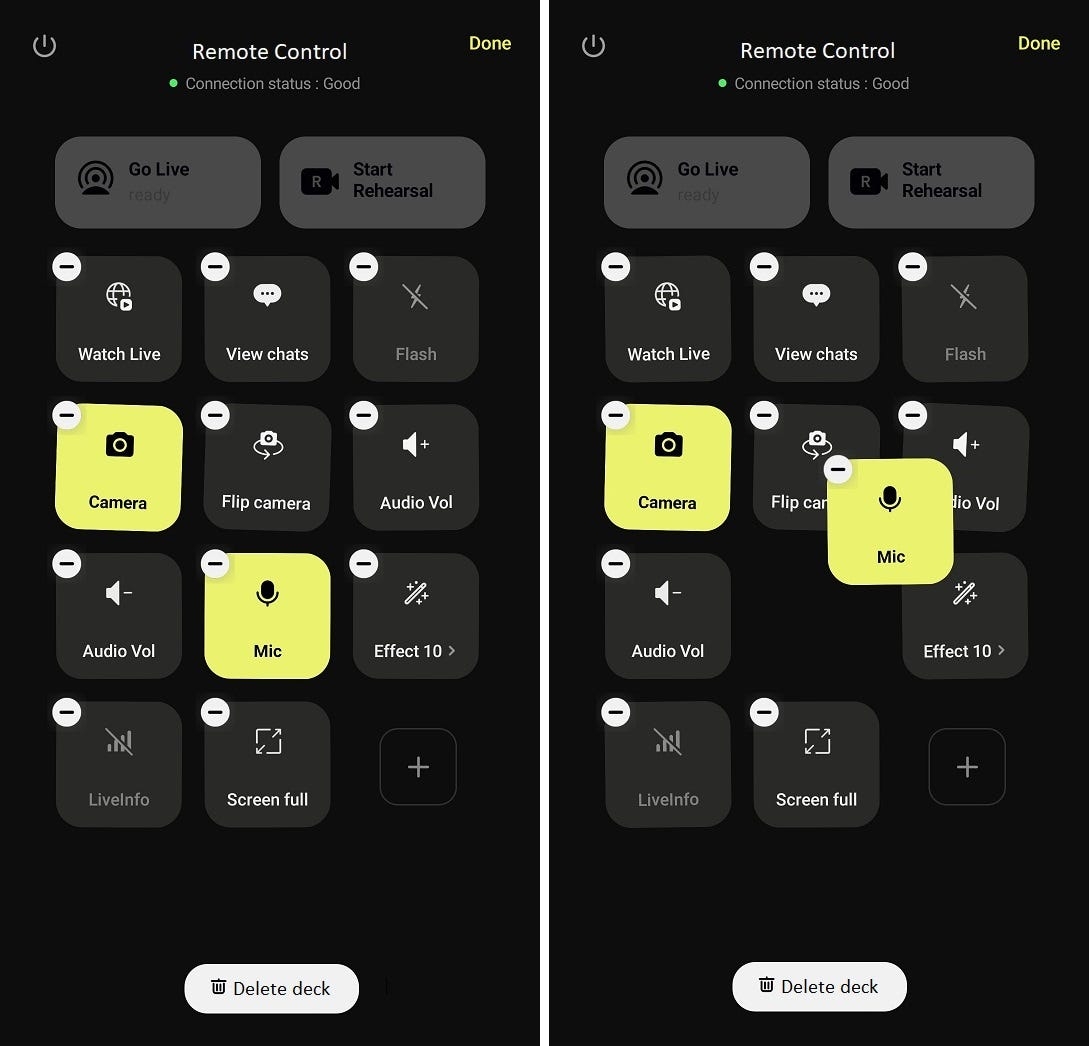
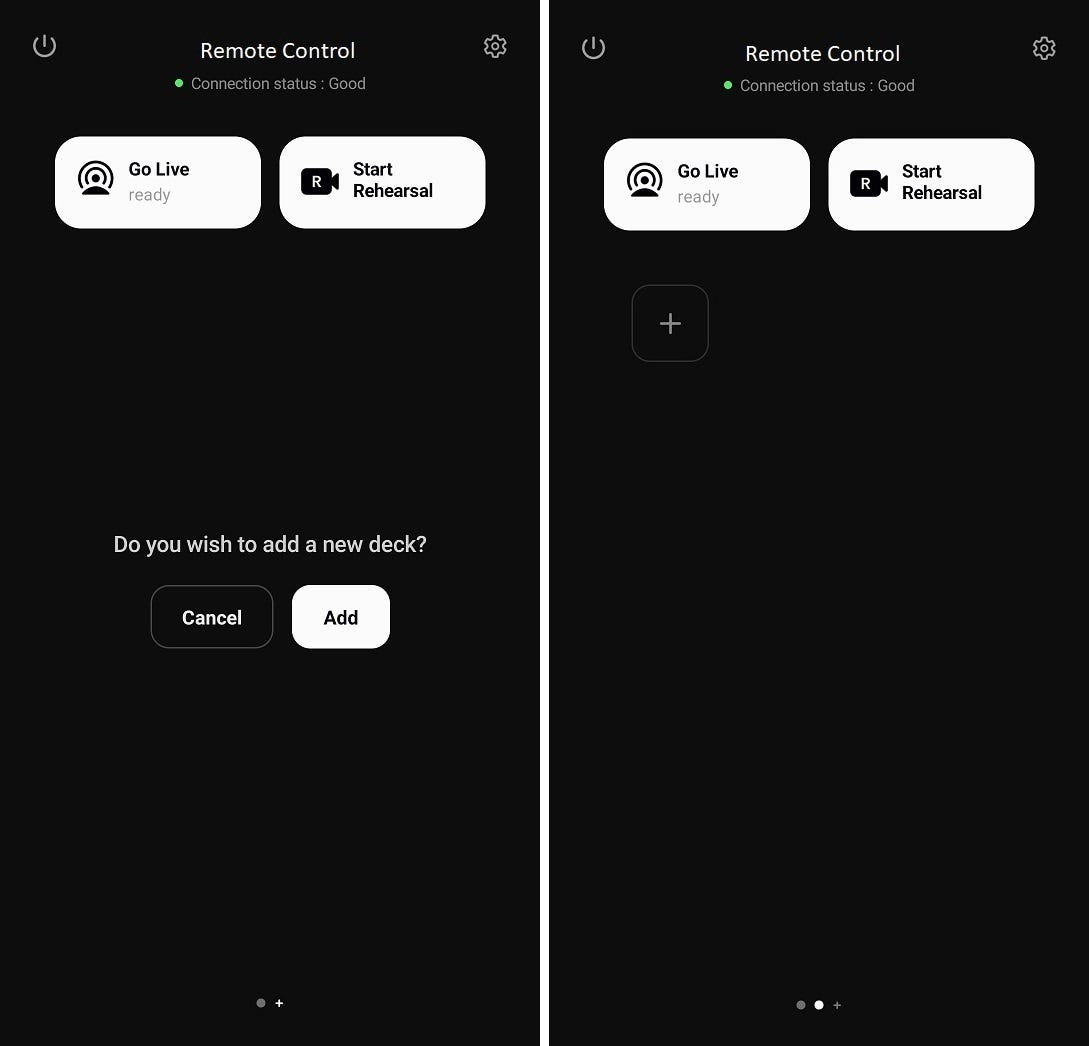
Connect with your PC and mobile devices. Utilize as a webcam at times, as a remote controller at times to remote control PRISM Live beyond transmission.
Welcome to PRISM Live Studio. This all-in-one program empowers content creators to live stream, record, and customize their broadcast screens seamlessly. PRISM Live Studio offers all the essential tools for streaming on major platforms.
Find everything you need to get started with PRISM Live Studio right here.
iOS
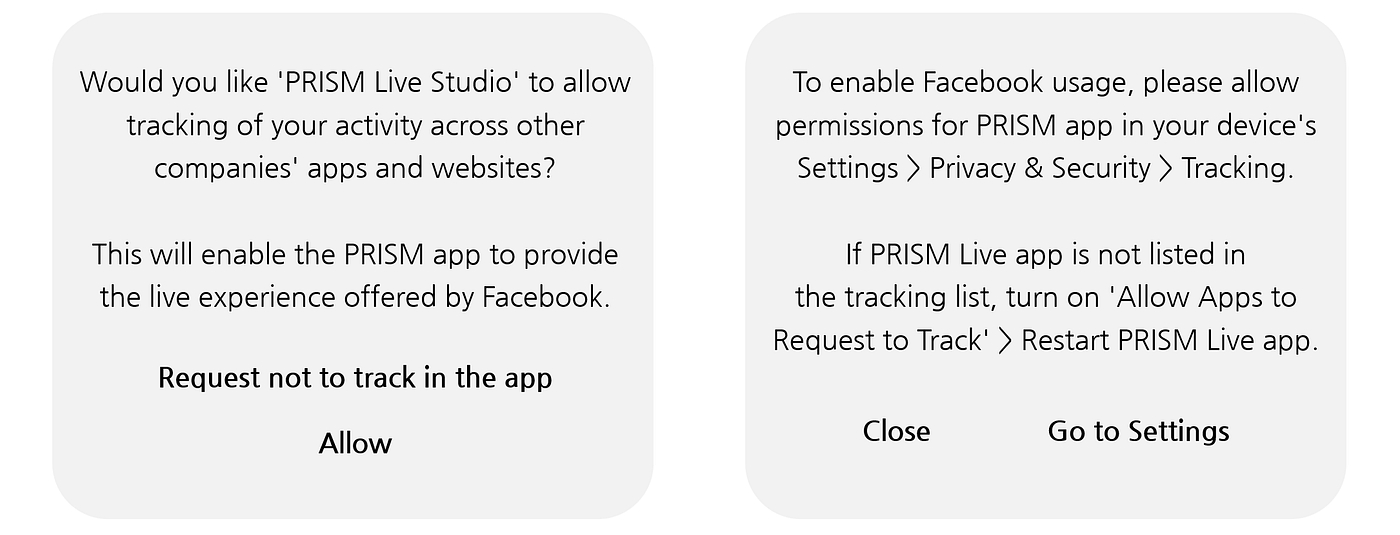
Starting on May 1, 2024, Apple mandated a Privacy Manifest for all apps registering on the App Store. This specification focuses on user privacy by detailing the reasons for data collection by both the app itself and any third-party SDKs it utilizes.
The Facebook SDK used by the PRISM app also had to adhere to this Privacy Manifest specification. As a result, PRISM app may display Facebook App Tracking Transparency Permission Request.
This is also known as App Tracking Transparency (ATT), which is aimed at protecting user privacy. Depending on the user’s operating system version, the PRISM iOS app can request permissions within the app with the following guidance:
PRISM app may request permissions with the following guidance within the app based on the user’s OS version. If you see these guides, please carefully review each of them to grant permissions so that PRISM app can start streaming to Facebook properly.


Introducing PRISM Plus Subscription
Mobile, Desktop
Streaming to YouTube
Mobile(Android, iOS)
Using Custom RTMP
Mobile(Android, iOS)
How to Connect PRISM Mobile to Desktop
Mobile, Desktop
Using OBS plugins
Desktop(Windows)
Improving Phone Overheating for Streaming
Mobile(Android, iOS)


iOS
Due to insufficient storage space, you might want the option to not save videos during live streaming in the PRISM iOS app. And it could also offer performance benefits. Not saving videos during live streaming reduces the strain on device resources that would otherwise be used for video storage, potentially causing device overheating and performance degradation.
You can use the Temporary storage of live streaming video files option in the Settings page to stream live video without saving it. If you don’t need to retain the recorded video after the live broadcast, utilize this feature to conduct live streaming in a better device condition.
Android, iOS
Both landscape and portrait screen orientations are supported on the PRISM mobile app. However, we have received several inquiries, such as: “Why is the broadcast locked in portrait mode even though I began streaming with my phone in landscape?” or “Why am I unable to rotate the screen orientation during a broadcast?”
If your phone is positioned horizontally but the broadcast still displays in portrait mode, this issue is likely due to the screen orientation being locked in your phone settings. Many users often have their phone's screen orientation locked in portrait mode. As a result, even when holding the phone horizontally, the locked orientation prevents the screen from adjusting correctly.
Additionally, if you rotate your phone in the opposite direction from the selected orientation after starting a broadcast, a notification will appear on the screen. This notification indicates that the screen orientation has changed from the preset configuration. Please note that the screen orientation cannot be adjusted once a broadcast has started.
Android, iOS
If the YouTube channel has more than 50 subscribers, the feature to resume your previous live streaming to YouTube is supported. Resuming a live stream means starting a new live stream using the same link as the live stream that viewers are currently participating in.
When you try to end your live stream, a dialog will appear asking whether to keep the YouTube live session active. To keep the current live session active after ending the stream, click the “Keep Session” button.
And then, when you enter the live preparation screen, a pop-up will appear for the active live session. After reviewing the details, tap the ‘Check
Android, iOS
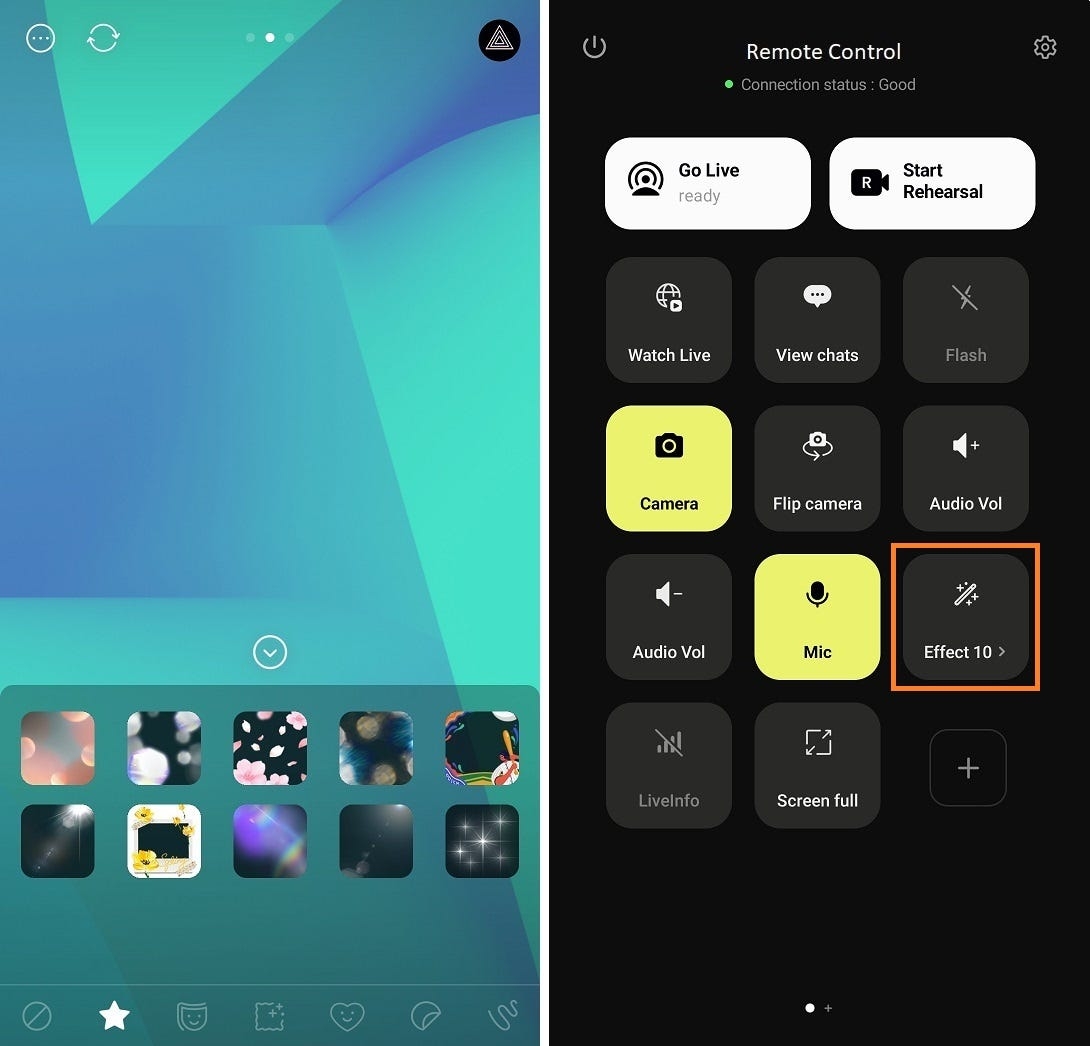
GIPHY offers a vast library of GIFs through its partnership with the PRISM app, making all GIFs on giphy.com available for use. To access GIPHY effects in PRISM, click the effect icon () next to the Go Live button, then select the GIPHY effect icon (), as shown in the image below.
Once you access the menu, you’ll find categories like Trending, Reactions, and Thanks, along with a search function to find specific effects.
Android, iOS
The PRISM app provides two chat modes. One is the basic chat area, available by default on the live preview screen, and the other is the PRISM chat widget area, accessible through the widget menu in My Studio.
You can enable the automatic disappearance feature for chat messages in the PRISM chat widget area. To use this function, check the Disappearing Chat Messages option. With this feature, older chat messages can automatically disappear.
The disappearance interval offers various options, such as 5 seconds, 15 seconds, 1 minute, or 2 minutes. Feel free to give it a try.
Android, iOS
Nowadays a lot of PRISM users are streaming to Kick.com using the Custom RTMP feature.
Unfortunately, we are not yet able to support platform login based integration into Kick.com. For that we need their public API as it is not yet supported.
But we’re working on improving this, so expect good news soon. And we made a guide for you to use Custom RTMP function in PRISM mobile app.
Android, iOS
Today many people are streaming to YouTube. Accordingly, we made videos that walk you through how to start streaming to YouTube from the PRISM app. This is a two video part series, where the first part talks about what needs to be prepared before live streaming and the second part is about actually going live on Youtube.
Android, iOS
SuperChat is a paid system that can support streamers during live streaming. If a viewer sends a SuperChat to the streamer, the corresponding SuperChat will be exposed in the chatting area and a separate widget of SuperChat itself will also be available at the top of the chatting area. Depending on the amount you sponsor, the exposure time of the widget may differ. The remaining exposure time is displayed in a gauge format on the widget.
The PRISM Chat Widget also displays superchats in the chat area, but they are not pinned at the top.
Android
At times, you may need to answer a phone call or open another app during a broadcast, or perhaps you accidentally pressed a button to open another app. The PRISM app can continue broadcasting live even when running in the background.
Due to platform OS policies, iOS apps do not support background live broadcasting.
For Android devices, you need to toggle a setting to activate the background broadcasting feature, as shown in the image below. Simply go to Settings, then enable the following option: Allow display over other apps. This will allow the live broadcast to continue uninterrupted in the background while you use other apps on your device.


To ensure a seamless streaming experience, make sure your phone's screen orientation is unlocked and set to the desired mode (landscape or portrait) before starting a broadcast. For further clarity, refer to the example images below, which illustrate the screen layouts for both landscape and portrait modes.
By unlocking your phone’s screen orientation, the menus will adapt to the phone’s position, allowing you to select between landscape and portrait modes before going live. Once the broadcast begins, this setting cannot be changed, so please confirm your preferred orientation beforehand.
However, in screencast mode, the screen orientation can be adjusted even after a broadcast has started. The screen will automatically rotate when you rotate your device, and viewers will see the change. Please note that the screen orientation lock on your device will still apply.

List of live streams maintaining the YouTube session (possible to resume with the previous steam link)
List of scheduled live streams set in the YouTube Live Dashboard
From the schedule screen, select the live item marked with a yellow ‘Active’ label and tap ‘OK’. On the live preparation screen, check the date and time of the active live session, and then start streaming. The PRISM app will use the Resume feature to continue the previous live stream.

You can apply the selected effects to the screen and adjust their size, position, and rotation using pinch-to-zoom, just like other elements in PRISM.


Android, iOS
The YouTube platform supports a resume feature for live streaming. In other words, even in situations where live streaming ends on a streaming device such as a smartphone, the live can remain in OnAir status on YouTube.
This feature is usually used to keep the link of a live stream alive for a long time. Viewers no longer need to obtain a link to a new live stream from the streamer or platform.
You can keep your live on OnAir by clicking KEEP in the second of the two-step dialogs of the PRISM app.
If there is an OnAir live stream remaining on your channel, the PRISM app provides a slightly different dialog like the image below.
You can resume the stream by selecting it, or you can stop the stream completely using the End the live session button.
, , ,
Android, iOS
Emotion effects are motion effects that allow you to express sudden feelings or situations. To access emotion effects in PRISM, tap the effects icon () next to the Go Live button, and then select the emotion effects icon (), as shown in the image below.
You can tap on each effect to apply it. Some effects support face detection, which tracks your face in real time and positions the effect accordingly on the screen. Face-detecting effects are marked with a small face icon () on their thumbnails for easy identification.
To add an effect to your favorites, simply long-press the effect. You can access your favorites by selecting the Favorites tab () located on the left side of the tab bar. In the Favorites tab, effects are displayed in order of most recent use, with favorited effects appearing first. To remove a favorited effect, long-press it again.
There are eight emotion categories: Greet, Love, Congrats, Awesome, Fun, OMG, Angry, and Sad. Additionally, there are two special categories: RandomTouch and Shopping.
RandomTouch effects appear in random positions and sizes each time you tap on them, adding a playful and dynamic element to your broadcast.
, , ,
Android, iOS
The screen ratios of mobile phones vary, which can cause mismatches between the streamer’s view and what viewers see on their devices. For example, areas visible to the streamer may not appear on a viewer’s screen, and vice versa.
To address this, PRISM offers a Screen Full/Fit option to adjust the display area.
Tap the More button in the upper-left corner of the screen. The default View Screen Full setting displays the broadcast in full screen. If your phone’s screen ratio is slimmer than 16:9 in landscape mode, viewers may see parts of the screen that are hidden from the streamer.
Switch to View Screen Fit to adapt the broadcast to a 16:9 ratio, ensuring it fits entirely within the viewer’s screen. In this mode, black bars (LetterBox) may appear on the sides if the screen ratio is slimmer than 16:9. This allows the streamer to see all areas visible to viewers.
The same principles apply for portrait mode. Toggle between modes as needed to provide the best viewing experience.
, , ,
Android, iOS
ABP (Adaptive Bitrate Publish) is a feature that automatically adjusts video quality based on network conditions. For example, as shown in the image below, the video quality is set to Adaptive by default. This ensures that broadcasts are delivered in the most optimal quality according to the current network conditions.
There are four factors that determine video quality: resolution, bitrate, frame rate, and keyframe interval. You can adjust the details of these options in the settings.
Resolution is the dimension of the video in pixels (width × height). As PRISM supports various resolutions such as 360p, 720p, and 1080p, simply select the resolution of your choice.
Bitrate is a unit that determines how much data should be used per second. Generally, we recommend setting the bitrate to 4000kbps when the resolution is 720p, and 6000kbps when the resolution is 1080p for the highest video streaming quality.
Frame rate refers to the number of frames displayed per second, typically 30fps or 60fps.
Keyframe interval defines how frequently keyframes are inserted in the video stream, typically set to every 2 seconds for optimal streaming performance.
But if you are a rookie streamer, we recommend keeping your ABP on.
You can also adjust the maximum bitrate when adaptive bitrate is enabled. If the network is stable enough to support the set bitrate, the stream will maintain that quality. However, if the network conditions degrade, the video quality will automatically adjust.
, , ,
Android
The heat generated by smartphones performing live streaming also affected the stability and quality of live streaming. Live streaming running on a smartphone is an operation that uses a lot of the device’s resources, so if you use the function for a long time, the heat will inevitably increase.
We also provided guidance on how to improve this situation in the following page:
But also, The PRISM app offers Thermal Protection Mode. The PRISM app checks the smartphone’s thermal status in real time, and when it reaches a bad enough situation that can affect the live streaming quality, the Overheating Protection Setting alert is shown so that the streamer can maintain the live streaming stably.
The alert will guide you to select the options you want, including adjusting the resolution and fps and removing effects, filters and media sources to relieve heat.
iOS
YouTube live platform supports receiving H.265 (HEVC) encoded streams, allowing for higher-quality video with the same data usage when streaming to YouTube.
H.265 (HEVC) encoding is automatically applied only for single streaming to YouTube.
The following images illustrate the quality differences between H.264 and H.265 (HEVC) encoding. By enlarging the images to their original size, you can make detailed comparisons, such as examining the patterns in the couch fabric.
You can find more detailed information about the H.265 (HEVC) encoding standard at the link below.
, , ,
Android, iOS
The web browser widget allows you to load a website as a source to your broadcast screen. This means you can now display not only the webpage itself, but also sponsored contents and chat windows to your broadcast.
Please do understand that as there are numerous devices and OS versions available on the market, which means that the maximum number of web sources has been limited to 4 items, in order to ensure that apps can run and broadcast reliably on as many devices as possible.
In the future, as network conditions improve and devices evolve, we will work on improving the availability of even more web sources.
, , ,
Android, iOS
Mobile live streaming often takes place where the network is not stable, live streaming may ends unexpectedly. Moreover, due to changes and circumstances in the live platforms that interact with the PRISM app, live streaming may not start or end unintentionally. The PRISM app displays detailed errors to users in situations like this.
Users can see more clearly the errors that occur in live streaming through the improved live streaming error display in our app, and can use the information provided to solve the problem themselves or contact us with more information.
For more information about handling errors, please refer to the page below:
Solutions for Various YouTube Error Situations
, , ,
Android, iOS
Businesses can use the PRISM mobile app as a B2B product for their own services.
If you are considering utilizing the PRISM mobile app for your live service, please contact us at our representative email [email protected].
For regular users to use the PRISM app, registration and login required signing up with a major social service account or using an email address.
However, for the B2B product, users can join and log in to the PRISM app by clicking the NAVER Cloud B2B button shown in the image. When users click the NAVER Cloud B2B button, they will sign up and log in to the PRISM app with their corporate live service account.
Once logged in, the corporate live service entry will be positioned at the front of the platform list for live streaming. Users can easily complete the account linking process for live broadcasting by clicking on the respective platform button.
Once the account linking for live streaming is complete, users can proceed to detailed settings for live broadcasts through a menu similar to the one shown in the picture.
If the corporate service supports the feature, users can select and utilize scheduled live streams from the corporate service, set the public scope, and choose the channel, all within the PRISM app.
, ,
Android, iOS
The watermark is set to appear for 10 seconds every 50 seconds by default. However, since some users prefer not to have the watermark appear at all, you can choose to hide it.
To hide the watermark, click the profile icon in the upper-right corner to access My page, navigate to Settings, and toggle Conceal watermark to disable it.
, , ,
Android, iOS
After ending a live broadcast on the PRISM mobile app, you can use the AI script extraction feature to transcribe the audio from the broadcast. This feature leverages NAVER’s CLOVA Speech technology.
The transcriptions can be saved and shared in 3 formats: TXT, SRT, and CSV. Please note that this feature currently supports only English and Korean.
This feature cannot be enabled in iOS screencast mode, due to iOS limitations.
The AI script extraction is processed within the PRISM app on your device, ensuring faster and more secure handling without relying on external servers.
Please follow the instructions below:
End your broadcast in the PRISM mobile app.
Click 'Extract script'.
Select the language and script extraction will be processed immediately. If this is your first time trying this feature, click any language to download it first.
, , ,
Android, iOS
You can share the link to your live stream before, during, or after the broadcast.
In most cases, the link directs to the channel where you will be streaming. Specifically, for YouTube, you can obtain the dedicated live stream link when you select a scheduled live stream.
The PRISM app allows you to create or edit a schedule for YouTube. For more details, please refer to the page below:
, , ,
All
If you are attempting a live stream on YouTube for the first time, you must first create a channel. Additionally, YouTube requires the channel to undergo an authentication process to verify the real user who will be performing the live stream. The live streaming feature becomes available only after completing this verification process.
Since live streaming carries inherent risks due to its real-time nature, this verification can be seen as YouTube's effort to ensure a more secure experience.
For this reason, if the PRISM app detects that your account information is invalid, it will display a message prompting you to visit the YouTube Live Control Room.
On a desktop, you can access the YouTube Live Control Room by logging into YouTube, clicking the CREATE button at the top right, selecting Go live, and entering the Live Control Room.
If your channel has not yet been verified, accessing the Live Control Room will automatically redirect you to the verification page. Follow the instructions on the page to complete the process. Please note that a single phone number can only be used for verification twice a year through an automated voice message or text message.
Once verification is successfully completed via voice or text, you will see a confirmation screen indicating the process is done. However, you cannot start live streaming immediately. YouTube requires up to 24 hours to activate live streaming on your channel.
After the waiting period, revisit the Live Control Room, where you will see confirmation that live streaming is now enabled.
You are now ready to return to the PRISM app and start your live stream.
, , ,
Android, iOS
The chroma-key is one of the video synthesis technology, which uses the difference in color tone to include a specific image or video in the background. And it’s commonly used in many film shoots.
You can find the Camera Chroma-Key function by clicking the More-button located at the top left.
The chroma-key function can be activated or deactivated through the function’s ON / OFF button.
Select the target color with the Color button and adjust the range of colors with the Similarity button.
The Sensitivity button allows you to adjust the naturalness between the background and the object. Also, you can customize background with BG button. You can use images and videos from your device or select from a variety of images and videos provided by the PRISM app as the chroma-key background.
, , ,
Android, iOS
You can create playlists with videos and music within the PRISM app and use them in live streaming. The playlists you list are saved as one item in My Studio and can be reused at any time.
Tip: While you are playing videos and music, if you set the microphone option to off with the round more button at the top left of the screen, only the sound of the video and music being played will be mixed and streamed for live streaming.
, , ,
Failed to transmit RTMP packets for video streaming.
This guide explains the cause of the current error that occurred during your live streaming.
The PRISM mobile app includes a streaming module that handles RTMP transmission. This module streams your video data to live platforms such as Facebook, YouTube, Twitch, and Instagram.
To do this, the RTMP streaming module in the PRISM mobile app establishes a connection with the RTMP receiving module of the live platform and begins transmitting data. The current error means that while the connection was successfully established, the transmission of data packets has failed.
Known causes that can lead to this situation are as follows. Please review each cause and take any applicable actions. We hope this helps you.
The Stream Key obtained from Facebook’s Live Dashboard for Custom RTMP streaming expires once the stream has been published. Even if the stream hasn’t been published, the key will also expire if the streaming session from your app has been running and the preview remains visible on Facebook’s Live Dashboard for more than four hours.
If you attempt to start a live stream using an expired Facebook Stream Key, the same error will occur. To prevent this, you can obtain a newly generated Stream Key from Facebook’s Live Dashboard. Alternatively, you can enable the [Persistent Stream Key] option there to use a single Stream Key continuously.
Live platforms may impose usage restrictions on their users. For example, if a user starts live streams too frequently on YouTube, the platform may temporarily block the ability to start new streams. This also means that RTMP data transmission can be blocked. If you’ve encountered this error, please check whether there are any restrictions in place on your target live platform.
A connection between the app and the live platform for RTMP streaming can be established using only a small amount of data. However, video data itself is usually quite large. So, even if the RTMP connection is successful, the actual video data packets may not be transmitted properly. Please check if there are any issues with your network bandwidth.
RTMP streaming uses the TCP protocol to transmit data, typically over a specific port—most commonly port 1935, though this may vary. If you are in a location where a network firewall is blocking that port, data packet transmission will fail, leading to the current error. Please check your network environment for any such restrictions.
The data packets sent via RTMP streaming are created using the encoder on your smartphone. If there is an issue with the encoder or your device is in an unstable state, it may not be able to produce proper data packets. If you suspect this is the case, please try rebooting your device and starting the live stream again. If you have another device available, try streaming from that one instead.
Android, iOS
You can access the beauty effects feature by clicking the face icon next to the Ready button.
In the beauty effects, users can set 5 factors such as Shape (face type), Smooth (skin texture), Eye (makeup), Blush (skin tone), and Lipstick (makeup). And It comes with 7 presets, K-pop, Glam, Soft, Bold, Natural, Cute and Sharp templates that are properly mixed and set up with these 5 elements.
However, the five elements of the templates are individually adjustable, so we recommend finding and using values that suit you best. To access the preset settings, click the preset button that is already selected.
In addition, beauty effects may affect the quality of live broadcasting by using a lot of resources such as the smartphone’s CPU, so we recommend that you use them after testing in advance on your smartphone device and environment.
, , ,
Android, iOS
Live streaming causes the device to heat up, which adversely affects the quality of the live stream. So, we prepared some tips to prevent your device from overheating.
And we also provide this content as an article, so you can refer to the link below.
, ,
The scheduled live has already ended or is no longer valid. The selected schedule will be cleared.
This guide explains the cause of the current error that occurred during your live streaming.
You attempted to start a live stream by selecting a scheduled broadcast registered in your YouTube Live Dashboard. However, the stream failed to start properly because the scheduled broadcast had already started and ended.
You can check your scheduled broadcast history in the Manage menu of the YouTube Live Dashboard. Please confirm whether the scheduled broadcast you selected had already been completed.
Android, iOS
The camera invert feature allows you to flip the front-facing camera horizontally during a live broadcast. This feature mirrors the image, so inverted text appears correctly to viewers, just like in a mirror.
To use this feature, tap the “More” button in the upper-left corner and select Flip front-facing camera. By default, the left and right sides are already mirrored. If you want to change this, toggle the button to flip the screen.
Android, iOS
Mobile live streaming often starts in places where the network is not stable, such as outdoors. That’s why we provide live streaming status indicator so users can check the current live streaming situation in more detail during live streaming.
The live streaming status indicator can be used by clicking the More button in the upper left corner in the LIVE mode of the app as shown in the image below.
It displays the framerate(fps), bitrate, audio volume, remaining battery information of the live streaming currently in progress. Please note that the live streaming status indicator is available not only in Camera mode, but also in VTuber modes.
Android, iOS
RTMP (Real-Time Messaging Protocol) is a protocol used to transmit video, audio, and data from the PRISM app to streaming platform servers, requiring both a stream URL and a stream key.
The PRISM app support a login-based method for Facebook. However, You may rarely experience login issues within PRISM app with various reasons. Most login failures are resolved within a few hours, you might want to connect temporary while than.
A manual RTMP connection does not support information such as chat and number of viewers on screen. Additionally, a PC is required to connect and start live streaming on Facebook via RTMP, as it requires access to the Facebook Live Dashboard.
Android, iOS
A significant number of options offered by the platforms are integrated into the PRISM app. Please make use of the PRISM app for more detailed live streaming settings.
You can schedule live streams and configure various options provided by the YouTube platform, including category setting, enable DVR setting, stream latency setting, license setting, and more.
Android, iOS
The RTMP Overlay feature allows receiving video from devices capable of RTMP streaming and integrating it as a single source for live streaming in the PRISM app.
You can use the RTMP Overlay function in the Widget menu of My Studio that appears when you swipe left on the Live Ready screen. Select ‘RTMP Video Source’ from the function list of the Widget menu, it will be added to the My Studio source list. And when you click on the RTMP Overlay source in the source list, it will be placed on the live streaming screen.
Once it is placed, it can be resized, repositioned and rotated just like an image overlay. And as soon as that source is placed, the RTMP information that can be streamed to the RTMP Overlay is displayed.
The RTMP information is generated by the combination of the RTMP Stream URL and RTMP Stream Key. Please note that excessively minimizing the RTMP Overlay area may hide the RTMP information.
Android, iOS
There may be times during a live broadcast when you need to turn off your microphone or camera.
To toggle the microphone or camera during a broadcast, tap the More button in the upper left corner of the screen. By default, both the microphone and camera are set to On.
Android, iOS
As the weather gets hotter, the temperature of the smartphone performing live streaming also rises.
And when the temperature of the phone rises like this, the performance of each module in the device, such as the CPU, GPU, and network module, decreases overall, which lowers the quality of your live streaming.
That’s why we’ll guide you through 9 ways to reduce the heat of live streaming, which especially requires the full power of your smartphone, to make your live streaming more stable.
Charging the battery is one of the factors that increase the heat of the phone the most, so please fully charge the battery in advance and start live streaming with the charger disconnected.
Failed to encode video for live streaming. This may be a temporary problem with the device encoder, so please reboot the device and try again.
We are informing you about situations where live streaming fails to start due to video encoding failure.
To stream video to a live platform, the video recorded on a smartphone must be encoded into a specific video format. The encoded video data is then streamed to the live platform, which receives and plays it in a video player that viewers can watch.
However, the PRISM app was unable to generate the video data properly on your device. In such cases, the PRISM app displays the following error screen to the streamer.
The RTMP connection for streaming has failed or the live platform is not receiving RTMP data. Please make sure your RTMP address is valid or you have streaming permission
We will inform you about situations where the RTMP connection for streaming fails or the live platform does not receive RTMP data.
The PRISM app captures video from the smartphone camera, encodes it into video data, and streams it to the live platform using the RTMP protocol.
The process of transmitting video to the live platform via the RTMP protocol begins with a connection between the PRISM app's RTMP streaming engine and the live platform's RTMP data receiving server.
This error occurs when the PRISM app's RTMP streaming engine fails to establish a connection with the RTMP data receiving server.
We’re informing you that, due to an error on Facebook, live streaming couldn’t start as intended.
Facebook is currently responding with an error called ApiUnknown for the functionality API it provides to the PRISM app. This error occurs when users attempt to start streaming to Facebook groups from the PRISM app.
Recently, Facebook announced plans to restrict group streaming from third-party apps through the following notice. In accordance with this plan, substantial streaming limitations have been implemented starting from April 24, 2024.
An unknown error occurred on the Facebook platform. Please try again later.
This guide explains the cause of the current error that occurred during your live streaming.
To stream to Facebook, the PRISM app relies on features provided by Facebook. These features are called Facebook Open APIs, and they are used by third-party apps like PRISM.
If these Facebook Open APIs are not functioning properly, the PRISM app will also be unable to stream to Facebook correctly.
Failed to communicate with the PRISM server to start live streaming. This may be a temporary problem in network conditions, so please try again later.
Recently, in early September 2025, the SMW4 and IMEWE submarine network cables were damaged. As a result, network connectivity in some parts of East Asia and Southeast Asia has been affected, with PRISM app usage in Vietnam being particularly impacted.
Live Broadcast to PRISM Live has stopped due to: The broadcast channel has not been set. Please connect a platform on the PRISM Live app.
Live Broadcast to PRISM Live has stopped due to: Please enter the title.
We will inform you about situations where live streaming using the ScreenCast function in the PRISM app does not start properly.
The scheduled live has been deleted or is no longer valid. The selected schedule will be cleared.
This guide explains the cause of the current error that occurred during your live streaming.
You attempted to start a live stream by selecting a scheduled broadcast registered in your YouTube Live Dashboard. However, the stream failed to start properly. This is likely because the scheduled broadcast has either been deleted or is no longer valid.
You're restricted from acting as your Page until you complete Page Publishing Authorizaiton. Switch back to your Primary Profile to complete authorization under - Settings - Account Settings - Identity Confirmation. Complete verification or you will be restricted indefinitely.
We’ll walk you through a situation where you tried to start a live stream to Facebook, but it couldn’t start due to an error Facebook responded with.
The current error occurs when your Facebook posting rights, including live streaming posting rights, are temporarily blocked due to a policy violation, or your posting rights to the Page have not been fully approved.
If you need to live streaming for a long time, starting it with the charger disconnected and then reconnecting the charger when the battery is exhausted is a way to minimize the heat generated by the charger.
The smartphone cools itself by dissipating heat through its body, so the phone case blocks the heat dissipation, which eventually increases the heat of the phone.
That’s why we recommend that you take off your phone’s case for +a while during live streaming.
The display of a smartphone is one of the elements that generates significant heat. Adjusting the screen brightness to a slightly lower level during live streaming can effectively reduce the heat generated by the phone. This adjustment can also help slow down battery drainage.
However, if you adjust the brightness of the screen too dark, it may be difficult to observe the live streaming screen, so please check the appropriate level through tests in advance.
Cool patches and cool packs, which are easily available in the market, can also help lower the heat of your phone.
If you attach it to the back of the phone in an appropriate size, it will help to lower the heat. However, do not forget that it should be removed in a timely manner as it may block the heat dissipation when effectiveness is exhausted.
Of course, fan-generated wind can also help reduce heat, but it's important to note that the noise from the fan might be picked up during your live stream.
There are cases in which live streaming is started while the phone is already overheating due to prolonged test streaming. In this situation, as soon as you start streaming live, you may experience degradation of its quality due to heat.
So, if the phone is overheating due to test streaming, please allow the device to cool sufficiently to the normal temperature level before starting your new live streaming.
Please reboot your smartphone right before live streaming. It can close the apps running in the background of the device at once, which can help reduce heat and improve the condition of the phone.
This is one of the most recommended methods, and if you’ve ever had issues with live streaming, remember to reboot your device.
Media overlay that shows images, videos, and webpages together on live streaming video has the effect of enriching live streaming. However, since this requires additional computation to the device, it may generate additional heat.
So, if your phone gets very hot during live streaming, please note that reducing the use of media overlays can help ensure stable quality.
The PRISM mobile app provides various types of effects. There are effects that can be done without the device’s calculations, and there are effects that require additional calculations from the device, such as an effect that recognizes a streamer’s face. The latter effects require continuous computation of the device because the user’s face needs to be recognized in real time, which may cause heat.
So, if your phone gets hot during live streaming, reducing the effects you are using one by one will help to lower the heat.
Live streaming is a very heavy task for a smartphone. This is because it requires three processes to run simultaneously: capturing video from the camera, applying various effects, and streaming the video to the live platform's server. So it requires a lot of computation of the device, which can cause the device to overheat.
In general, it is advantageous to use a high-performance smartphone for heat issues. However, even if it is a high-performance device, there are devices that are sensitive to heat, so it is recommended that you check carefully and prepare the device.
The Facebook Groups API is deprecated in v19 and will be removed from all versions in 90 days. This deprecation includes all Permissions (publish_to_groups, groups_access_member_info) and Reviewable Features (Groups API) associated with the Facebook Groups API.
Unfortunately, this error situation is due to a policy change by Facebook. We hope you understand the difficulty in supporting Facebook group streaming through channel integration-based functionality.
However, streaming to Facebook groups via the Custom RTMP feature of the PRISM app is still possible. Please follow the steps below for live streaming using the Custom RTMP feature:
Access the Facebook website.
Navigate to the target group for streaming within the Facebook website.
Initiate [Create Post].
Click on the More button and select [Live Video].
Navigate to the [Create live video] menu.
Click on the [Go Live] button.
Select [Streaming Software] as the video source.
Copy the [Stream Key] and configure it in the PRISM app’s Custom RTMP settings.
The PRISM app provides Facebook’s [Server URL] as a preset.
Save the Custom RTMP settings and select the streaming destination platform.
Click the [Go Live] button on the live preparation screen to start streaming.
Confirm the streaming preview in the Facebook [Create live video] menu.
Click the [Go live] button at the bottom left to publish the live broadcast.
Android error code : N/A
iOS error code : 1_- / 10


The current error is occurring because Facebook’s Open API is not working as expected. However, this may be a temporary issue, so we recommend trying to start the live stream again after a short while or some time has passed.


As mentioned briefly earlier, the current error is primarily caused by the following two reasons, but it can also occur in any situation where publishing rights are not properly granted to any destination.
You recently posted something that violated Facebook’s policies, and as a result, you’ve been temporarily blocked from using this feature. For more information, visit the Help Centre. To avoid being blocked again, please make sure that you’ve read and understand Facebook’s Community Standards. This block will remain active for 1 more day.
You’re restricted from acting as your Page until you complete the Page Publishing Authorization. Switch back to your Primary Profile to complete authorization under > Settings > Account Settings > Identity Confirmation. Complete verification, or you will be restricted indefinitely.
Facebook provides a detailed guide for the first cause, the policy violation case, at the following link: https://www.facebook.com/help/116393198446749
So, if you experience this error while attempting to live stream on the PRISM app, you may need to check whether you have violated Facebook’s policy or wait for permission to post.
However, in most cases, it is highly likely that the restrictions will be lifted after some time, so it is recommended to wait for about a day and then try live streaming again in the PRISM app.
Android error code : 4604
iOS error code : 368 / 10


Step 1: In the LIVE tab, click the Ready button and go to My channels.
Step 2: Click the Plus (+) button and select Facebook.
Step 3: Select Facebook Custom RTMP and enter the Stream Key from Facebook Live Dashboard. The Stream URL will be automatically filled using the RTMP preset, but you must enter your own Stream Key from Facebook. Instructions on how to retrieve the Stream Key are provided below:
Once you’ve entered the Stream Key, click the Save button to complete the process.
To start live streaming on Facebook with RTMP, first, click Go Live in the PRISM app, then go to the Facebook Live Producer website and log in to your account. You can visit the website via the link below on your PC:
On the Facebook Live Producer page, select Go Live.
Check if the video feed from PRISM app is displayed correctly. Configure various options provided by Facebook. Once you’re ready, click Go Live to start your live broadcast.
The Stream Key is a unique code that links the PRISM app to Facebook’s streaming servers, allowing your stream to be transmitted to your page or profile.
To get the stream key for Facebook, follow the instructions below:
Step 1: Go to the Facebook Live Producer website and log in to your account. You can visit the website via the link below on your PC:
Step 2: Select Go Live.
Step 3: Select Streaming software as the video source and copy the Persistent Stream Key. After selecting Streaming software as the video source, scroll down and click Advanced Settings to expand the section. Toggle on the Persistent Stream Key option if you want to use the same key for future broadcasts, which eliminates the need to copy a new key each time. Then, copy the Stream Key displayed on the screen.
Be sure to keep your stream key private. It is a unique code that links your broadcast to your channel, and sharing it could allow others to stream on your channel without permission.
The above image are the live stream scheduling screens for the Youtube platform. You can select a schedule and configure various options for the live stream.
Upon scheduling the live stream, you can immediately copy the link for that specific live stream to secure it. By sharing this link with your audience in advance, you can boost participation in the live broadcast.
The following image are the live streaming setting screens for the Facebook platform. You can set the title and choose the location where the live stream will be published, such as the timeline and page.
If you have many pages, the list will be paginated and displayed sequentially as you scroll.
If the list of pages for live streaming is not appearing, please refer to the following post to ensure that the necessary permissions are properly set and granted.
Additionally, PRISM app no longer supports streaming to Facebook groups due to the policy changes in Facebook’s API. For more information, please check the following article:
The following image are the live streaming setting screens for the Twitch platform. You can configure various options provided by the Twitch platform, including game and category setting, stream language setting, content classification setting, branded content setting, emotes-only chat setting, and Followers-Only Chat setting, and more.
The images above show the games and categories search screen as well as the Followers-Only Chat settings screen. You can enable Followers-Only Chat, which allows you to restrict chat to all or some of your followers. You can also set how long a follower must have been following before they can join the chat.
Clicking the Edit button at the bottom of the RTMP Overlay or the More button on the source item in My Studio, takes you to the detailed screen for the RTMP video source.
The displayed RTMP information can be shared externally through the [Share] button, allowing you to configure external RTMP streaming devices with the shared information and utilize the RTMP Overlay feature.
The RTMP video source details screen provides the following usage guide, so please refer to it.
Connect to the same WiFi network > Enter the RTMP URL from an external camera > Stream the video > Display the recived video on the overlay (excluding audio)
In addition, if the video being streamed exceeds 1080p / 60fps, reception of it may be unstable or the device may lose its RTMP connection in rare cases.
When the video starts streaming from the external device, the ‘Receiving RTMP video...’ comment will be displayed in the widget for a while as shown below. And then, when the RTMP video starts to be processed normally, it is displayed on the live streaming screen and is shown to viewers at the same time.
If the reception of RTMP video is not normal, the app exposes the progress UI or displays the status of disconnected network. In this situation, please use the function again after checking the network environment and device status.

This issue is mainly caused by one of the following two reasons:
The device cannot encode the video in the format requested by the PRISM app.
Video encoding is temporarily unavailable due to the device’s internal state.
Here are more detailed explanations for each cause.
The PRISM app encodes video using the encoder built into the smartphone. To do this, the app sends the video data along with specific settings to the device’s encoder. However, in some cases, the device’s encoder may not be able to process this properly.
Most devices running the PRISM app do not encounter this issue. However, since there are tens of thousands of Android devices worldwide, there can be differences in how each device’s encoder operates compared to the Android standard. As a result, encoding may fail.
Unfortunately, due to the vast number of manufacturers producing Android devices, identifying and troubleshooting this issue across all devices is difficult. Because of this, we regret to inform you that we are unable to provide a quick fix.
In such cases, we recommend using a different device where the PRISM app functions properly.
However, video encoding errors can sometimes occur temporarily depending on the device’s state. The device’s built-in encoder is not exclusively used by the PRISM app. Other apps installed on the device may also be using the encoder while the PRISM app is running, which can lead to this error.
In such cases, improving the device’s condition may resolve the issue. If you encounter this error, please follow these steps:
Restart your smartphone.
Open the PRISM app and try live streaming again.
If the issue persists, try lowering the resolution: (1080p > 720p > 480p > 360p)
However, if the problem continues even at the lowest resolution, it is unlikely to be a temporary issue.
At that point, the issue is most likely due to the first reason mentioned above. In this case, we recommend using a different device where the PRISM app works properly.
Android error code: 6005
This error can arise due to several factors, including:
An issue with the RTMP address (most common)
A problem between the PRISM app’s streaming engine and the live platform
Restrictions on the streamer’s live streaming rights on the platform
Network environment or connection issues
This issue can be further divided into two cases:
(1) Invalid RTMP address format
An RTMP address consists of an RTMP Stream URL and an RTMP Stream Key.
For example, if the RTMP Stream URL is rtmps://prismlive.com/rtmp/ and the RTMP Stream Key is 2twt-wwvu-gxqa-e97d, the RTMP address is formed as follows:
rtmps://prismlive.com/rtmp/2twt-wwvu-gxqa-e97d
In general, RTMP addresses cannot contain spaces or include web protocol references such as https://.
If this error persists, please verify that the RTMP address is in the correct format.
(2) Valid RTMP address format, but the address does not exist
Even if the RTMP address is correctly formatted, the connection may fail if the address does not correspond to an actual RTMP server.
For example, consider the following YouTube RTMP address:
rtmp://a.rtmp.youtube.com/live2/prismlivestudio
While the format is correct, the actual YouTube RTMP Stream Key consists of a random character sequence, like this:
rtmp://a.rtmp.youtube.com/live2/2twt-wwvu-gxqa-e97d
If this error persists, please check whether the RTMP address you are using is valid.
In some cases, even when a valid RTMP address is used, the PRISM app’s RTMP streaming engine may fail to connect to the live platform's RTMP data receiving server.
The PRISM app’s RTMP streaming engine has successfully connected to major live platforms such as Facebook, YouTube, and Twitch. However, since anyone can set up their own RTMP data receiving server, some platforms may not fully comply with RTMP standards.
If the issue lies with the live platform rather than the PRISM app, resolving it may require changes on the platform's side. As a result, troubleshooting can be difficult and time-consuming.
Most live platforms manage streamer permissions for live streaming. Depending on their policies, they may impose restrictions when necessary.
If your streaming rights are restricted, your live broadcast may not appear on the live platform, even if you attempt to stream using a valid RTMP address.
Since this issue is handled internally by the live platform, you should contact the platform’s customer support to resolve it.
The connection between the PRISM app’s RTMP streaming engine and the live platform’s RTMP data receiving server depends on network conditions. If the network environment is unstable or insufficient, the RTMP connection may fail.
If this error persists, check your network status and ensure a stable connection for live streaming.
On the other hand, if the issue is with the network environment on the RTMP server’s side, the connection will still fail. Unfortunately, this is beyond the PRISM app’s control.
These are the four main causes of this error and possible solutions.
Android error code: 5003
We will share further updates once we have confirmation that the issue has improved. === Gần đây, vào đầu tháng 9 năm 2025, các tuyến cáp quang biển SMW4 và IMEWE đã bị hư hại. Do đó, kết nối mạng tại một số khu vực Đông Á và Đông Nam Á đã bị ảnh hưởng, trong đó việc sử dụng ứng dụng PRISM tại Việt Nam chịu tác động đặc biệt nghiêm trọng.
Vì đây là sự cố liên quan đến các tuyến cáp quang biển lớn, quá trình khắc phục dự kiến sẽ mất một khoảng thời gian. Bất kể tiến độ khôi phục của các tuyến cáp này, đội ngũ PRISM đang tích cực xem xét các giải pháp thay thế để có thể cung cấp lại dịch vụ ổn định cho các bạn.
Chúng tôi sẽ gửi thêm thông báo ngay khi có xác nhận rằng sự cố đã được cải thiện.
We would like to inform you about an issue where live streaming could not start due to a communication failure with the PRISM server.
To begin a live stream, the PRISM app must connect to the PRISM server. This connection is essential because once streaming starts, the PRISM server collects live broadcast data, such as viewer count, likes, and chat messages, from the target streaming platform.
However, we have confirmed that in some cases, the PRISM app may fail to connect to the PRISM server due to network restrictions on certain users' networks. When this happens, the app displays the following error message to the streamer.
The PRISM server’s domain, which the app communicates with, is ‘naver.com’. Since the PRISM app is used on countless smartphones worldwide, it attempts to connect to the PRISM server through this domain.
However, the network path between the app and the server passes through various network devices in different countries. Some of these devices may not properly recognize the ‘naver.com’ domain due to incorrect settings.
Unfortunately, resolving this issue is challenging because numerous companies manage these network devices globally.
That said, we have also observed that this issue can sometimes be temporary. The PRISM app may attempt a different network route when retrying the connection, potentially resolving the problem on its own.
Currently, this error occurs only in a limited number of cases. If you encounter this issue, please completely close the PRISM app and try again after a few minutes or hours.
The PRISM app provides the ScreenCast function, allowing you to live stream your smartphone’s screen or gameplay. The PRISM iOS app utilizes the screen recording feature supported by the iOS platform to enable the ScreenCast function.
However, since screen recording on iOS operates independently of the PRISM app, you must complete the live streaming settings in the PRISM app before starting screen recording.
Due to this, the current error message appears in the following two cases:
When the live streaming platform's channel is not integrated or set up in the PRISM app.
When the target platform requires a title, but no title is set in the PRISM app.
We’ll walk you through each situation.
To start live streaming on a platform, you must integrate the platform’s channel in the PRISM app by logging in and setting the integrated channel as the streaming destination.
For live streaming using the Custom RTMP setting, logging in for channel integration is not required, but you must select the pre-configured streaming item as the destination.
Clicking the Go Live button in the PRISM iOS app initiates ScreenCast, leading to the iOS platform's screen recording start screen. Before tapping the yellow Go Live button, ensure the channel information is properly set in the app.
Among popular live streaming platforms, Facebook does not require a title, but platforms like YouTube and Twitch do. Therefore, if you want to live stream to a platform that requires a title using the ScreenCast function, please set the title in the PRISM app beforehand.
Titles set in the PRISM app and used at least once for live streaming are automatically saved in the app and remain even after restarting. This ensures that your next live stream will use the saved title automatically.
iOS error code : 0 to 7 / 17


Android, iOS
The PRISM app offers Camera Pro mode for users who want advanced control over their camera settings, enabling them to adjust professional features for a more customized live streaming experience. Camera Pro mode supports five features:
Exposure
Manual focus
ISO
White balance
Shutter speed
You can find the Camera Pro function by clicking the More-button located at the top left.
The Exposure feature lets you control the brightness of your video with precision. By adjusting the exposure slider, you can brighten or darken your shots to suit different lighting conditions.
The Manual Focus feature allows users to have precise control over the camera's focus point. By simply sliding the focus adjustment bar, you can fine-tune the focus to highlight your subject exactly as desired.
You can toggle the Auto / Manual button on the right side to switch between Auto Focus and Manual Focus modes. However, this can also be done conveniently without accessing Camera Pro mode. For more details, please refer to the page below:
The ISO feature allows you to adjust the camera's sensitivity to light, giving you greater control over brightness and noise levels in your video. By increasing the ISO, you can capture clear footage in low-light conditions, while lowering it helps maintain image quality in bright environments.
You can toggle the Auto / Manual button on the right side to switch between automatic and manual ISO modes. In Auto ISO mode, the ISO value is prefixed with an 'A' (e.g., A3264), while in Manual ISO mode, it appears as a numeric value (e.g., 3264). The Auto/Manual setting for ISO is shared with the Shutter Speed, ensuring seamless control over exposure.
The White Balance feature lets you adjust the color temperature of your video to match different lighting conditions. You can manually set the white balance for warmer or cooler tones, or use Auto White Balance mode to let the app automatically optimize the colors. This feature helps ensure natural and accurate color representation during live streaming or recording.
You can toggle the Auto / Manual button on the right side to switch between automatic and manual White Balance modes.
The Shutter Speed feature allows you to control how long the camera's sensor is exposed to light. A faster shutter speed reduces motion blur, ideal for capturing fast-moving subjects, while a slower shutter speed lets in more light, perfect for low-light conditions.
You can toggle the Auto / Manual button on the right side to switch between automatic and manual shutter speed modes. In auto shutter speed mode, the shutter speed value is prefixed with an 'A' (e.g., A1/45), while in Manual shutter speed mode, it appears as a numeric fraction (e.g., 1/45). The Auto/Manual setting for shutter speed is shared with the ISO, ensuring seamless control over exposure.
, , ,
Media loading has failed.
This post explains the causes of situations where you attempt to play, use, or edit a video file in the PRISM app, but the app fails to load the file properly. It also provides guidance on how to resolve the issue.
Video files prepared in either of the following ways may encounter issues during the loading process:
Video files created by recording or editing within the PRISM app.
Video files obtained from external sources, regardless of the PRISM app.
Users can create and save video files using the PRISM app’s live streaming, video recording, and video editing functions.
However, there are cases where videos created within the PRISM app cannot be loaded back into the app. Additionally, videos downloaded from the internet or created using other apps on the device may also fail to load properly in the PRISM app.
This loading issue can occur due to various reasons, including:
Files created in an incorrect format that does not comply with encoding standards (this accounts for the majority of errors, as videos are created in many different ways).
Videos that are valid but cannot be processed by the device’s decoder.
Insufficient memory on the smartphone.
Failure to generate video thumbnails.
Although we’ve listed seven possible causes, there are many more that we may not have identified. Each issue can be further categorized into different sub-causes, making it challenging to pinpoint and resolve every problem.
Furthermore, replicating the exact conditions that lead to an error is often difficult, as many issues arise from specific interactions between a video file and the smartphone’s decoder.
Over time, we have analyzed and addressed various media loading failures. However, there are still errors we have not yet been able to fix. We sincerely apologize for any inconvenience and will continue working to resolve these issues.
If you experience this issue, you can try the following solutions:
(1) Restart your smartphone
Your device’s decoder may be in use by another app or experiencing an unknown error. Completely power off your smartphone, turn it back on, launch the PRISM app, and then try recording or reloading the video file again.
(2) Re-encode the video
As mentioned earlier, many files are created in formats that do not comply with encoding standards. However, re-encoding the file may allow it to load properly in the PRISM app.
Try opening the video using the default gallery app on your smartphone, making minor edits, and saving it again. Minor changes could include trimming the playback time or adjusting the color tone. During this process, the video is re-encoded and saved as a new file.
If the video does not load even in your smartphone’s default gallery app, this likely indicates a major issue with the file itself.
Android, iOS
The PRISM mobile app provide the ability to set the focus manually or automatically through the Camera Pro menu, which can be accessed by clicking the round More button in the upper left corner of the app screen.
But you can easily switch between Auto Focus and Manual Focus without entering the Camera Pro menu, by Focus Mode setting function in the More menu list.
The page below provides a simpler way to change focus without accessing the More menu.
If you do not touch the screen after launching the PRISM mobile app, the PRISM app is in Auto Focus mode. The camera automatically focuses on the preview image provided through the lens.
The way focus changes when you tap the screen depends on the current focus mode.
case 1: Screen tap in Auto Focus mode If you tap the app screen in Auto Focus mode, the app automatically focuses once and stays in Auto Focus mode. At this point, a white focus indicator with a picture of an open lock (meaning Auto Focus mode) is shown where you have touched it.
case 2: Screen tap in Manual Focus mode If you tap the app screen in Manual Focus mode, the app focuses once around the touched location and stays in Manual Focus mode. At this point, a yellow focus indicator with a picture of an closed lock (meaning Manual Focus mode) is shown you have touched it.
The way focus changes when you long press the screen also depends on the current focus mode.
case 1: Long press in Auto Focus mode If you long press the screen while in Auto Focus mode, the focus indicator turns white with an animation of the lock closing, and it switches to Manual Focus mode.
case 2: Long press in Manual Focus mode And if you long press the screen while in Manual Focus mode, the focus indicator turns yellow with an animation of the lock opening, and it switches to Auto Focus mode.
, , ,
If chat messages are not displaying correctly when streaming to Facebook, please refer to the following instructions.
Set the ‘How people find and contact you’ option for your timeline on the Facebook website to ‘Public.’
Set the ‘Choose where to post’ option for your timeline in the PRISM app to ‘Public.’
If chat messages still aren’t visible even after making these settings:
Disconnect Facebook in the PRISM app.
Go to the Facebook website > ‘Settings & Privacy’ > ‘Settings’ > Your activity > ‘Apps and websites’ or ‘Business integrations,’ and remove the PRISM app.
Launch the PRISM app, reconnect Facebook, and set the audience to ‘Public.’
Grant ‘Read user content on your Page’ permission during the Facebook Business Integration process.
To reconfigure permissions:
Go to the Facebook website > ‘Settings & Privacy’ > ‘Settings’ > Your activity > ‘Apps and websites’ or ‘Business integrations,’ and remove the PRISM app.
Reconnect Facebook in the PRISM app to grant ‘Read user content on the page’ permission. If you need to change permissions, delete the PRISM app and reconnect it.
Due to technical limitations supported by Facebook, features related to chat are not supported.
This revision clarifies and corrects minor issues while keeping the original structure intact. Let me know if you'd like any further adjustments!
All
The PRISM Live Studio mobile app was first released as a beta version in November 2017, followed by a full release in 2019. Thanks to your support and feedback, it has grown steadily and is now one of the most widely used live streaming apps, serving users in over 200 countries worldwide.
Throughout the development and operation of the app, we have received numerous partnership requests from companies and organizations interested in integrating PRISM Live Studio as a native streaming tool within their live platforms. However, our primary focus has been on enhancing the app’s functionality, performance, and stability, which has limited our ability to actively pursue these partnership opportunities.
We are confident that PRISM Live Studio is a high-quality solution that can benefit corporate businesses. You can find the B2B PRISM Live Studio product under the Media category in the service list of NAVER Cloud Platform. This product is separate from the existing Live Station service, but we are exploring ways to offer additional advantages when using them together.
By integrating the PRISM Live Studio mobile app into your live service, you gain several advantages compared to developing your own mobile streaming app:
Ease of implementation Developing a mobile streaming app requires significant investment in time and resources. Instead of building an app from scratch, you only need to develop the connection between your live service and PRISM Live Studio.
Adaptability to Platform Changes You don’t need to keep up with annual updates to Android and iOS operating systems, nor do you need to adjust for new devices or network environment changes.
Continuous Feature Updates We actively monitor market demands and continuously update the PRISM Live Studio app to reflect industry trends and user needs.
It also has the following advantages compared to manually using the PRISM app on the app market through the custom RTMP function:
Enhanced App Functionality Manually setting up RTMP information can be inconvenient for users. The B2B product enables automated account integration and provides features such as viewer chat and status information.
Advanced Management Tools The PRISM Live Studio service offers in-depth analytics and statistics on streams.
Dedicated Service Support Our team provides troubleshooting assistance and proactive problem-solving for any issues encountered while using the PRISM Live Studio app.
The PRISM Live Studio team is committed to delivering solutions that precisely meet market needs. We welcome feedback from businesses and are eager to hear your thoughts during our product development process.
If you have any suggestions or are interested in utilizing our B2B products, please feel free to contact us anytime at .
, ,
Android, iOS
During live streaming on the PRISM app, your live broadcast may be terminated on the target live platform.
The reasons are so diverse that it is difficult to list them all, but some representative examples are as follows:
A case where your broadcast was stopped on the live platform because streaming was not stable for a certain period of time due to an issue in the network.
A case where your broadcast was stopped on the live platform due to community violation or report.
A case exceeding the maximum streaming time limited by the live platform.
While streaming from the PRISM app to the live platform, the PRISM app checks in real time whether your live stream is stable or not on the live platform. And when the app discover that the live stream is not on Air, it will inform you via a dialog as shown in the image above.
If you see a notification like this, please check the status of the live stream on a separate device. And If your live stream was actually stopped, click the OK button to close the dialog and then use the End button at the top right of the app to end the streaming.
Please note that we will continue to add features within the PRISM app that will inform streamers of the live broadcast status on the live platform they are streaming on.
, , ,
Android, iOS
mocopi is a mobile motion capture device developed by Sony, using six sensors to easily track full-body movements. Lightweight and portable, it connects with smartphones, making it possible to create VR/metaverse content or live broadcasts anytime, anywhere.
Android, iOS
You can use the informational effect through the Text widget in the My Studio menu, which is accessed by swiping left on the main screen.
A total of 50 effects are provided in 6 categories as follows, which include splendid animation effects and allow users to set their own messages.
10 title effect
Live streaming may have been terminated on the live platform due to issues such as instability of transmission, violation of platform policy, or exceeding the maximum streaming timeout. Information on chats, likes, and viewers will not provided from this point on.
We will inform you about a situation where the live broadcast you are streaming is terminated on the target live platform and the changes in the PRISM app after that.
Live broadcasts streamed through various streaming apps, including the PRISM app, may be terminated by live platforms for various reasons.
The PRISM app checks in real-time whether your live stream is still on air on the live platform while your stream continues.
Live streaming is not working due to insufficient network bandwidth for streaming or incorrect RTMP address.
We are providing information about situations where streaming cannot proceed due to insufficient network bandwidth or an incorrect RTMP address.
This error occurs when the connection between the PRISM app’s RTMP streaming engine and the live platform’s RTMP receiving server is lost for more than 10 minutes.
This issue can be categorized into two cases:
Live streaming could not start because the Stream creation failed due to YouTube restrictions. Creation in the YouTube Live dashboard is required, go to the dashboard and the Stream will be created automatically.
We’d like to inform you about an issue where live streaming couldn’t start because YouTube Stream creation failed.
You need a YouTube Stream to live stream on YouTube.
For users with a YouTube channel that has more than 50 subscribers, the PRISM app is designed to create Streams using the features YouTube provides to third-party apps like PRISM.
However, the PRISM app is currently unable to create a Stream due to restrictions placed on your channel by YouTube.
Files that do not actually exist on the smartphone.
Files with missing or corrupted data.
Unknown causes.


Cost reduction All of the above benefits contribute to cost reduction. By leveraging PRISM Live Studio, your corporate services can enhance user satisfaction while minimizing operational expenses.

One device running the PRISM Live Studio mobile app
One device running the mocopi smartphone app
mocopi sensors and bands
Wi-Fi network
PRISM mobile app Android v5.0.0 or iOS v3.9.0 or later is required.
Open the PRISM mobile app, then select VTuber Mode > 3D Avatar.
Go to 3D Avatar > 3D Avatar Settings, and turn mocopi tracking ON.
Check that the IP Address and Port Number are displayed.
The mocopi smartphone app uses this IP address and port number to send your full-body motion data to the PRISM app, allowing your avatar to move in real time.
You’ve completed the setup for using the PRISM app with motion capture.
The following steps explain how to set up the mocopi sensors and the app. You can also check the official mocopi YouTube channel for detailed instructions.
Open the mocopi smartphone app.
Pair the sensors with your smartphone by following the on-screen guide.
Connect the sensors and perform calibration.
After successful calibration, the app will move to a screen where you can view your avatar and check how the tracking data is applied. To send tracking data to the PRISM app as shown in the image, select Motion, then use the Save/Send toggle button to set the transmission mode.
Tap the menu icon in the top-right corner and select Settings.
Choose External service connection settings.
For Destination, select Stream support app.
Set the IP address to match the one displayed in the PRISM app under VTuber Mode > 3D Avatar Setting > mocopi tracking.
Tap OK.
When the mocopi smartphone app transmits full-body motion data, it will be reflected in the 3D Avatar within the PRISM app.
You’re all set! Start your VTuber stream with lifelike motion. 🎉🎉
5 screen saver effects
5 clock and timer effects (a countdown widget, and a timer widget containing 4 functional effects)
19 social effects
5 caption effects
6 sticker effects
Most of the effects are animated and can be customized using a designated editor to adjust settings such as size, font, text outline, color, and alignment. You can also choose whether the text remains on the screen or disappears after the animation is performed. As you can see, there are multiple language options, including Korean, English, Chinese, and Japanese, available in various fonts.
In the TITLE category, you can use plain text, transitioning text, or marquee banner. The marquee banner's text flows from right to left. And you can place it anywhere you want on the live stream screen.
In the SCREEN SAVER category, each effect displays graphics on the screen along with the text you set. They can be used for various purposes throughout your live stream and have dynamic animations that will catch the attention of viewers.
In the CLOCK & TIMER category, It consists of a countdown effect that can set the count, and a timer effect that can be set to clock or timer. The clock effect provides more detailed features, which we will explain in detail later in this page.
In the SOCIAL category, each effects can effectively display streamer SNS information to viewers.
In the CAPTION category, there are animation text effects that many streamers have been using.
In the STICKER category, streamers can edit and overlay the stickers on their live stream to suit their needs.
When you finish setting each effect, they are registered in the My Studio menu like normal live sources, so you can use them on the live stream screen whenever you need.
Then, adjust and place the effects in an appropriate position and size on your live stream screen, as shown in the picture on the right below.
We often see streamers displaying a persistent message to their viewers with marquee banners at the top or bottom of their live stream screens.
Usually, this effect is possible by using a third party web overlay, but we added that feature so that users can use the same functionality within the PRISM app without using a third party service.
These are screen saver effects that cover the entire screen. All of the effects have very beautiful animations, so we strongly recommend that you try them out in our app.
These screensaver effects can be useful when you leave your seat during a live stream or change the flow of a live stream. Besides, you can edit the text inside the effect as you like.
The timer effect contains the following 4 functional effects.
Timer
Stopwatch
Current time
Elapsed time
You can set hours, minutes and seconds in the timer effect. And you can display hours, minutes, seconds and optionally even milliseconds on the stopwatch.
We also offer you a Current time effect that displays the current time and a Elapsed time effect that displays airtime.

This guidance aims to prevent a situation where the streamer doesn’t realize that the live broadcast has ended on the live platform and continues streaming.
One thing to note is that once such a dialog is displayed, the PRISM app considers the live stream to be stopped and will not update live broadcast information, such as viewer chat, viewer count, and like count.
In this case, it is better to check the live broadcast status on the platform using a separate device. If you see any issues, please restart your live stream.
The main reasons for the termination of live broadcasting on individual platforms, rather than the user’s explicit termination of the stream, are as follows:
This case can be further divided into two situations:
(1) A case where the network bandwidth currently used by the smartphone device is insufficient.
Smartphones use wireless networks such as WiFi or mobile data, which may not always be reliable. Due to persistently low or temporarily insufficient bandwidth, it may not be possible to stream live video from the device to the target platform.
Live platforms also have policies that automatically terminate the live stream if they don’t receive a live video fragment from the device for a certain period.
Each platform has different criteria for how long they wait for the video to be received, and this can change at any time. Therefore, it is difficult for us to provide specific guidance on this.
If the network bandwidth you are using is insufficient, it will be difficult to maintain a stable live stream. Please refer to the following guide to ensure a more stable and sufficient network:
(2) A case where the smartphone device cannot produce streaming video normally due to heat or other issues.
Live streaming is a relatively heavy task for smartphones, as they have to handle several processes simultaneously, such as receiving video from the camera, encoding the video, and sending data to the live platform.
During extended live streaming, various parts of the smartphone (like the camera, screen, CPU, and modem) can get hot, leading to deterioration in video quality and device functionality.
In severe cases, the device may not be able to produce the required amount of video in time. As a result, the live platform may not receive the video correctly, and the broadcast could be terminated, similar to the issue caused by network problems.
If your live stream is terminated by the platform for no apparent reason, and your device is overheating at the time, please refer to the following guide to cool down your smartphone and ensure optimal streaming conditions:
Platforms like YouTube, Facebook, and Twitch have their own community safety policies. The platform monitors live streams to ensure community safety. Monitoring can be done by operators or automated AI technologies, so errors may occur in their processing.
Violent or sexual content may be reported by viewers, leading to the termination of the live stream. Live streams that persist in showing still or objectively meaningless images may also be restricted.
If your live stream is terminated, please check whether you are violating the community policy of the target platform. If the live stream is stopped despite no violation, you can contact the platform’s customer service for further assistance.
Each live platform, such as YouTube, Facebook, and Twitch, has its own maximum live streaming time limit.
PRISM app streams may also be terminated when the platform’s time limit is reached. Here are some examples of these time limits:
Streaming to Facebook is up to 8 hours. Facebook Help
There is no maximum time limit for streaming to YouTube. However, they only support auto-archiving for live streams under 12 hours. YouTube also warns that videos may not be archived if the stream exceeds 12 hours. YouTube Support
Streaming to Twitch is up to 24 hours. Twitch Help
Streaming to Band is up to 2 hours. Band Help
These platforms have different time limit policies, which may be adjusted at any time.
If your live stream ended and it was quite long, please check whether the termination was due to the streaming time limit of the live platform.
Android error code: 4912
iOS error code : 0 / 15
The connection was lost during live streaming and could not be restored for more than 10 minutes.
The connection could not be established for more than 10 minutes from the start of the live stream (i.e., the connection was never established).
Let’s go through the details.
This issue is usually caused by network instability. Live streaming requires a stable and high-bandwidth network to handle the continuous transmission of large amounts of video data in real time.
Even if you are using a network with sufficient bandwidth, external factors may temporarily reduce the available bandwidth. For example, if someone else on the same network is transferring large files, it could affect your stream. To prevent issues, it’s important to check your network conditions before starting a live stream.
If you are unable to improve your network conditions immediately, you can try adjusting your live streaming settings as a temporary solution. Higher resolutions require more bandwidth due to the larger data size. If your network is unstable, lowering the resolution can help maintain a more stable stream.
Additionally, enabling the "Adaptive" option in the PRISM app’s streaming settings can help. This feature automatically adjusts the video data transmission rate based on current network conditions.
By default, the PRISM app has the "Adaptive" option enabled when installed. If you have changed this setting, we recommend switching it back to "Adaptive" to optimize your streaming performance.
If the connection was never established, the issue may also be related to network conditions. Please refer to the previous section for troubleshooting network problems.
In addition, this issue may be caused by one of the following reasons:
The RTMP address format is invalid.
The RTMP address format is valid, but the address does not actually exist.
A connection issue between the PRISM app’s streaming engine and the live platform.
Restrictions on the streamer’s live streaming rights on the platform.
Let’s go over each case in more detail.
(1) The RTMP address format is invalid.
An RTMP address consists of an RTMP Stream URL and an RTMP Stream Key.
For example, if the RTMP Stream URL is:
rtmps://prismlive.com/rtmp/
And the RTMP Stream Key is:
2twt-wwvu-gxqa-e97d
Then, the RTMP address should be formatted as follows:
rtmps://prismlive.com/rtmp/2twt-wwvu-gxqa-e97d
In general, RTMP addresses cannot contain spaces or include web protocols such as https://.
If this error persists, please check that the RTMP address is correctly formatted.
(2) The RTMP address format is valid, but the address does not actually exist.
Even if the RTMP address is correctly formatted, the connection may fail if the address does not correspond to an actual RTMP server.
For example, consider the following YouTube RTMP address:
rtmp://a.rtmp.youtube.com/live2/prismlivestudio
While the format is correct, YouTube RTMP Stream Keys typically consist of random characters, such as:
rtmp://a.rtmp.youtube.com/live2/2twt-wwvu-gxqa-e97d
If this error persists, please check whether the RTMP address you are using is correct.
(3) A connection issue between the PRISM app’s streaming engine and the live platform.
In some cases, even when a valid RTMP address is used, the PRISM app’s RTMP streaming engine may fail to connect to the live platform's RTMP receiving server.
The PRISM app’s RTMP streaming engine has successfully connected to major live platforms such as Facebook, YouTube, and Twitch. However, since anyone can set up their own RTMP receiving server, some platforms may not fully comply with RTMP standards.
If the issue is due to the live platform itself rather than the PRISM app, resolving it may require changes on the platform’s side. As a result, troubleshooting may be difficult and time-consuming.
(4) Restrictions on the streamer’s live streaming rights on the platform.
Most live platforms manage streamer permissions for live streaming. Depending on their policies, they may impose restrictions when necessary.
If your streaming rights are restricted, your live broadcast may not appear on the live platform, even if you attempt to stream using a valid RTMP address. Since this issue is controlled by the live platform, you will need to contact their customer support to resolve it.
Android error code : 5007
iOS error code : -1001 / -1

YouTube states that a channel’s live streaming feature may be automatically disabled or suspended in the following cases:
Your channel has received a Community Guidelines strike.
Your live stream or archived live stream has been blocked globally.
Your live stream or archived live stream has received a copyright takedown.
Your live stream matches another copyrighted live broadcast.
You’ve reached your daily limit for creating live streams. You can try again in 24 hours.
You can refer to the YouTube support page for more details. https://support.google.com/youtube/answer/2853834
You can also check if live streaming is currently available for your channel at the link below. https://www.youtube.com/features
However, YouTube allows users to create a separate Stream from the YouTube Live Dashboard at any time, and the PRISM app can also start live streaming using a Stream created there.
Creating a Stream from the Live Dashboard is simple. Just open the page in a web browser on a PC, and it will be created automatically.
That’s why the PRISM app provides a link in the guidance dialog to help users easily access the YouTube Live Dashboard in such cases.
Now, click the ‘GO TO YOUTUBE LIVE DASHBOARD’ link in the image below.
Simply opening the Live Dashboard page will automatically start the Stream creation process.
As shown in the image on the left, you’ll see a red progress bar moving at the top of the page. When the progress bar stops and the screen is fully loaded, it means the Stream has been created successfully.
Once the Stream is created, close the screen by clicking the X button at the bottom right, then click the yellow Go Live button on the Live Ready Screen of the PRISM app to start live streaming again.
Live streaming should now start normally.
This process may be a bit inconvenient, but you’ll need to do this every time you want to start a live stream while the PRISM app is unable to create a Stream automatically due to the current status of your channel.
Additionally, you can create a Stream in advance by accessing the Live Dashboard through a web browser on your PC before starting your live stream. If you create a Stream in advance, you can skip the step of going to the Live Dashboard to create your own Stream when starting a live stream in the PRISM app.
For reference, you can access the Live Dashboard through the following steps in a web browser on your PC.
https://studio.youtube.com/channel/UC/livestreaming/dashboard > YouTube Live Dashboard
YouTube > Click the ‘Create’ button at the top right > Click ‘Go Live’ > YouTube Live Dashboard
Android error code: 4219
iOS error code: 403 / 8


Stream has ended by the destination platform due to streaming instability or policy violations, or exceeding the time limit.
We will inform you about situations where the live broadcast you are streaming is terminated by the target live platform and the streaming in the PRISM app is also stopped.
Live broadcasts that are actually being streamed can be terminated by the live platform for various reasons. Therefore, the PRISM app checks in real time whether the current live broadcast is being maintained normally on the target live platform while the streamer’s live streaming is in progress.
When it is clearly confirmed that the current live stream is no longer in the OnAir state, such as when the streamer’s live broadcast is terminated, the following information is displayed on the app screen, and streaming in the PRISM app is also automatically stopped.
This process is to prevent a situation where the streamer continues to live stream unknowingly, even though the live broadcast has obviously ended on the live platform.
The main reasons why streamers’ live broadcasts are forcibly terminated on individual live platforms are as follows:
In case the streaming processing on the device was not normal
In case the live broadcast is terminated according to the community policy of the live platform
In case the live broadcast is terminated according to the maximum streaming time limit of the live platform
This case can be further divided into two situations.
Smartphones use wireless networks such as WiFi or mobile data networks, which may not be reliable by their nature.
Due to persistently low or temporarily low bandwidth, it may not be possible to stream live video created by the device to the target live platform.
Live platforms also have a policy to forcibly terminate the live broadcast if they do not receive a live video fragment from the device for a certain period of time.
Live platforms have different criteria for the maximum time they will wait to receive video again, and this criterion can change at any time. Please understand that it is difficult for us to provide specific guidance on this matter.
It is difficult to maintain stable live broadcasting if the network bandwidth you are using is insufficient. Please refer to the following guide to secure a more stable and sufficient network:
In fact, live streaming is a rather heavy task for a smartphone, as it has to handle multiple tasks simultaneously, such as receiving video from the camera, encoding the video, and sending data to a live platform.
When live streaming lasts a long time, various parts of the smartphone device become hot. Heat builds up in areas such as the camera, screen, CPU, and modem, which can eventually lead to a deterioration in video quality and device functionality.
In severe cases, the device may not be able to produce the amount of video it should within the set timeframe. In this case, the live platform may not receive the video normally, and the live broadcast may be terminated, just as in the case of network issues we introduced earlier.
If the live broadcast is terminated by the platform for no particular reason and your device is very hot at that time, please refer to the following guide to ensure your device is in optimal condition for streaming:
Individual live platforms such as YouTube, Facebook, and Twitch have their own policies for community safety. The platform will monitor users’ live streams to maintain community standards. Monitors for live streaming are sometimes handled by operators or automated AI technologies. Therefore, errors may occur in their processing.
Violent or sexual content may be reported by viewers, leading to the termination of the live broadcast. Live broadcasts that persist with still or objectively meaningless images may also be subject to restrictions.
If your live streaming is terminated, please check whether you are violating the community policy of the target live platform. Additionally, if live broadcasting is stopped from the platform even though there is no violation, you can contact the platform’s customer support and take action.
Individual live platforms such as YouTube, Facebook, and Twitch have their own maximum time limits for live streaming.
Additionally, live broadcasts streamed from the PRISM app may be forcibly terminated due to their time limit. Examples of time limits are:
Streaming to Facebook: up to 8 hours.
There is no maximum time limit for streaming to YouTube. However, auto-archiving is only supported for live streaming videos under 12 hours. YouTube also warns that videos may not be archived at all if the streaming duration exceeds 12 hours.
Streaming to Twitch: up to 24 hours.
Streaming to Band: up to 2 hours.
These various live platforms have different time limit policies, which can also be adjusted at any time.
So, if your live streaming has ended and the length was rather long, please check whether the termination was due to the maximum streaming time limit of the live platform.
Android error code : 4913
iOS error code : 0 / 15
Android, iOS
If you have ever experienced a lack of stability or quality in live streaming using our PRISM mobile app, please refer to the following tips to make better live streaming.
Smartphones still lack hardware performance, such as CPU and memory, compared to desktops.
To perform live streaming, smartphones must simultaneously handle several tasks: 1) capturing video from the built-in camera, 2) displaying the video on the screen, 3) encoding the video, and 4) streaming the encoded video chunks over the network. Additionally, because smartphones rely on wireless networks, which are often unstable, insufficient network bandwidth can make it impossible to stream the video chunks to the live platform.
If your stream isn’t running smoothly, try lowering the resolution and frame rate gradually. Higher resolutions and frame rates put more strain on smartphones. For instance, under similar conditions, 720p is typically more stable than 1080p, and 30fps is more stable than 60fps.
This feature is also known as ABP (Adaptive Bitrate Publish). Even when the network bandwidth is insufficient, it maintains the resolution but gradually reduces the video quality to decrease the size of the video. With the reduced video size, the stream is transmitted to the server more reliably, even under poor network conditions, allowing viewers to enjoy your video stably.
You can enable or disable this option by:
Click the button labeled 720p at the channel card.
Select the 'Video quality' option at the 'Stream Quality' layer.
Set the 'Adaptive' value to On.
When the Adaptive bitrate option is set to Off, the bandwidth used to generate a 1-second video chunk for each resolution is as follows.
1080p : 0.1 ~ 4Mbps or 0.1 ~ 6Mbps
720p : 0.1 ~ 2.5Mbps or 0.1 ~ 4Mbps
480p : 0.1 ~ 2.0Mbps
360p : 0.1 ~ 1.5Mbps
The network bandwidth at the place where you live streaming must exceed this capacity. However, if the Adaptive bitrate option is set to On, there is no problem with streaming video because the app adjusts the size of the video chunks by itself. Of course, even if the video streams smoothly with the help of the Adaptive bitrate option, if the network is insufficient, viewers can watch the video of poor quality.
The results of measuring network performance using the Speedtest.net app, which can be downloaded from the app market, are as follows:
WiFi
Download : 134.4 Mbps
Upload : 154.2 Mbps
Data network such as LTE
Download : 89.2 Mbps
Upload : 17.8 Mbps
As shown, WiFi offers significantly better upload bandwidth compared to data networks. Upload speed is particularly important for live streaming since it involves transmitting video from the smartphone to the server. Keep in mind that the upload speed of data networks is typically only 1/5 to 1/10 of their download speed. For high-quality live streaming, we recommend having at least twice the network bandwidth specified in:
While indoor live streaming usually doesn't require a network check, it’s highly recommended to check network conditions for outdoor streaming or in crowded areas. This is because data network availability might be insufficient in such environments.
In general, the following policies apply to unlimited data plans. “The use of data is unlimited, but if it exceeds 100GByte per day, the maximum speed may be limited for the day only. (For example, maximum 100Mbps).” Since the maximum is 100Mbps, the network is actually limited to a lower speed than that, especially the upload speed will be much lower.
If, despite using the unlimited data plan, the quality of a live broadcast deteriorates after a certain point, we can suspect this as the cause of it.
Other apps running in the background can consume your smartphone’s CPU and memory resources, eventually depleting the resources needed for live streaming.
You can overlay images, videos, and web widgets in our PRISM mobile app, and use various effects such as color filters.
However, these require additional resources from your smartphone, so depending on your smartphone’s performance, the quality of your live broadcasts may be affected. This is because the encoding and transmission of video uses the device’s resources such as CPU and memory, which may incur additional burdens. However, this doesn’t always happen, so remember this tip only if you’re experiencing problems with the quality of your live streaming.
The heat can reduce CPU performance and cause delays in live streaming processing.
Removing your smartphone case for a while during live streaming can help reduce heat generation.
If you're interested in reducing your smartphone's heat, please refer to the following page:
This is because, as mentioned above, your smartphone has to do several things at the same time for live streaming.
They can also handle live streaming faster and with less heat, even with the same usability.
Ryan Moyer of Wild4Games shares tips for mobile streaming using the PRISM app.
, ,
Android, iOS
3D VRM VTuber is a type of character live streaming where the streamer goes live using a fictional character instead of themselves, and uses a fully rigged 3D model in the VRM format to animate and interact with viewers in real time.
Since December 2016, when the Japanese YouTuber Kizuna AI began broadcasting using a virtual character, VTubing has rapidly spread within subculture communities. It has experienced even more significant growth entering the 2020s, and nowadays, it has become a mainstream aspect of the media entertainment market.
Meanwhile, live streaming has become one of the primary platforms for VTubers to interact with their fans. Their VTubing content can easily be found on major global live platforms like Twitch, YouTube, and CHZZK.
However, despite the significant growth of VTubing, it has largely been confined to PC environments. This is because the necessary technologies for VTubing — such as avatar players, facial and motion capture, and avatar streaming — have only been available on PCs.
PRISM Live Studio mobile app has support of a 3D VTuber feature, allowing anyone to easily engage in casual VTubing in a mobile environment.
The PRISM app supports three modes: Screen Live (ScreenCast), Camera Live, and VTuber mode. Select VTuber from the list of live types, which you can see in the center of the image on the left below. Here, we’ll use a VRM model-based 3D avatar, so make sure to select a 3D Avatar from the avatar types.
On iOS, this feature is only available on devices with a TrueDepth Camera that supports Face ID. (As of 25-07-07)
Supported devices include:
iPhone: 12 and later
iPad: 10th generation and later
iPad Pro (11-inch): 3th generation and later
You can create their own avatars using VRoidStudio, or download avatars created by others from websites like VRoidHub or Booth to use with the PRISM app’s VTuber feature.
However, the PRISM team has also developed and provided basic 3D avatars to make it easier for you to start VTubing within the app. You can simply choose the avatar you want to use.
The PRISM app’s VTuber feature captures the user’s facial expressions in real-time using the smartphone’s front camera and applies them directly to the avatar. The VTuber feature also supports facial functions that enable avatars to display more natural expressions.
To help you achieve a more natural VTubing experience, the PRISM app’s VTuber feature offers various options. You can position your avatar at the right size and place on the screen, adjust the sensitivity of the avatar’s movements, and fine-tune the lighting’s color and intensity to create an avatar that blends seamlessly with the background.
The PRISM app’s VTuber feature applies the user’s facial expressions to their avatar in real-time, while also offering enhanced emotion features such as Joy, Happy, Angry, Sorrow, and Fun to maximize emotional connection with fans.
Additionally, it provides items like desks and microphones, which can be placed in front of the avatar to add personality to your stream, as well as various background images that can be placed behind the avatar to create an overall atmosphere.
The PRISM app’s VTubing feature supports importing VRM models stored on your mobile device. This allows you to easily bring in and use the same VRM models you’ve previously used in PC environments.
In addition, we’ve integrated the most widely-used VRM model distribution platform, VRoidHub, through a login system to make it easier for you to access and use VRM models.
You can easily download avatars you’ve created and registered on VRoidHub or use avatars made by others, and immediately use them for VTubing in the PRISM app.
, ,
You cannot start a now stream because YouTube stream has not been created. Stream will be automatically created once you go to the YouTube Live Dashboard page.
We will explain situations where live streaming could not start properly because a stream was not created on the YouTube Live Dashboard.
The current error message is displayed in the following two situations:
When a stream has not been created on the YouTube Live Dashboard (this is the most common case).
When less than 24 hours have passed since you completed verifying your channel for live streaming on YouTube.
The second case refers to the error that occurs if less than 24 hours have passed since you completed YouTube channel verification for live streaming.
If you have used the live streaming feature before, please refer only to the guide for the first case.
To live stream on YouTube, a stream must be created on your YouTube channel. If your YouTube channel has more than 50 subscribers, the PRISM app can create a stream using YouTube’s API, which is available to third-party apps like PRISM.
However, if your YouTube channel has fewer than 50 subscribers, YouTube will not allow third-party apps to use this API. In this case, users can manually create a stream by visiting the YouTube Live Dashboard webpage.
In this situation, the PRISM app provides a link to the Live Dashboard webpage in the error guidance dialog. If you click the link, you’ll be taken directly to the Live Dashboard.
Simply visiting the Live Dashboard webpage will automatically create your new stream.
As shown in the image on the left below, when you visit the webpage, you will see a red progress bar at the top of the page. Once the progress bar completes and the screen is filled with content, it means the stream creation is finished.
After stream creation is complete, click the X button in the bottom right corner to close the screen. Then, click the yellow "Go Live" button on the PRISM app's live-ready screen to try live streaming again. Your live streaming should now start successfully.
Although this process can be a bit tedious, if you have fewer than 50 subscribers, you'll need to do this each time you want to stream live. In the PRISM Android app, the app attempts this process automatically on your behalf, but please understand that it may not always work correctly depending on your smartphone’s condition.
Additionally, before starting your live stream, you can create a stream in advance by visiting the Live Dashboard with a web browser on your PC. If you create a stream in advance, the process of moving to the Live Dashboard to create a stream during the PRISM app’s live streaming start will be skipped.
For reference, you can access the Live Dashboard using the following path in your PC's web browser:
> YouTube Live Dashboard
YouTube > ‘Create’ button at the top right of the screen > ‘Go Live’ button > YouTube Live Dashboard
In order to live stream on YouTube, you must wait 24 hours after creating a YouTube channel and completing the YouTube channel verification.
If you have not completed the YouTube channel verification or if you’ve recently completed channel verification and integrated your YouTube account into the PRISM app, the channel information will be displayed as ‘No channel,’ as shown in the figure below.
In this state, if you click the channel area to start live streaming, a guide dialog will appear, as shown in the figure below.
If you follow the dialog instructions to go to the YouTube Live Dashboard, you will see an error message displayed there as well.
However, this is a temporary error screen on the YouTube Live Dashboard, which only appears for about an hour immediately after completing YouTube channel verification.
Once about an hour has passed since completing channel verification, the normal channel information will automatically be set within the PRISM app. If you go back to the YouTube Live Dashboard by clicking on the channel information area, you will see a screen displaying time information that differs from the previous error screen.
In the mobile web browser, you can only see a portion of the screen displaying the time information. However, if you open the web page in a PC web browser, you will see the timer information as shown below.
As mentioned earlier, in order to live stream on YouTube, you must wait 24 hours after completing the YouTube channel verification. Please note that this process follows YouTube’s policy, and therefore our PRISM app must also comply.
After waiting 24 hours, click the yellow ‘Go Live’ button in the PRISM app to start your live stream.
Android error code : 4226
iOS error code : 1 / 2
Android, iOS
When you create a live stream in PRISM Live Studio, you can add different types of sources such as images, text, music, or chat windows. To keep your live stable and smooth, there are limits on how many sources you can use at the same time. This guide explains the maximum number of each source type and how you can combine them.
*We are reviewing options to increase this limit to allow the use of more overlays in the future.
Camera feed + 1 chat + 2 images (channel logo, banner)
Screen capture + 1 chat + 2 images (channel logo, banner) + 1 text (notice)
1 3D avatar + 1 chat + 2 text items (stream title, support info) + 1 QR code (support link)
Minimize the Number of Sources Adding too many sources can overload the stream. Place only the essentials for a more stable broadcast.
Playback Sources Are Not Compatible Simultaneously Music, video, and image playlists cannot be played together. Choose only one type depending on your stream’s purpose.
Check OS Limitations The maximum number of supported sources may differ between Android and iOS. Verify in advance and design your layout accordingly.
, ,


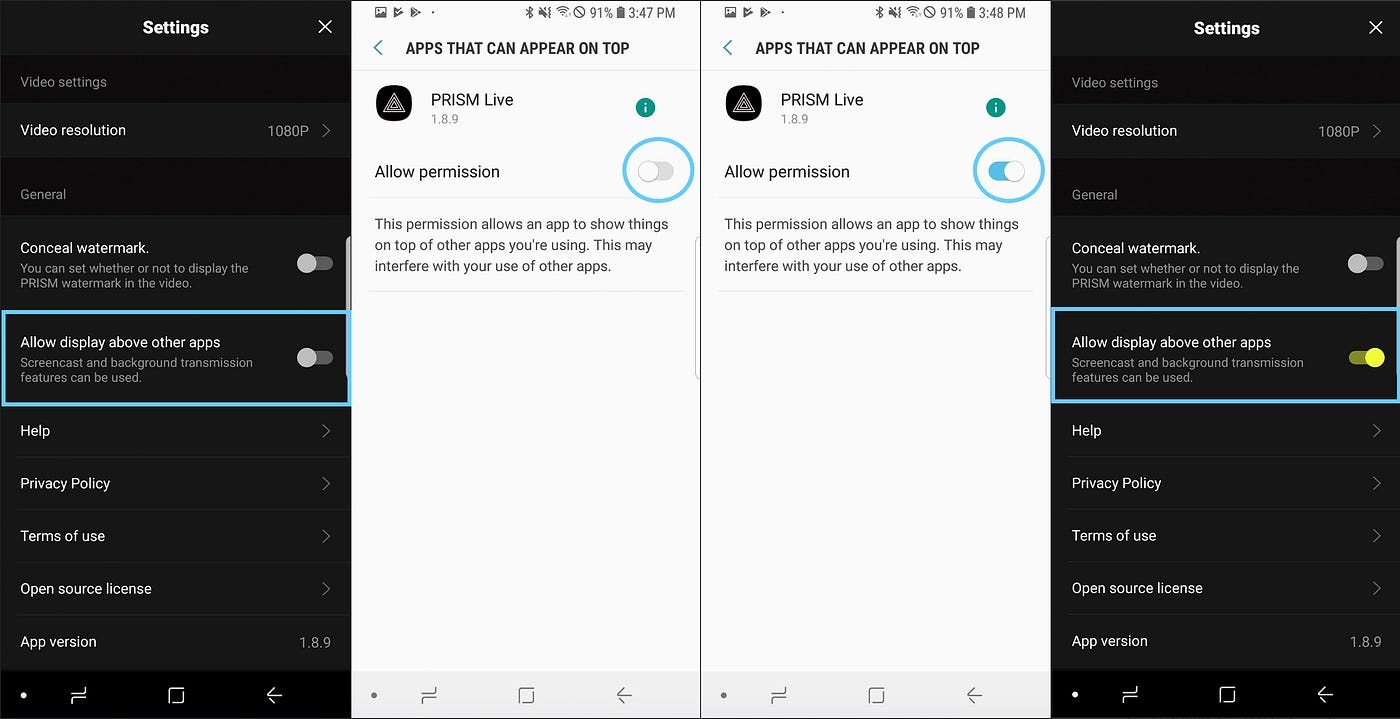
1
1
Chat
1
Image
5
Text
3
Web
4
QR Code
1
RTMP Video
1
Play Features - Music, Video, Music Playlist, Video Playlist, Image Playlist - The above source cannot be used together.
1
Chat
1
Image
3
Text
3
Web
3
2D Avatar
1
3D Avatar
1
Chat, Web - Only one chat is allowed.
4
Image
5
Text
3
QR Code
1
RTMP Video
1
Play Features - Music, Video, Music Playlist, Video Playlist, Image Playlist - The above source cannot be used together.
1
Chat
1
Image
2
Text
3
Web
2
2D Avatar
1
3D Avatar
1
QR Code
QR Code
iPad Pro (12.9-inch): 5th generation and later
iPad Air: 4th generation and later
iPad mini: 6th generation and later
iOS 환경에서는 Face ID를 지원하는 TrueDepth 카메라가 탑재된 기기에서만 3D 아바타 기능을 이용하실 수 있습니다. (25년 7월 7일 기준)
지원기기는 다음과 같습니다:
iPhone: 12 이상
iPad: 10세대 이상
iPad Pro (11인치): 3세대 이상
iPad Pro (12.9인치): 5세대 이상
iPad Air: 4세대 이상
iPad Mini: 6세대 이상

This post provides guidance on resolving issues when live streaming to Facebook fails to start properly.
If you integrate your Facebook account with the PRISM app, you can live stream to your Facebook timeline or page. However, if your profile or the page you are streaming to does not meet Facebook’s basic requirements, streaming will not start.
To stream to a timeline or page, it is essential to grant the necessary permissions to the app. Additionally, if you want to stream to a page you didn’t create, you must configure additional settings within that page.
Streaming may also fail if Facebook has restricted your live streaming feature. In this case, the issue cannot be resolved through this post, and you must contact Facebook’s customer service for assistance.
This post covers the following five topics:
Facebook streaming requirements
Facebook account integration
Streaming to a Timeline
Streaming to Pages
Streaming to Groups (Currently not supported)
The following requirements take effect on June 10, 2024, due to changes in Facebook’s Open API policy:
Your profile must be at least 60 days old to go live on Facebook. This applies to both timeline and page streaming.
You must have at least 100 followers to go live from your profile. This requirement applies to profiles using Professional Mode as well as page streaming.
Professional Mode:
If your Facebook profile does not meet these requirements, streaming via the PRISM app will not work. Please try again after meeting both requirements.
This guide explains how to integrate your Facebook account with the PRISM app. Please refer to the explanations accompanying the attached images.
Click the [Ready] button in the [LIVE] tab of the PRISM app. If no channels are currently integrated, you will see a list of available platforms.
Click the [Facebook] icon to open the Facebook menu, then click the [Connect Facebook] button (blue background) to log in and connect your Facebook account.
This screen requests permission for the PRISM app to stream to Facebook. The necessary permissions are pre-selected by default, so click the [Continue as] button to proceed.
This screen allows you to set the audience visibility for your live stream. You can adjust privacy settings within the PRISM app after integration, but the settings selected here will take priority. To ensure your selected audience visibility applies correctly, choose [Public] and click the [Continue as] button.
When streaming to timelines or pages, you will only be able to see viewer comments within the PRISM app if both the audience setting on this screen and the privacy setting in the PRISM app are set to [Public].
Once these steps are completed, your Facebook account is successfully integrated with the PRISM app. Click the channel card (shown in the left-side image) to access Facebook streaming settings, where you can configure streaming options for your page.
To stream to a page, click the [Choose where to post] section (shown in the right-side image).
Navigate to the [Choose where to post] menu and select [Page]. The app will then request permission to stream to the selected page.
Once all required permissions are granted, a list of available pages will appear, allowing you to choose where to stream.
After selecting Timeline, click the [Go Live] button to start streaming live on your Facebook timeline.
As of December 16, 2023, Facebook has introduced new restrictions on live streaming to Pages.
Due to Facebook’s updated policy, the PRISM app is currently unable to process live streaming for newly created Pages or Pages without an established presence. Please note that this is a restriction imposed by Facebook’s policy, and the PRISM app has no control over it.
Facebook does not officially disclose the exact timeframe required for a Page to be eligible for live streaming or the level of engagement needed. However, it is estimated that a Page must be at least 60 days old and have at least 100 followers to qualify.
Once you integrate your Facebook account with the PRISM app, any Pages you have created will appear in the app’s list. Even if you didn’t create the Page yourself, it will still be displayed in the list if you have an Admin or Editor role.
However, simply following a Page will not make it appear in the list. If you have a Moderator, Advertiser, or Analyst role, the Page may appear in the list of streaming targets, but you will not be able to stream due to Facebook’s platform policy.
If you attempt to stream without the necessary permissions, you will receive the following error message:
“(#200) Subject does not have permission to create live video on this Page.”
This means that to stream to a Page, you must either create the Page yourself or be assigned an Admin or Editor role by the Page manager.
Page Admins can grant Admin and Editor roles through the Page settings.
Go to the [Page Roles] section under the [Settings] menu.
You can assign a specific Facebook user as an [Admin] or [Editor] by using the [Assign new Page role] option on the right side. Once a user is assigned as an [Admin] or [Editor], they will be able to stream live to the Page.
Lastly, please note that live streams to the Page will be shown in the Videos tab of the Page.
The PRISM app has supported streaming to groups for a long time, but unfortunately, starting April 24, 2024, streaming to groups from the PRISM app will no longer be supported due to changes in Facebook’s Open API policy.
Deprecating Facebook Groups API (January 24, 2024)
The Facebook Groups API is deprecated in v19 and in 90 days will be removed from all versions. This deprecation includes all Permissions (publish_to_groups, groups_access_member_info) and Reviewable Features (Groups API) associated with the Facebook Groups API.
If previous versions of the PRISM app fail to adapt to these changes in external platform APIs, consider re-integrating Facebook within the PRISM app if streaming to timelines and pages, rather than groups, causes issues.
However, this change does not mean that streaming to Facebook groups is completely impossible within the PRISM app. Facebook group streaming through the PRISM app is still possible by following these steps:
Access the Facebook website.
Navigate to the target group for streaming on the Facebook website.
Click [Create Post].
Click on the More button and select [Live Video].
Android error code: 4602
iOS error code: 200
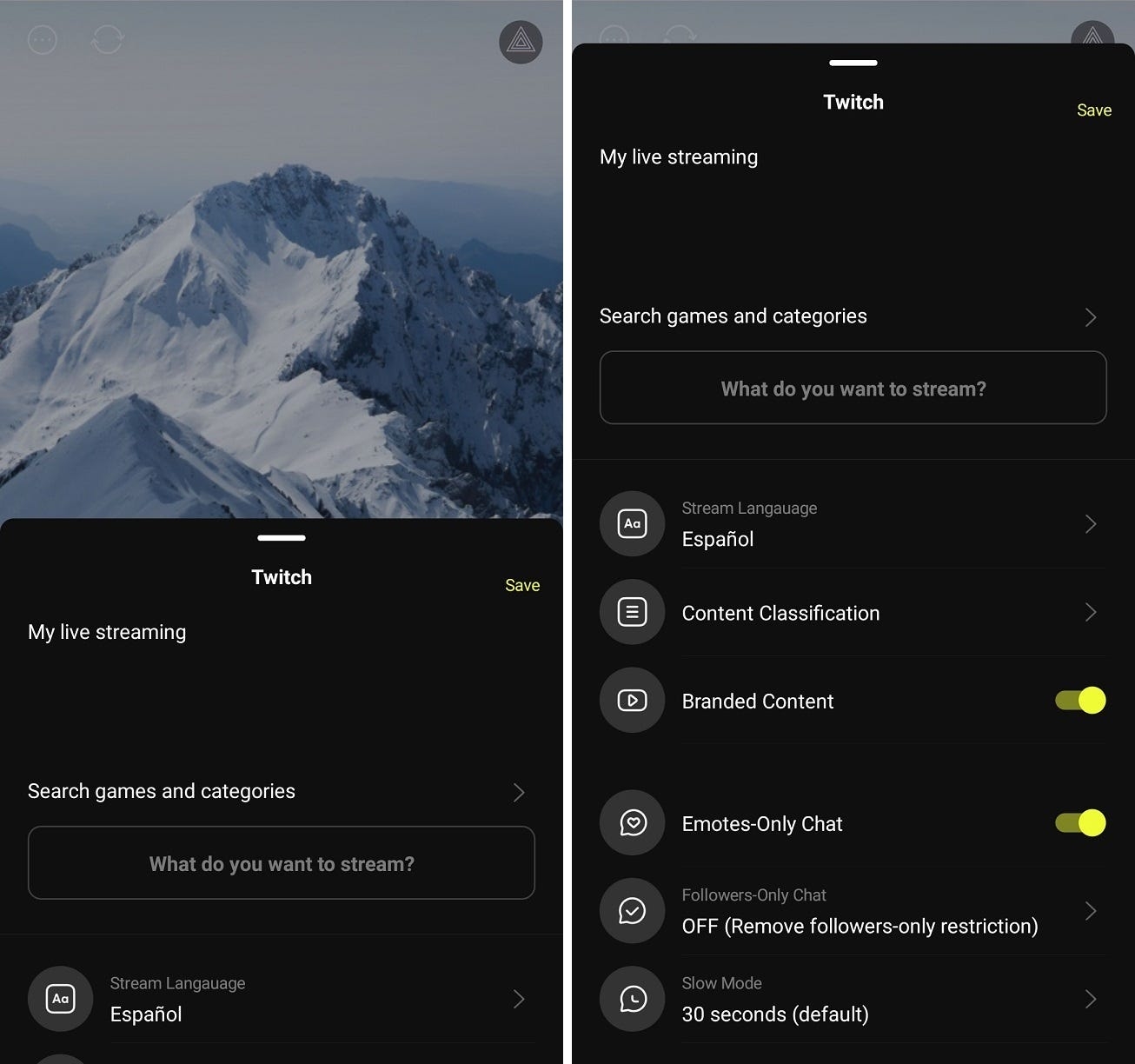
Android, iOS
You can stream live with a virtual 2D character based on your own style using the PNG Tuber option in the PRISM app. It is a feature that allows creators to interact with their audience as a living character using a variety of facial expressions and gestures, and you can learn more about how to use it, including different emotions and specific gestures, at the following page:
We provide twelve default characters in the app to help you get up and running quickly, but a lot of people like to use their own characters for live streaming.
Android, iOS
Most of the live streaming these days takes place in a situation where the streaming device is mounted some distance away in front of the streamer. As a result, streamers have had some difficulty accessing or controlling the device’s features during live streaming.
PRISM app supports remote control function that can remotely control the other PRISM app. And this feature can be used in various combinations, such as:
• Streaming with PRISM mobile + remote control with PRISM mobile • Streaming with PRISM Windows + remote control with PRISM mobile • Streaming with PRISM mobile + remote control with PRISM Windows (to be supported in the future)
Click the [Go Live] button.
Select [Streaming Software] as the video source.
Copy the [Stream Key] and configure it in the PRISM app’s Custom RTMP settings.
The PRISM app provides Facebook’s [Server URL] as a preset.
Save the Custom RTMP settings and choose the streaming destination platform.
Click the [Go Live] button on the live preparation screen to start streaming.
Confirm the streaming preview in the Facebook [Create live video] menu.
Click the [Go live] button at the bottom left to start broadcasting live.


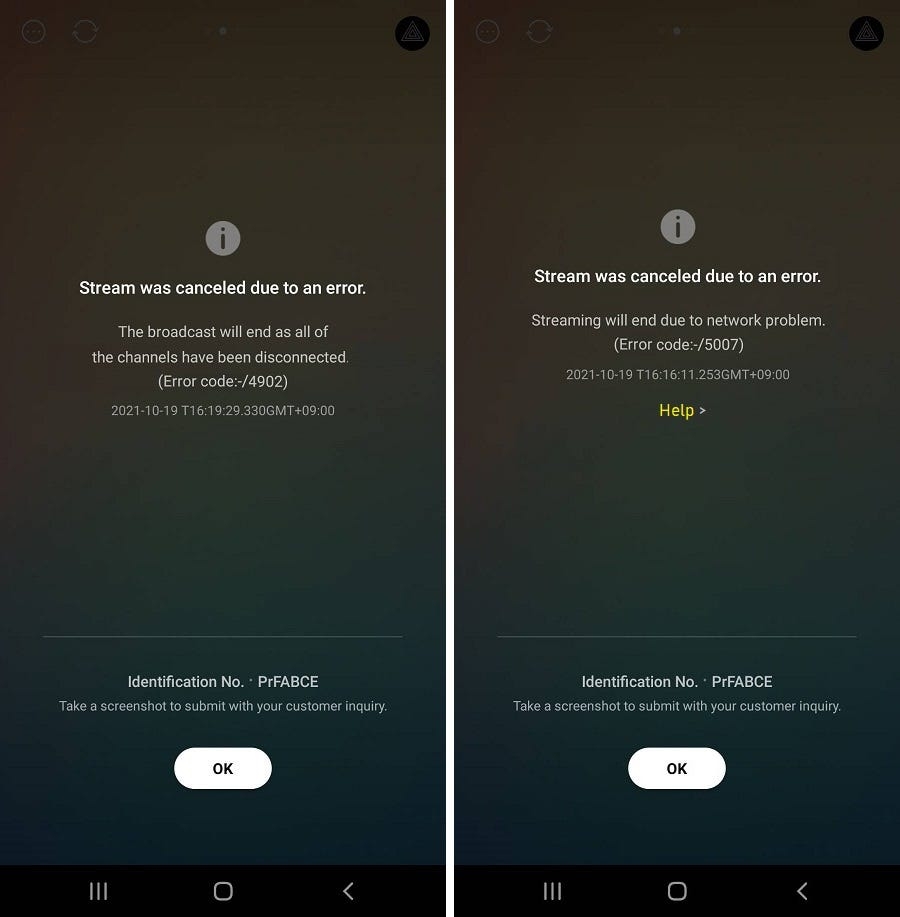
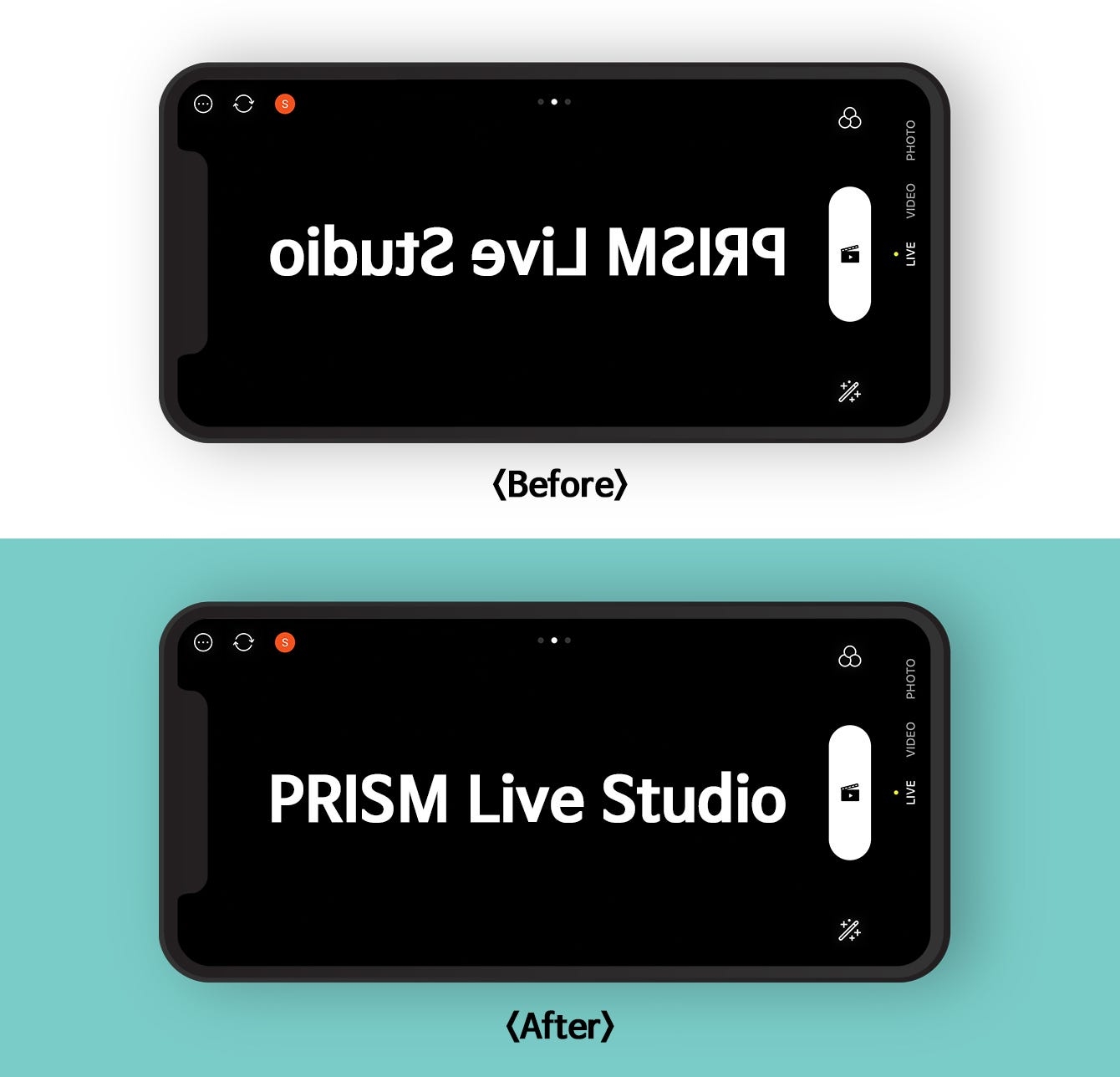
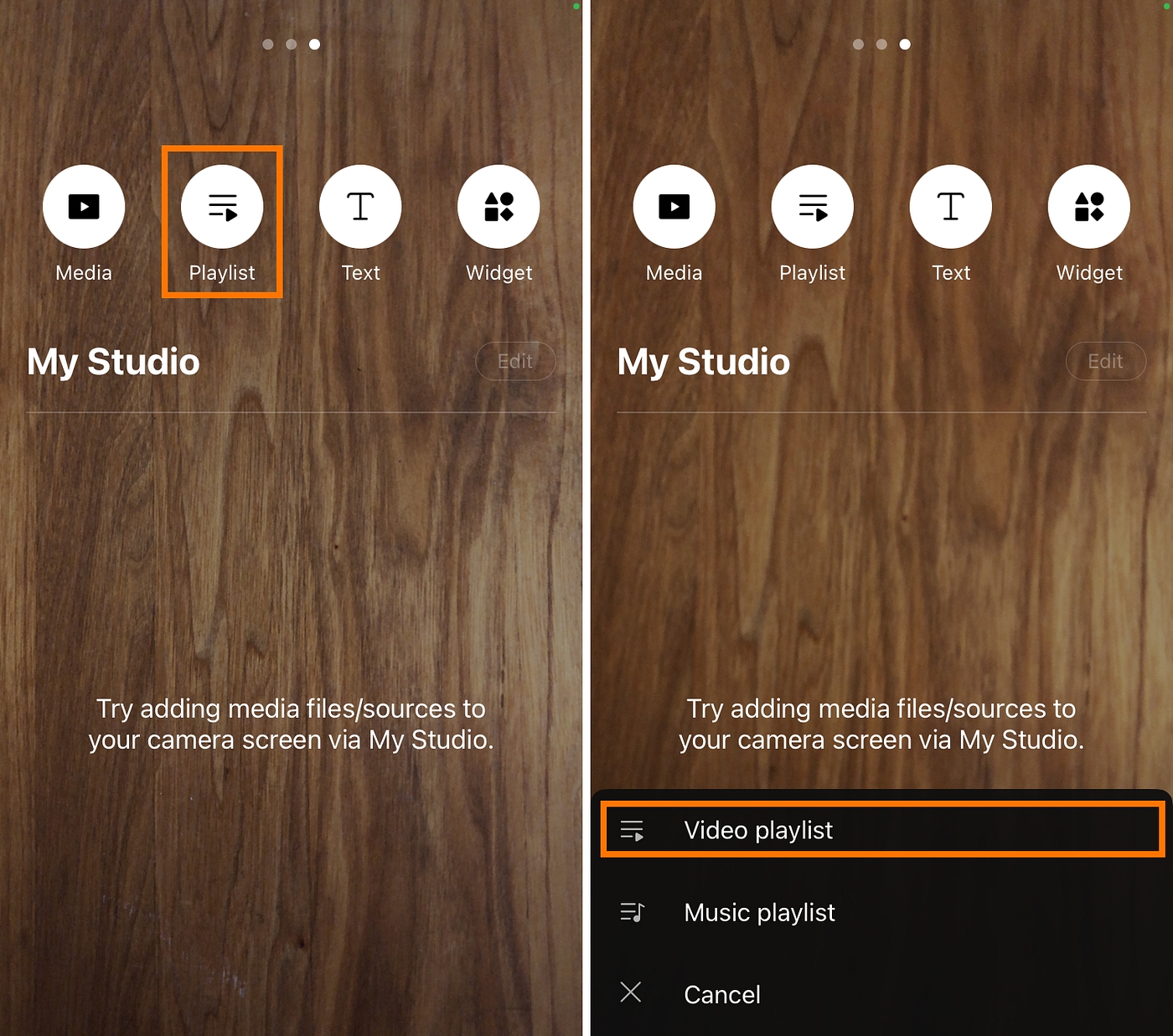
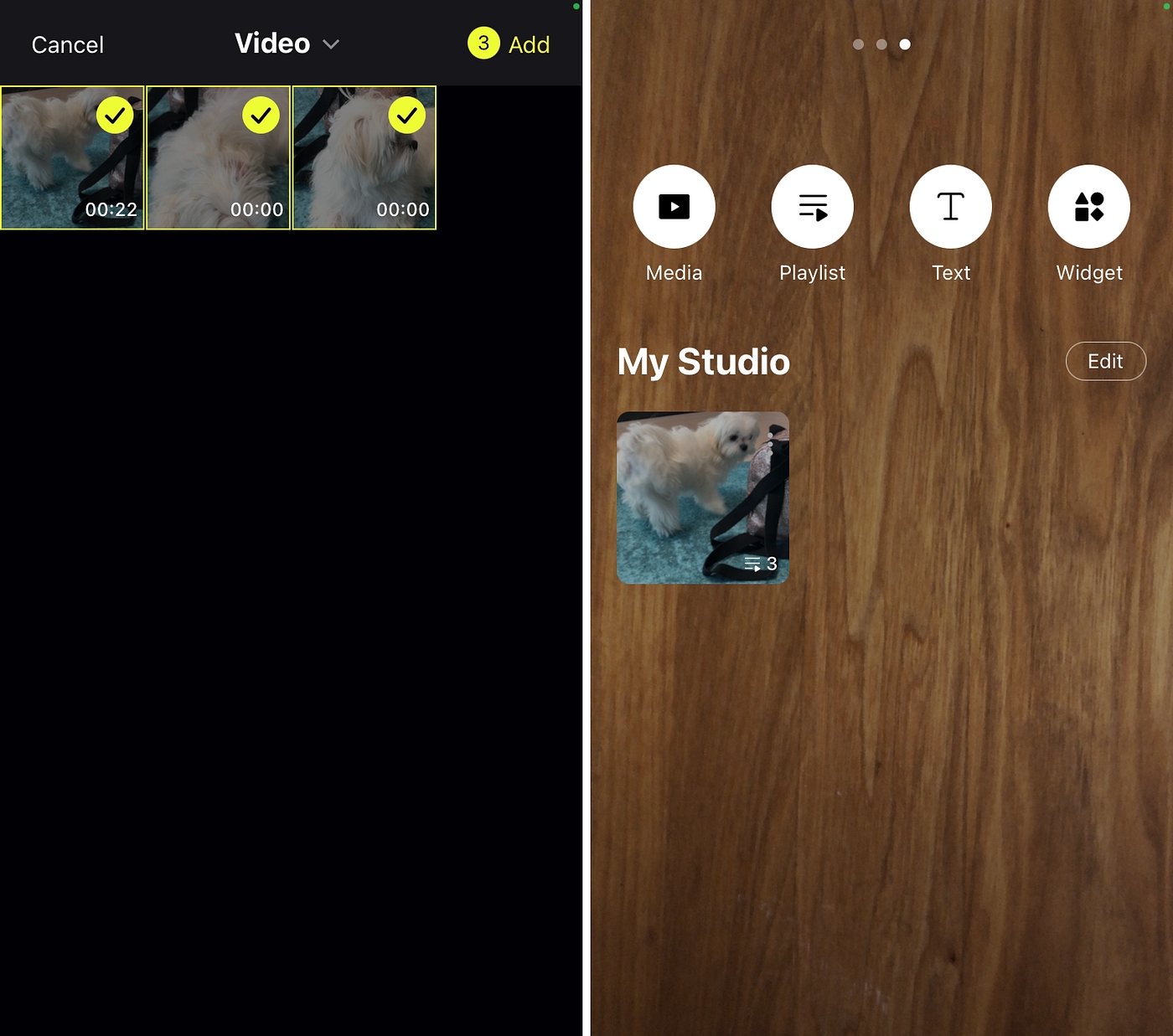
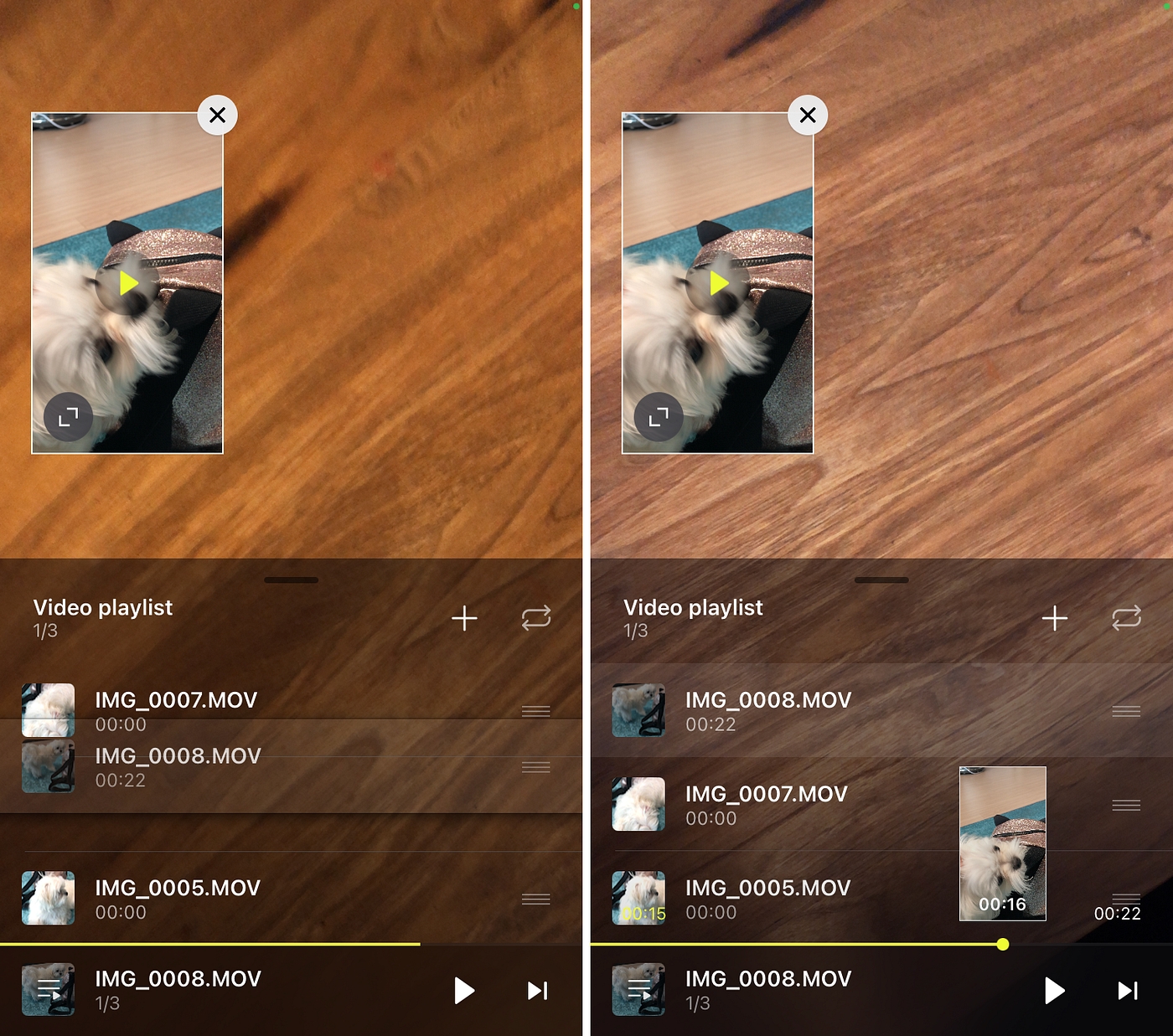
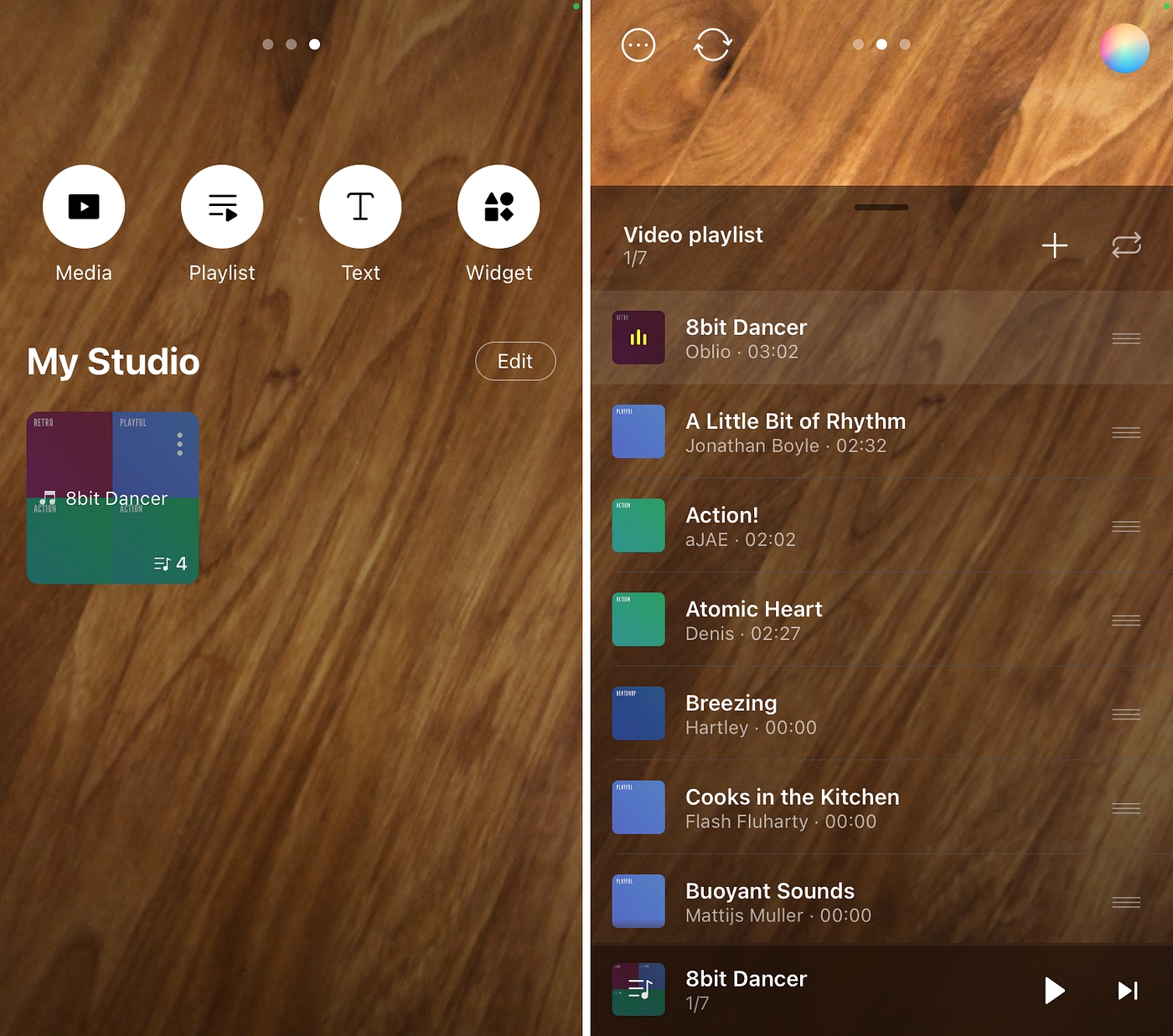
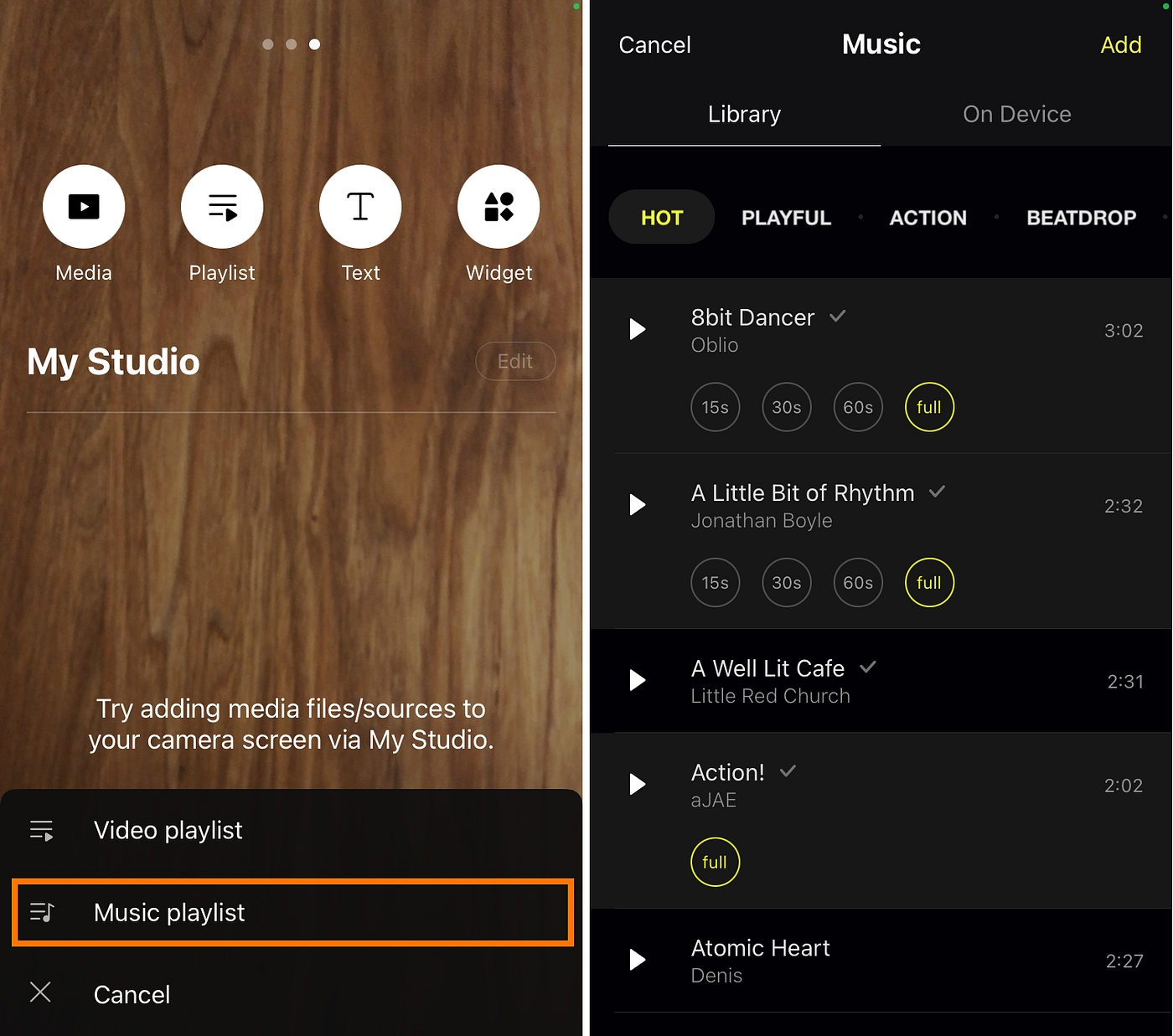
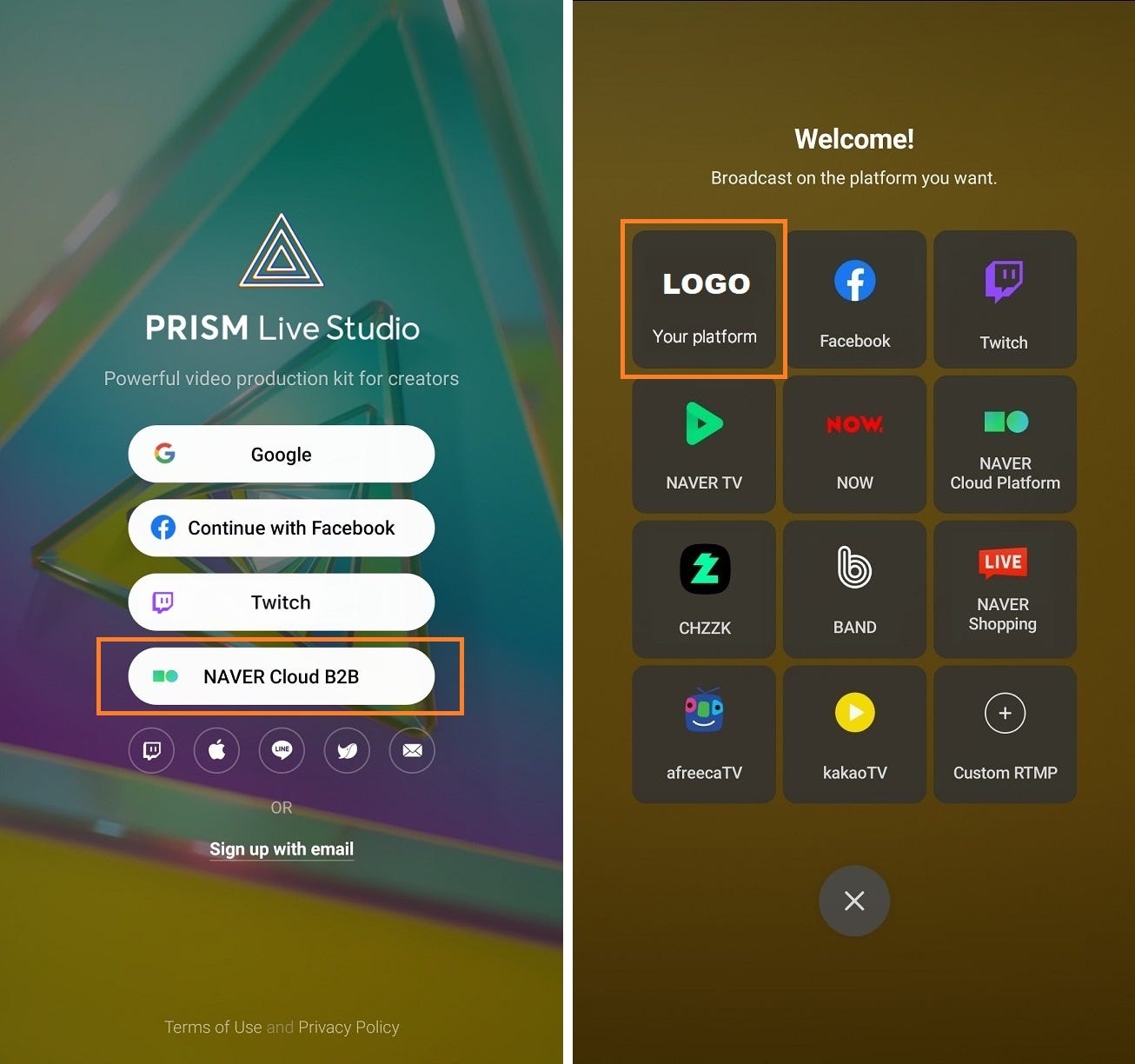
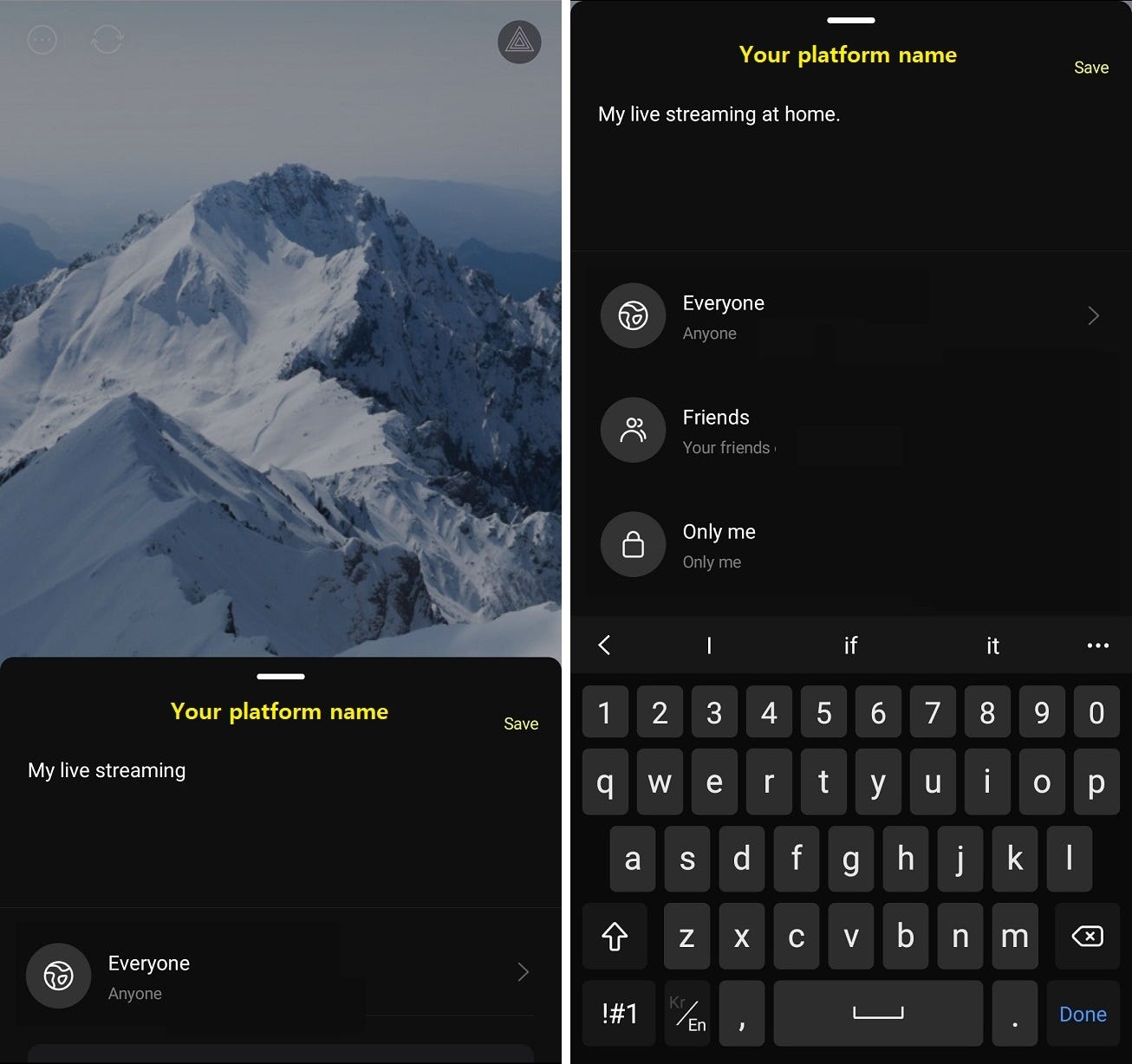
To draw directly with drawing tools
Hire someone to draw your characters professionally
Using an application that provides the ability to create a character
Draw using the many available AI-based drawing tools
However, if you’re not familiar with image tools, you’ll probably have a hard time creating your own characters. With the help of external applications, you can easily create your own PNG Tuber characters.
In this page, we are going to create an avatar using several applications that can create characters.
The VRM Posing Mobile app, powered by Pixiv and available for Android and iOS, allows users to create a variety of facial expressions and customize poses easily.
However, on the mobile version (not the PC version), you can only customize the characters you create on the Vroid Hub website, and you can't save them directly to your mobile device, so you'll have to move them or take photos.
Once you’ve downloaded the app, launch it and you’ll find the ADD and CHANGE buttons in the top left corner, and you’ll be able to choose your character from the menu.
There are currently 10 characters available in the VRM Posing Mobile app. Select the character you want to use as your own PNG Tuber. After selecting a character, you’ll see it in a default pose like the one shown below.
There are two areas we’ll focus on: poses and facial expressions. You can customize your poses and facial expressions using the Select Pose button and the Blend Shape button in the top left corner. VRM Posing Mobile app also has a 360-degree rotating camera and a number of tools to help you customize your VRoid character.
The image below shows the Blend Shape mode, which is used for customizing the facial expression. You can easily create your character’s facial expressions using the Face Shape UI at the bottom right of the photo. Try creating different facial expressions by adjusting the various expression faders.
The image below shows the Select Pose mode, which is used for choosing a pose. The VRM Posing Mobile app offers various pose presets, so try them out and find one you like.
Once you’ve created your character’s pose, register it in the settings menu of the PNG Tuber feature in the PRISM app by referring to the following method:
You’ll be able to stream with your own colorful avatar.
This article will show you how to create a PNG Tuber character using the ZEPETO app. The app is available for NAVER Z and supports both Android and iOS.
Powered by facial recognition, augmented reality (AR) and 3D technology, the ZEPETO app allows for endless customization of your avatar. You can create an avatar that looks like you and transfer it to the PRISM app. You can then use it as a character in the PNG Tuber feature.
The ZEPETO app provides motion capture through camera mode. There are no built-in facial expressions in this feature, but you can use your own face to express different emotions and create avatar images that follow those emotions.
When you enter Camera mode, you’ll see the following background. You’ll also see a user interface that lets you capture video and photos separately.
The one we’re going to use is a photo. Change the background to transparent and start the front camera. The reason we need a transparent background is because the PNG Tuber feature in the PRISM application requires images with transparent areas other than the characters.
The next step is to capture your expressions. If you have a front-facing camera, you’ll see your avatar recognize and mimic your expressions. The photos you’ll need to create your avatar are the same as in the previous step, with four recommended expressions. Please try to capture the look you want to achieve.
Create an avatar that looks like you with a variety of customization features. From body parts like eyebrows to shoes, accessories, and even the latest fashions, you can make your avatar unique.
You can also use the motion capture feature to create your own sad, happy, depressed, and other emotional expressions and use them in the PRISM app. It’s a unique experience that will make you feel more connected to your avatar.
It’s time to start creating your own avatars using PNG Tuber once you have a set of avatar images.
To begin, launch the PRISM app and select VTuber mode from the list of Live Select tabbed sections in the center of the picture on the left. Once you’ve selected the mode, click on the gear-shaped Settings button on the right. This will open the VTuber Settings page.
In the PNG Tuber setup screen, you’ll see some default characters that are ready to go, but since we’re going to set up our own character, we’re going to scroll to left, and on the card you’ll see a button that allows you to create a new avatar.
We’re going to create an avatar by adding a photo directly to the Source, so click the Source button. You’ll see an image like the one above right with a space for your avatar image.
Now register a set of images for the guide for each emotion, we need four sets of images. The image sets we refer to here are the emotion images, i.e. the state images for changing the shape of the eyes and mouth. We will guide you to prepare 4 sets as shown above:
Image with eyes open, mouth closed
Image with eyes open, mouth open
Image with eyes closed, mouth closed
Image with eyes closed, mouth open
To create your avatar, use the images below as a guide.
You’ve now registered your PNG Tuber avatar. Your avatar will move its mouth and make various facial expressions as if it were actually speaking, depending on your voice and emotion choices.
You need at least two devices to use the remote control function. One is a device that actually performs live streaming, and the other is a device that remotely controls a device that is performing live streaming.
Once you click the round More button at the top left of the app, a menu where you can use various functions is provided. Click the Remote control connection button from the bottom of that menu to open the QR code sheet.
There is a QR code for the remote control app to connect to the PRISM app for live streaming. After the remote control app is connected, the screen will display the connection information as shown in the right image.
The same QR code connection screen is provided in the PRISM Windows app, and the remote control connection menu button for that screen can be seen on the right side of the app screen.
The remote control connection screen in the mobile app and Windows app supports not only connection through QR code scan but also automatic connection function.
The PRISM app checks the list of PRISM devices connected to the same WiFi. And when an immediate connection is possible, it connects automatically without going through the process of scanning the QR code.
However, if user confirmation is required for device selection, it provides a connection device selection screen for that. We will look at this again later in this page.
Select the CONNECT tab from the list of tabs at the bottom of the screen to use as a remote control. The CONNECT tab was used to connect the camera or screen of the PRISM mobile app to the PRISM Windows app, but it can also be used for remote control connection.
Scan the QR code of the streaming device with the QR code scan screen of the CONNECT menu to complete the remote control connection.
However, as mentioned earlier, since the automatic connection function was embedded to the CONNECT tab, the connection may be processed automatically even before scanning the QR code.
If only one device to connect is specified, the PRISM app will try to connect automatically, but if multiple connectable devices are found, the PRISM app may not be able to connect automatically.
So, in this case, the message Connectable device is displayed at the top of the screen, and when you click on it, the PRISM app displays a list of connectable devices so that you can select the intended connection.
The remote control screen consists of shortcut keys for various functions that can control live streaming. And this configuration can be easily adjusted to suit your convenience. Currently, we provide shortcut keys for a total of 17 functions, but we plan to add shortcut keys for more functions in the future.
When the remote control connection is completed for the first time, the minimum shortcut keys are set as shown in the image above. If you click the boxed plus (+) button, you can check the list of shortcut keys that can be used by adding to the remote control.
After selecting the shortcut keys for the functions you want to use, click the Add button to add them to the remote’s deck.
The deck is a panel where the shortcut keys are placed. You can add as many decks as you want to the PRISM remote control, so you can arrange shortcuts for each deck and use them by purpose.
Press and hold any shortcut key to enter shortcut editing mode. You can delete a shortcut through the delete button at the top left of the shortcut icon, or you can change the location by grabbing and dragging the shortcut. When editing the shortcut is completed, click the Done button at the top right to save it.
As mentioned earlier, you can add as many decks as you like. To add a deck, swipe the screen from right to left to go to the last deck, where you will see an Add button to add a new deck.
When a new deck is added, it is added as an empty deck with no shortcut keys, but shortcuts can be added to the new deck through the Add Shortcut button.
If multiple decks have been added, you can select a deck by swiping the screen as shown in the image below.
And there will be situations where it is necessary to delete the deck. Press and hold any shortcut icon on the deck to enter shortcut editing mode, and you will see the Delete Deck button at the bottom of the screen.
A shortcut in remote control allows you to remotely apply effects to the screen of a live streaming app. And the effects in the Favorites tab in the effects menu of the streaming app can only be displayed on the remote control screen. Please note that the Favorites tab in the Effects menu is indicated by a star icon.
So when you want to use effects remotely using the remote control, use them beforehand in the streaming app to add them to your favorites list. These effects will be automatically added to the effect shortcut in the remote control app. Check out the effect shortcut to check a list of effects available on the remote control.
As mentioned earlier, you can remotely control streaming from the Windows app through the remote control function of the mobile app. What’s more, you can switch between each scene set in the Windows app in real time from the mobile app, and even control the exposure of individual sources within each scene.
The image below shows 3 scenes set up in the PRISM Windows app: Scene 1, Scene 2, and Scene 3. And you can add those scenes as shortcuts to the remote control app.
When a specific scene button is clicked, that button turns yellow and the scene is also selected in the Windows app. And when the yellow scene button is clicked once more, the number of sources that the button’s scene contains is displayed.
And in that state, when the scene button is clicked once more, the source list that the scene contains is displayed on a separate layer as shown in the image on the right. Also, note that when each source button is clicked here, you can control the exposure state of each source in the scene.
The PRISM remote control function fully supports landscape mode as well.
Usually the device for live streaming will be placed in front of the streamer and the remote will be placed on a table close to hand for easy operation. In this case, it would be good to check if it is more comfortable to use the remote control in landscape mode.
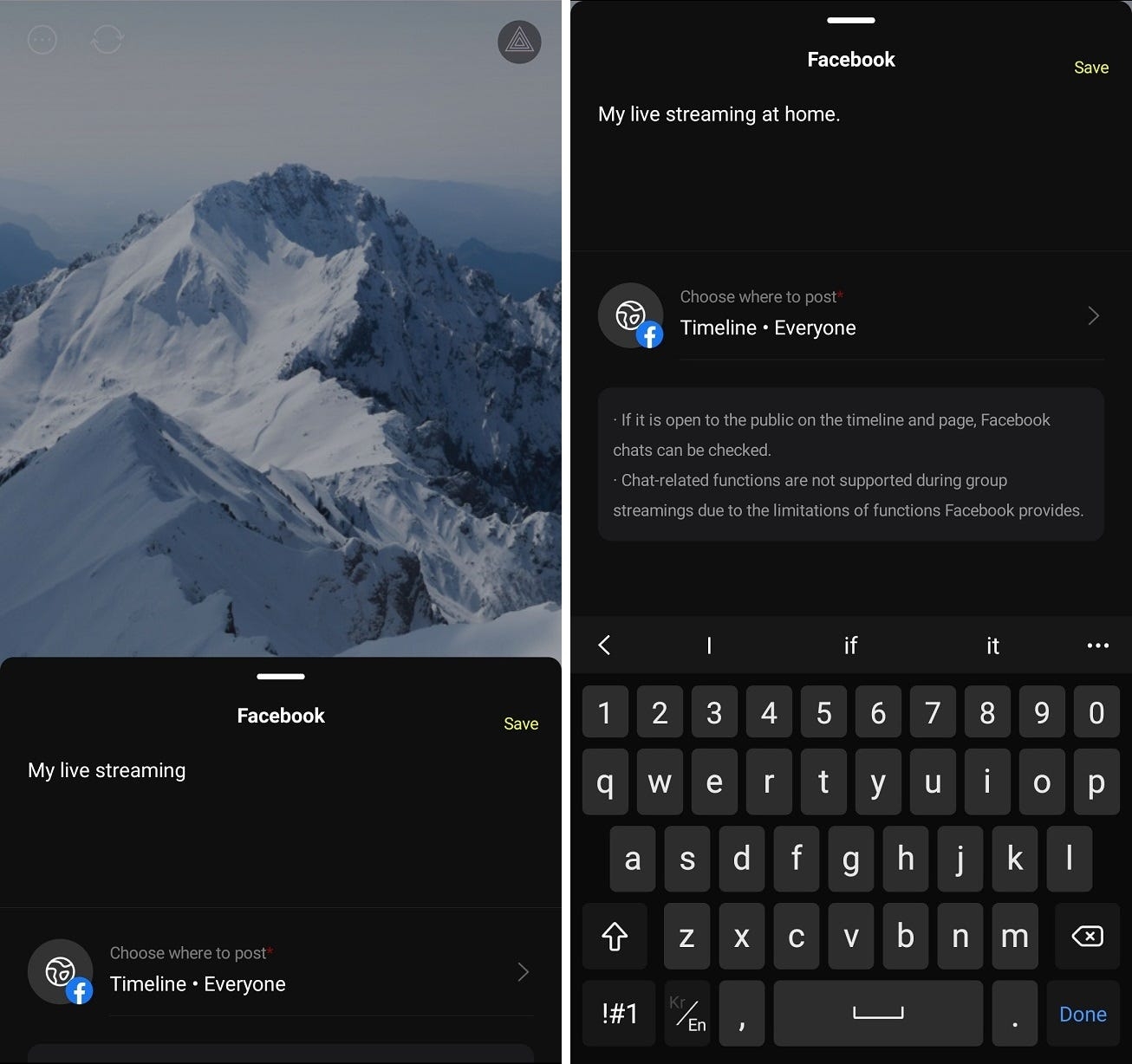
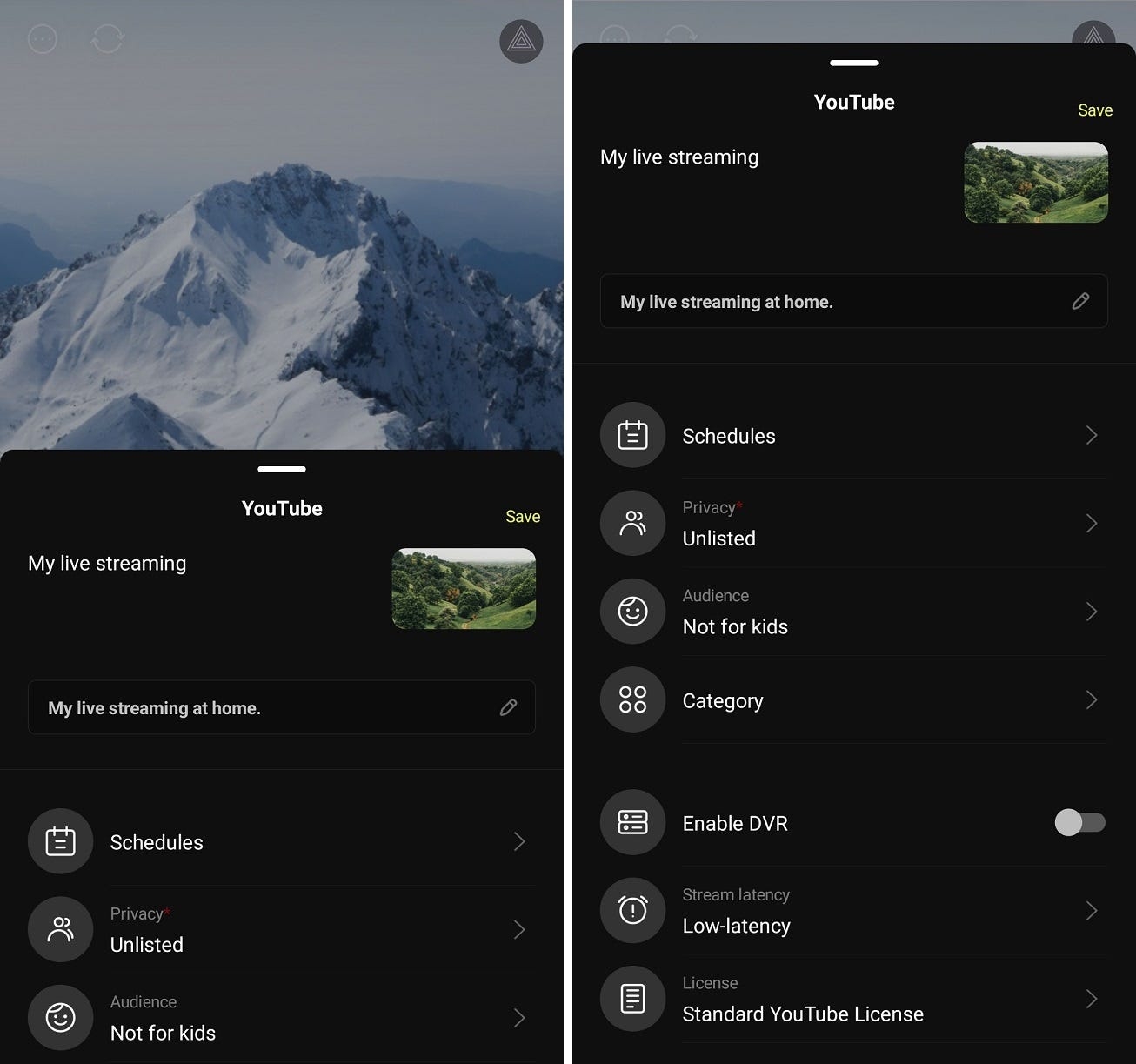
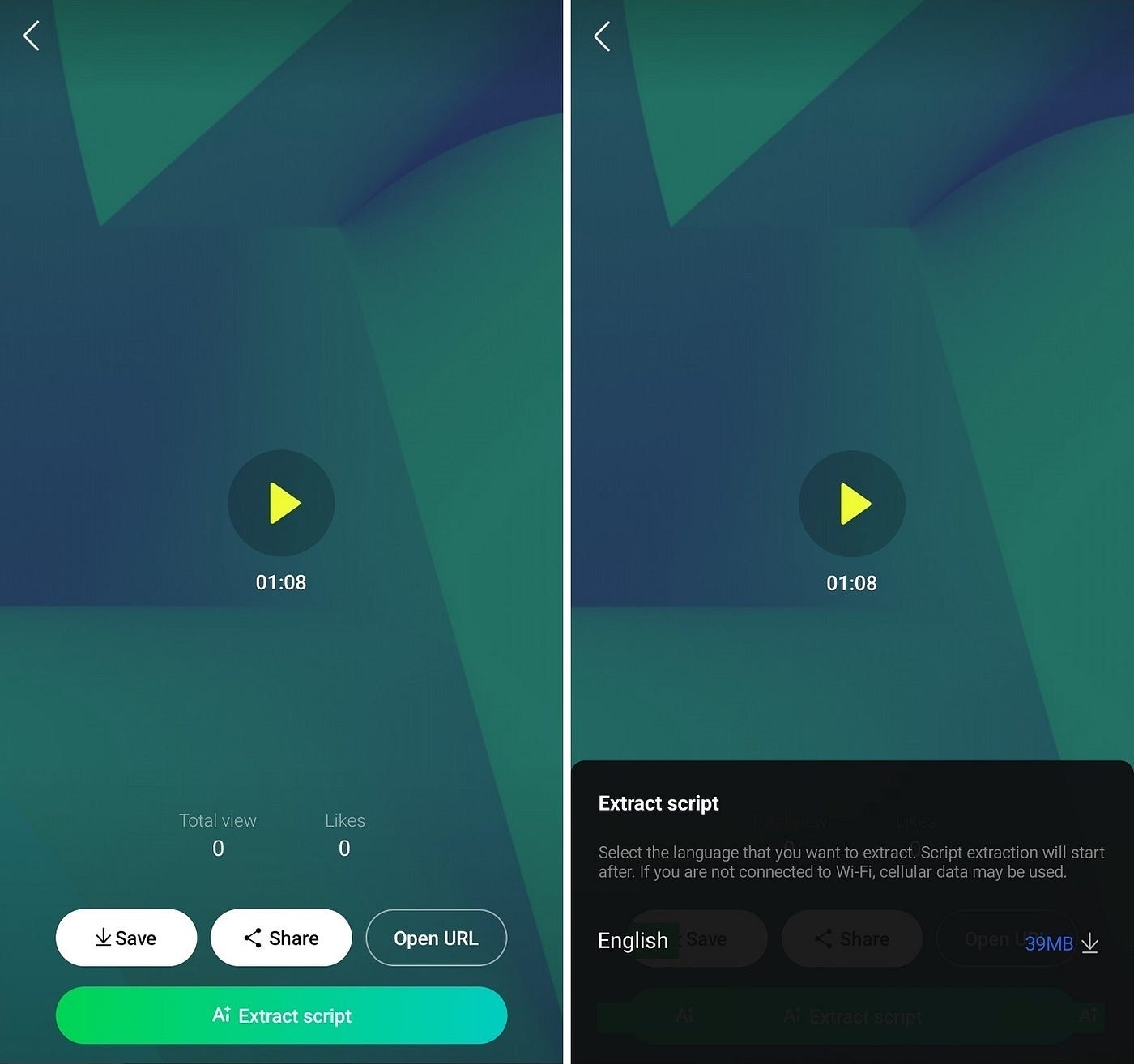
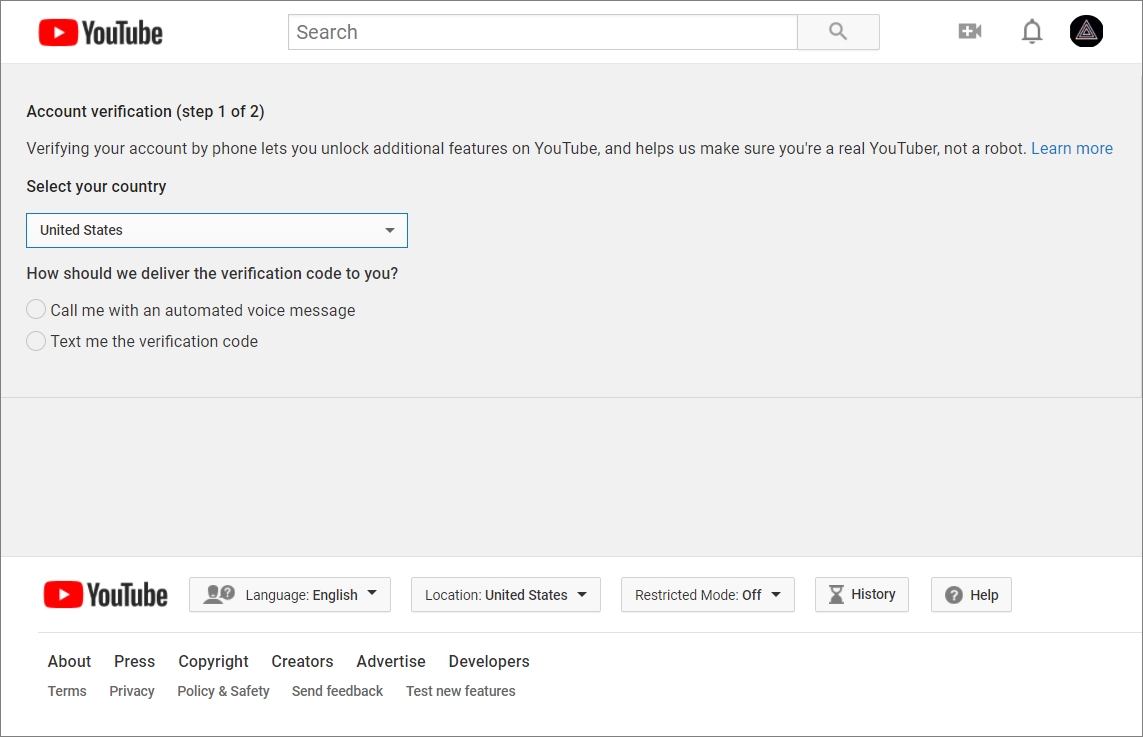
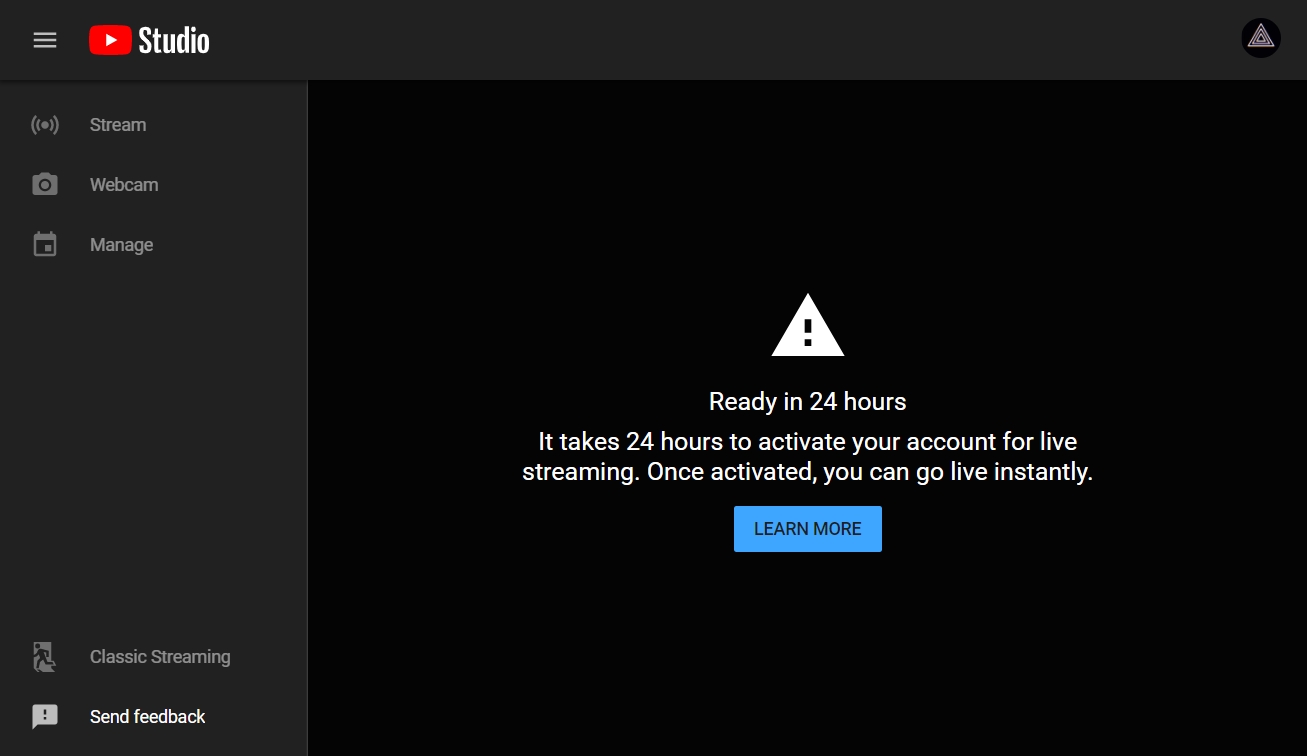
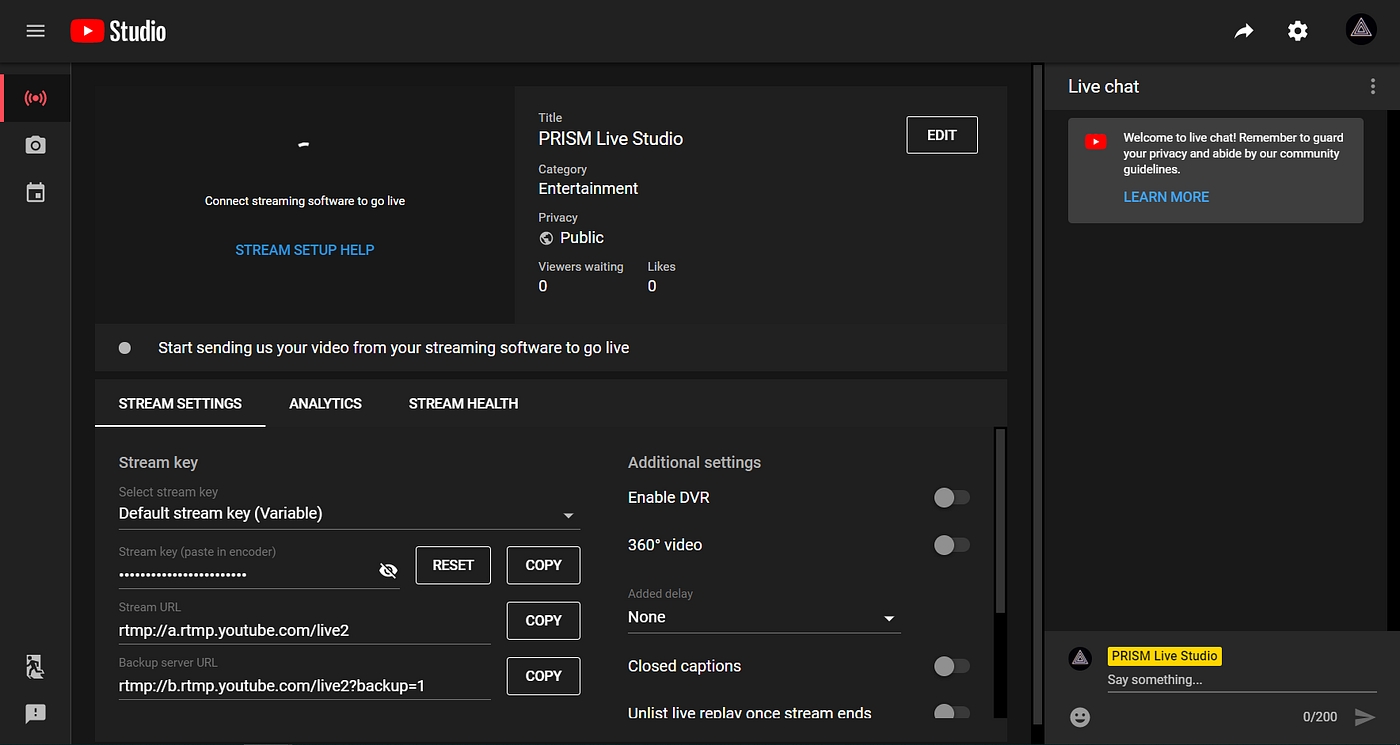
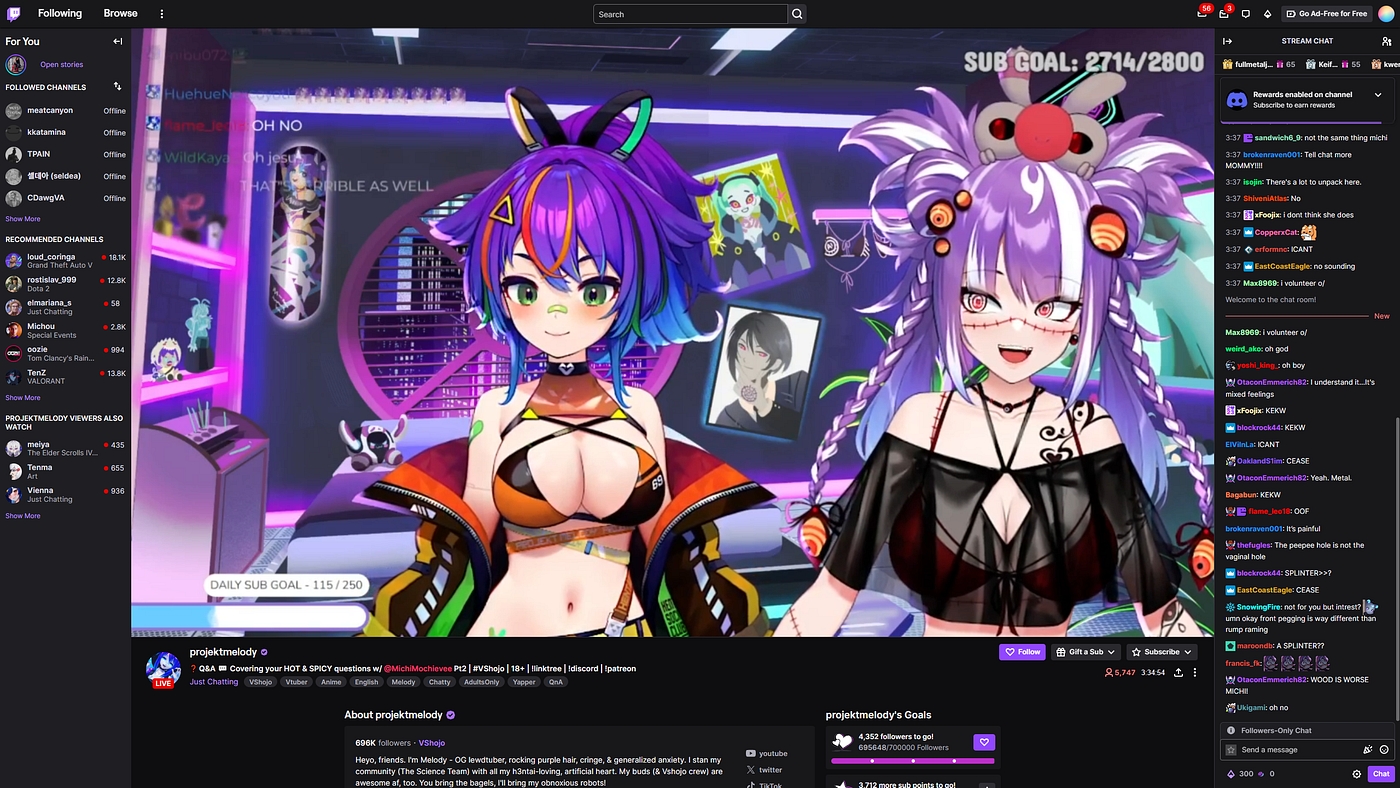
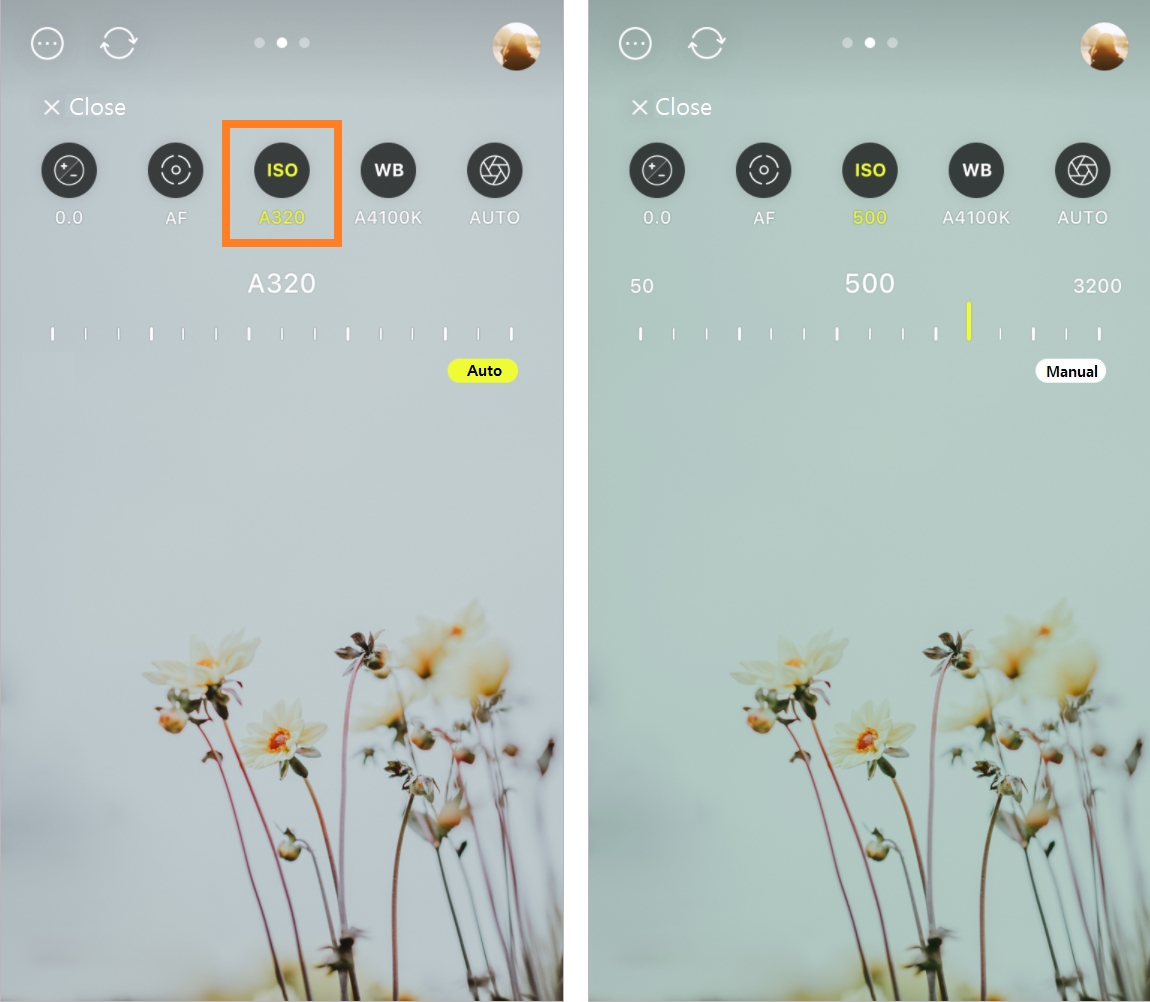
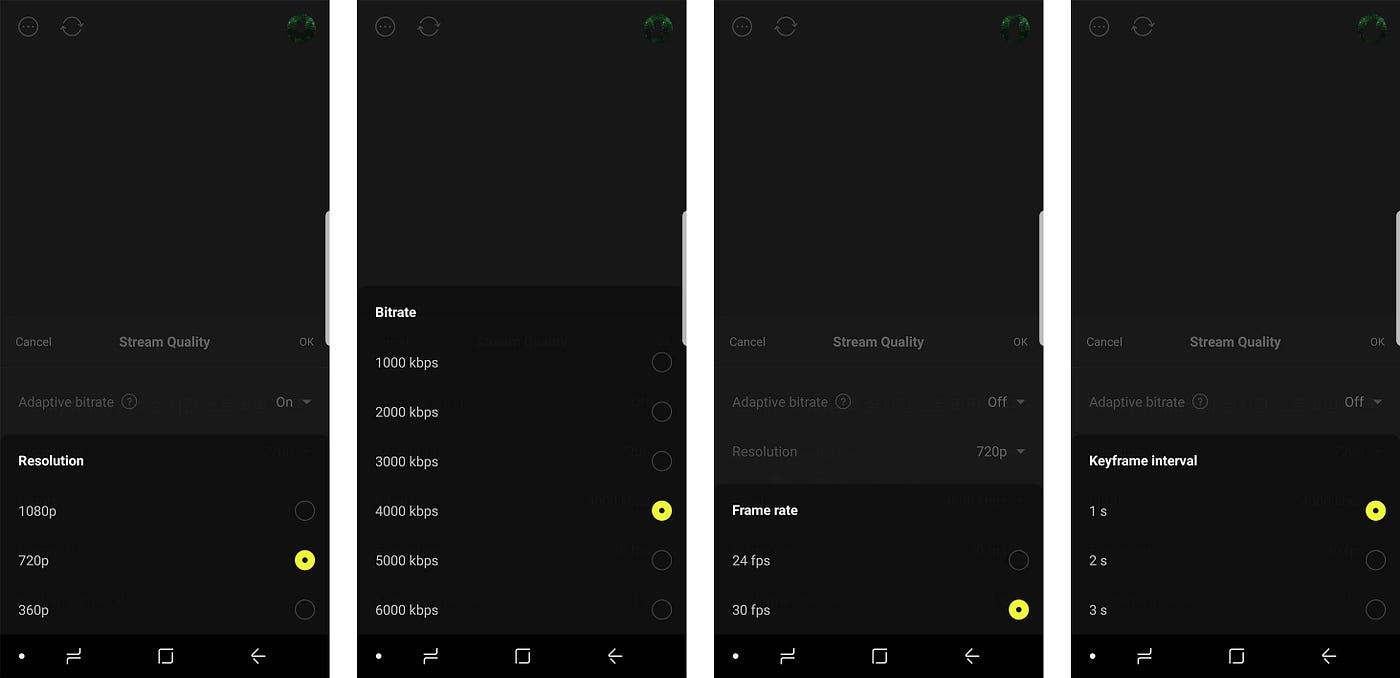
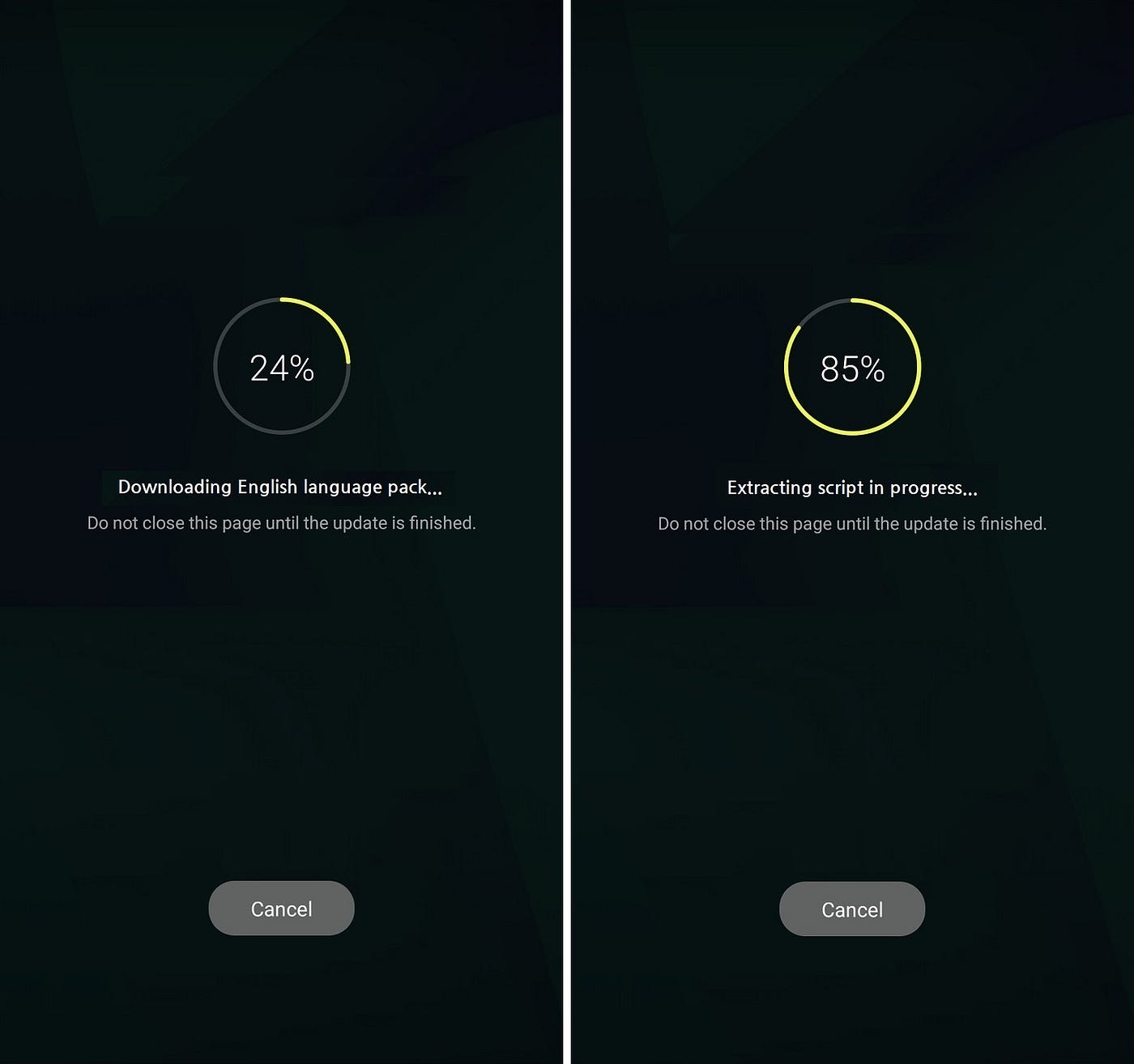
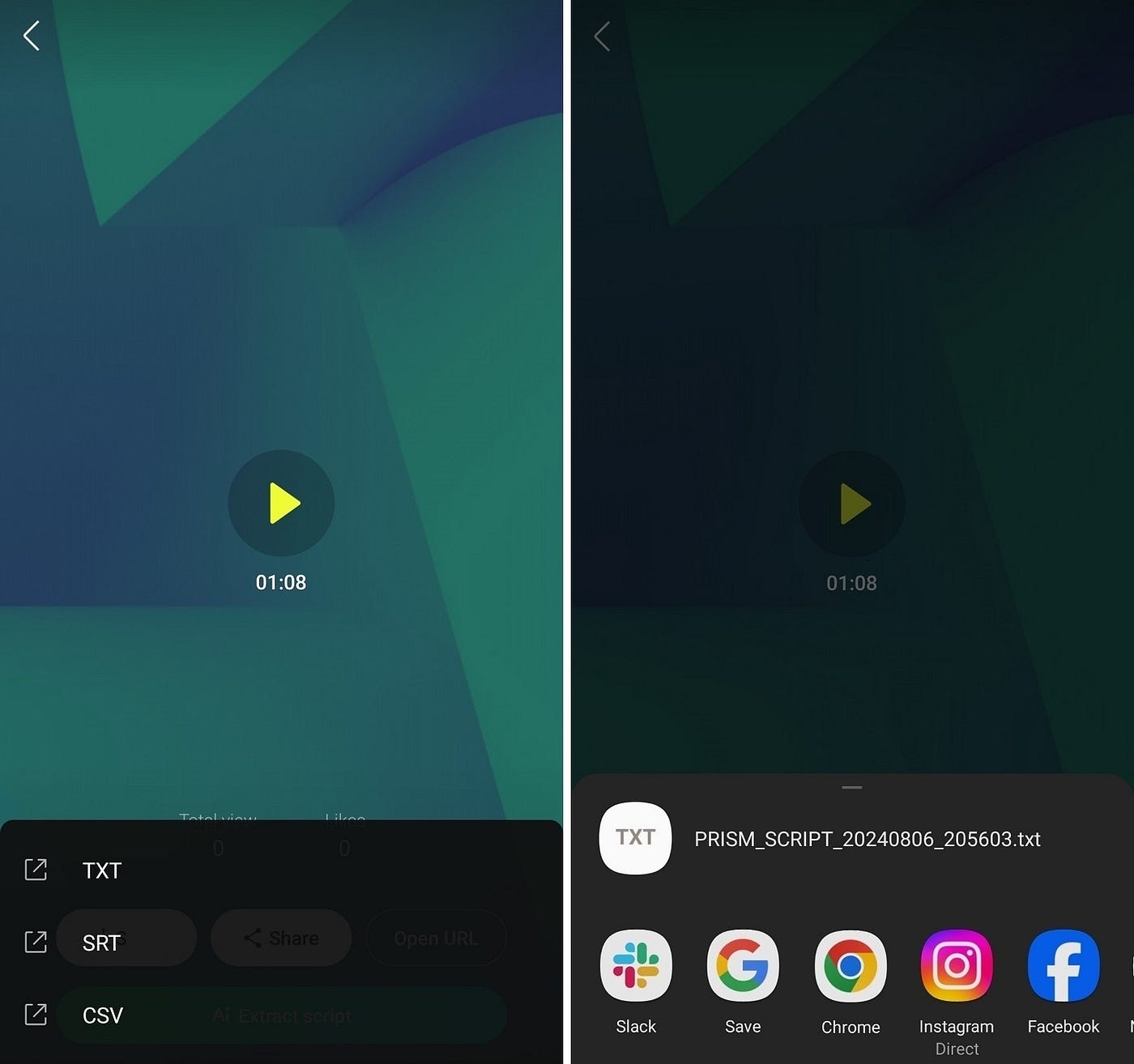
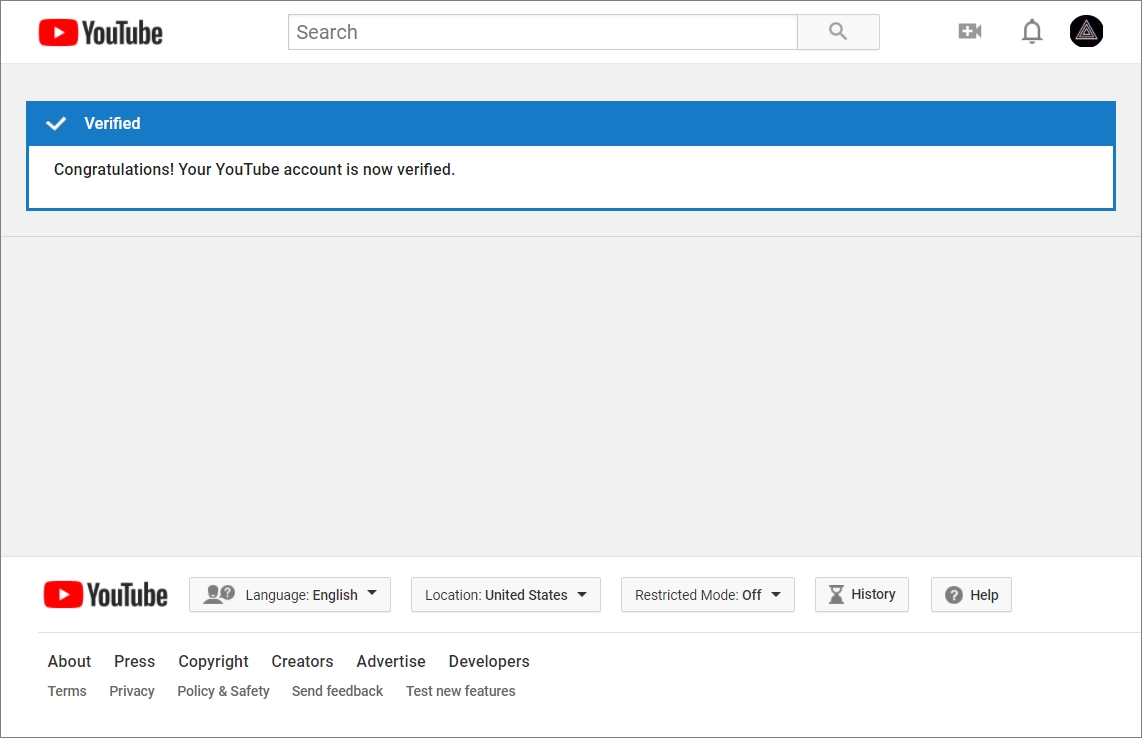
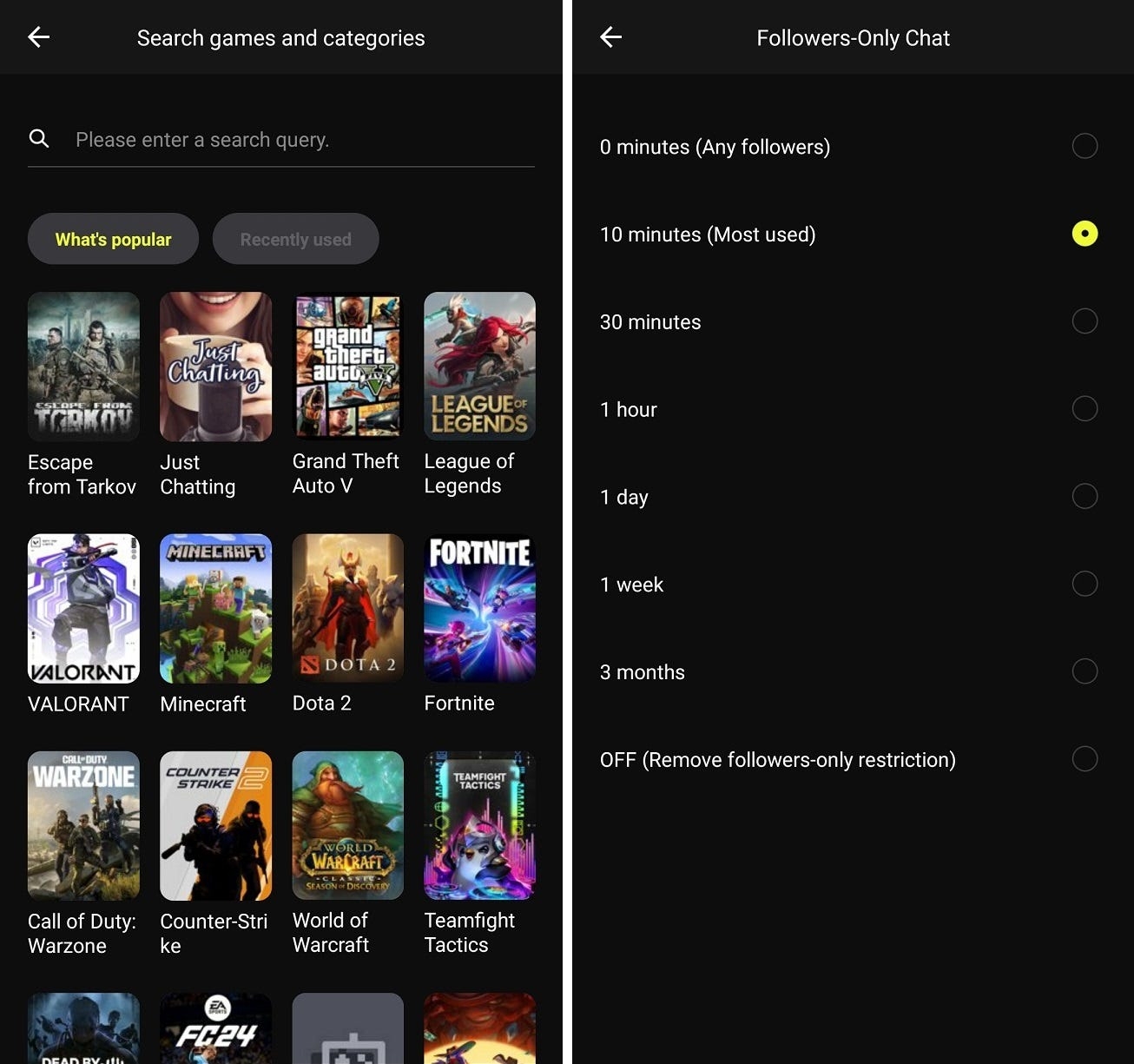


Android, iOS
PNG Tuber is a type of character live streaming where the streamer goes live using a fictional character instead of themselves, and uses a set of images to represent the fictional character.
Character live streaming began in 2016 with the unique advantage of utilizing a streamer’s character with a new identity to meet viewers, and has seen a dramatic increase in user volume since 2019.
However, since live streaming of characters, including PNG Tuber, requires special equipment or separate softwares, live streaming has been mainly conducted based on PC apps, and due to this situation, character live on mobile apps has not been familiar to us.
By using the PRISM app, anyone can easily become a PNG Tuber on the mobile app without any hassle and preparation.
PNG Tuber is live streaming with a virtual character as the protagonist, but its purpose is the same as any other live stream to connect and interact with viewers.
Your character needs to express emotions that fit the story you’re telling, and PNG Tuber makes this possible by selecting and using a set of images for each emotion.
The PRISM app also allows users to register their own set of PNG Tuber character images, but to make it easier and faster to get started with PNG Tuber, the app provides five default characters. And they have five set emotions by default: happy, joy, surprised, sad, and angry. And you can change your emotional expression by clicking on the individual emotion buttons as you livestream. For each of these five emotions, the following four state images are being used:
Image with eyes open, mouth closed
Image with eyes open, mouth open
Image with eyes closed, mouth closed
Image with eyes closed, mouth open
Therefore, if you want to prepare your own characters to use instead of the default characters provided by the PRISM app, we recommend that you prepare a total of 20 images (5 emotions x 4 states) as shown in the example above.
However, five emotions and four states for each emotion are sometimes not enough to connect with your audience. While you can add more than five emotions to the characters, the PRISM app takes it further by supporting an additional feature called motion.
You can give your character repetitive movements through motion features that can be applied to each emotion. And the PRISM app has a total of five forms of motion. And you can even apply a different motion for when the mouth is open and closed.
There's a lot more to the PNG Tuber feature in the PRISM app than this. For example, you can set a background and change it on the fly while you’re live, and we also support integrations that allow you to use PNG Tuber not only for mobile streaming, but also for PRISM Windows Live Streaming.
More details can be found in the section below.
The PRISM app supports three modes: Screen Live (ScreenCast), Camera Live, and VTuber mode. Select VTuber from the list of live types, which you can see in the center of the image on the left below. Here, we’ll use a PNG Tuber, so make sure to select a 2D Avatar from the avatar types.
When you enter the VTuber mode, you’ll see a character from one of the default characters provided by the PRISM app immediately set up on the screen. (The number and type of basic characters may change.)
When you look at the middle part of the picture on the left, you can see the Settings button, and once you click that button, you can enter the VTuber setting screen. On the VTuber setting screen, you can check the 5 default characters provided by the PRISM app by swiping.
At the left end of the character list, you’ll find a card that allows you to add new characters (avatars).
At the top of the card, Preview and Source tabs are located, and you can register image sets for each emotion guide in the Source tab. This image set is for changing the shape of the eyes and mouth, and it is recommended to prepare one set consisting of 4 images as shown below:
Image with eyes open x mouth closed
Image with eyes open x mouth open
Image with eyes closed x mouth closed
Image with eyes closed x mouth open
If you click each state of the source, it will switch to the media selection mode where you can attach images. And as shown on the screen, you can register each state image in the order you selected. The image setup process will be easier if you have saved the images in the same place.
If you switch to the preview tab after registering all 4 status images, you can check the status change in the corresponding emotion in the card. And, using the volume bar fixed on the left side of the card, you can set the voice volume value that reflects the shape of your mouth.
At the very bottom of the screen, you can see the ‘Emotion’ text button. Once you click on it, you can enter the emotion setting screen where you can set the emotion list itself. Click the emotional emoticons at the bottom of the screen one by one and set the status images for each emotion.
As mentioned earlier, the default characters provided by the PRISM app have five basic emotions: happiness, joy, surprise, sadness, and anger.
However, you can make changes such as adding or deleting this emotion list of your own character, and you can do that in the emotion settings screen that appears on the screen.
You can't edit default character's emotion list provided by the PRISM app.
So, click the plus button to see a new emotion slot appear, then select and add a suitable emotion from the emotion emoji list at the bottom. You can see that an emoji has been added that looks greyed out.
You can also enter the emotion list editing mode by long-pressing the emotion list area.
Here you can delete previously registered emotions or adjust the order in which emotions are placed. When all adjustments are complete, click the Done button at the top right to complete the application.
PNG Tuber character overlays can be positioned by dragging and dropping, just like normal overlays available in the PRISM app. And you can also adjust its size and rotation using pinch & zoom.
So, after selecting your character, place it in the position and size that best suits your streaming screen area, and start streaming your character.
In order to quickly switch and utilize these set emotions during live streaming, it is recommended to keep the emotion menu open.
You can see Emotions, Items and Backgrounds buttons in the middle of the image on the left. If you click the button, the emotion list is exposed at the bottom of the screen. Choose appropriate emotions that fit the communication situation with viewers.
You can also change the background using the Emotions, Items, and Backgrounds buttons as shown in the image above. You can register several backgrounds in advance and change them later, just like emotions.
If you register backgrounds that express various spaces, you will be able to create effects like scene transitions in movies or cartoons.
In VTuber mode, you can see the volume bar on the left side of the screen.
You will remember that you registered 4 state images when registering emotions earlier. And half of the four state images were images with the mouth open, and the other half were images with the mouth closed.
Transitions between open and closed mouth images respond to the streamer’s voice volume and are handled automatically. And for now, you can set the volume of the voice that the processing responds to through the volume bar.
If you set the volume too low, the character may not open its mouth while speaking, and if you set the volume too high, the character may keep its mouth open all the time.
Therefore, set appropriate values in advance through testing, and proceed with live streaming while changing the appropriate settings according to the situation.
A More button is provided at the top right of each avatar card in the settings menu. If you click the button, you can duplicate the avatar, export the avatar file (extension .prismvt), or delete the avatar.
You can't duplicate or export default characters provided by the PRISM app.
Additionally, if you export the avatar file that you created in the PRISM app, you can use it as-is on other devices by importing the file.
You can utlize this feature when you change devices or share avatar files with friends.
Through the CONNECT function of the PRISM mobile app, the camera preview of the PRISM mobile app could be used as a video source in the PRISM Windows app.
In addition to this, the VTuber screen can also be used as a source in the PRISM Windows app.
As shown in the image below, select Vtuber Share in the CONNECT tab to use the PNG Tuber function in the PRISM Windows app.
In the PNG Tuber function of the PRISM app, you can register and use the character image sets you have prepared yourself, as described above.
< How to prepare your own character >
Draw them yourself using drawing tools.
Request a professional who draws characters.
Or you can draw it using an AI tool (these have been released a lot recently!)
However, those without experience might have difficulties to set up. PRISM app is providing 12 default PNG Tuber characters.
In this page we're going to show you only 3 characters. But you can check out remain characters in the PRISM app yourself, then start streaming PNG Tuber live using your favorite characters.
We haven’t named the characters yet. Names are being suggested in the discussions channel of the PRISM official Discord server below, so join the server and come up with cool names. Who knows your suggestion might be chosen!
, ,
Android, iOS
The PRISM Mobile app is a powerful tool that helps you to easily film and edit live streams, videos, and photos. Try using different effects and features to make your live content more special.
Live stream: Show off what you are doing in real-time on various platforms including YouTube, Facebook, Twitch and so on. Have fun communicating and interacting with your viewers.
Game streaming: Stream your favorite games live and share the excitement of gameplay with your audience.
Virtual streaming: Use your own virtual characters to start live streaming. You can share your facial expressions and movements even without a webcam – use your unique virtual character to spend special moments communicating with your viewers.
PC connectivity: Use both your mobile and PC apps to make your experience even more convenient. Use your mobile app as a webcam to film your content, and use the virtual characters on your devices right away. Connect two devices to freely utilize broadcasting features to their fullest.
When you open the PRISM Mobile app, you’ll see the following buttons at the bottom. Choose your desired shooting mode and explore your creativity with various assets and features!
CONNECT: Connect the PRISM Lens app for live streaming or filming.
LIVE: Start real-time live streaming. Various live streaming modes, including camera, screencast, and virtual live streaming are offered.
VIDEO: Start filming videos.
PHOTO: Start taking photos.
Select the mode you want, and click Ready.
Select the live stream summary to display live stream information.
From the live stream information page, check the items and settings that need to be entered.
Enter, set, and save the required fields.
PRISM Mobile offers many more features for your convenience.
Stream on multiple platforms to reach more viewers.
Go to my list of channels from the live streaming preparation page.
Turn on the toggle switch next to the channel you wish to select from the list of channels.
The multi-streaming icon will be turned on when you turn on the switches for 2 or more platforms, and the multi-streaming mode will be automatically turned on. *NAVER Shopping Live does not support multi-channel streaming.
Select the X button at the bottom of the screen to go to the streaming preparation page.
Adjust the video quality and encoding settings in more detail to go live in the highest resolution.
Use real-time beauty filters that add a natural glow, and boost your confidence as you go live.
Stickers that add a special touch to your broadcasts will be updated every week.
Use various widgets to freely decorate your broadcast. (Blue screen, media files, texts, music and video playlist, PRISM chat, RTMP video source, QR code, web page, and more)
Media: Use this feature to retrieve images and videos from the photo gallery of your mobile device and add them to My Studio.
Media > Music: Use this feature to retrieve unique music available only on the PRISM Mobile app, as well as music from your mobile device, and add it to My Studio.
Playlist: Use this feature to create your video playlist and music playlist, and add it to My Studio.
Text
Horizontal, vertical video game screen capture: Display proportions can be adjusted in line with streamers’ preference, such as 16:9 or 9:16, as they livestream their video game plays.
Screen customization: Various assets, including chat, image, web page, 2D/3D avatar, and QR, can be used to create scenes that lead to vibrant and dynamic broadcasts.
A stable streaming environment suitable for video game streaming.
2D PngTuber: Go live even without a camera, with only 1 to 2 images.
A VRM-based 3D avatar can be used to go live even without using a camera. The PRISM Mobile app provides 3D avatars, backgrounds, and items that can be used free of charge.
3D facial tracking: Your avatar can move in sync with your own facial expressions and movements. *Body tracking and pose to be updated by the end of 2025
Going beyond a simple tool for transmission, sometimes your webcam or PRISM Live can be controlled remotely.
The minimum and recommended system requirements for using the PRISM Live Studio mobile app are as follows.
Last Updated: 3, July, 2025
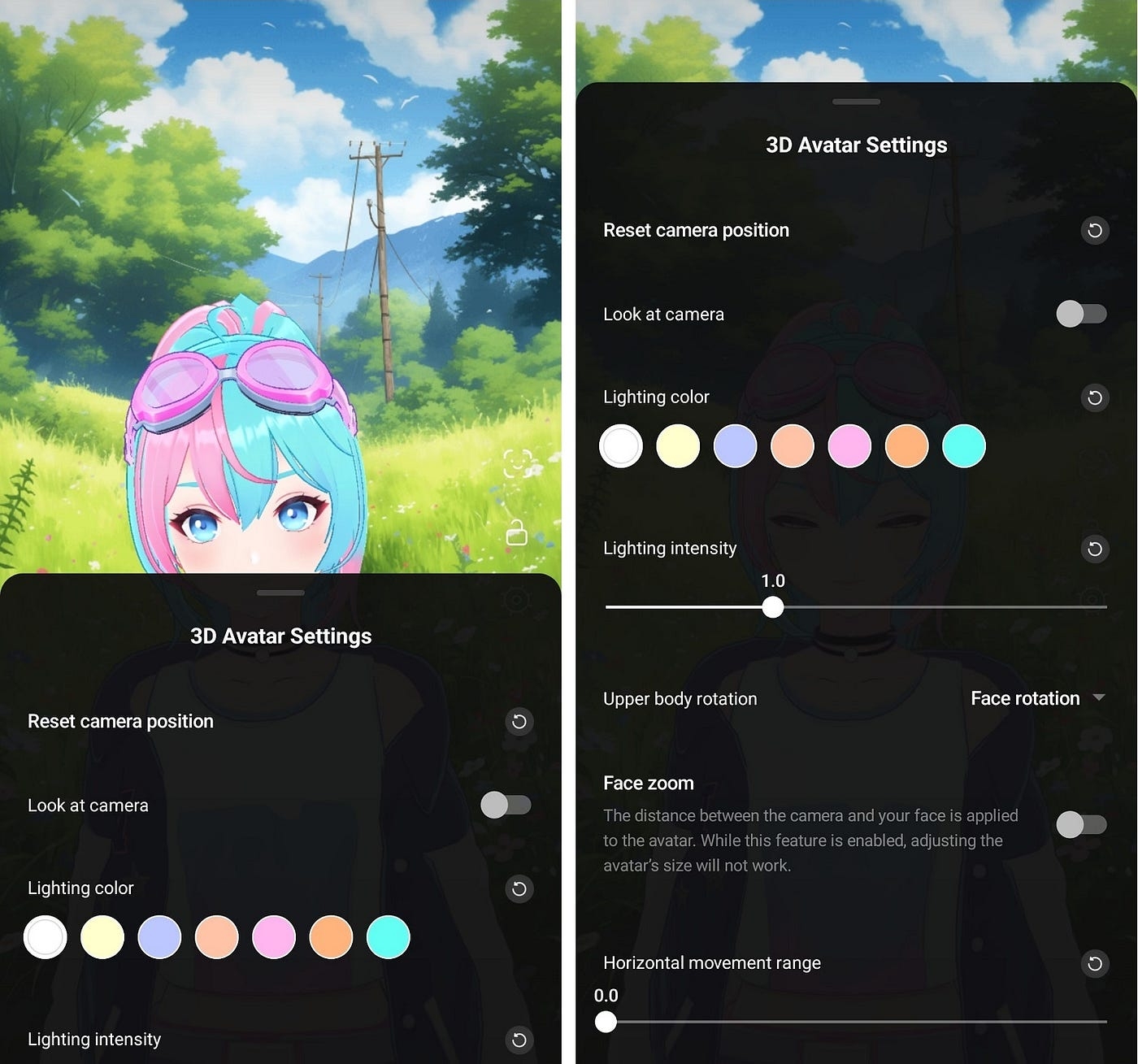
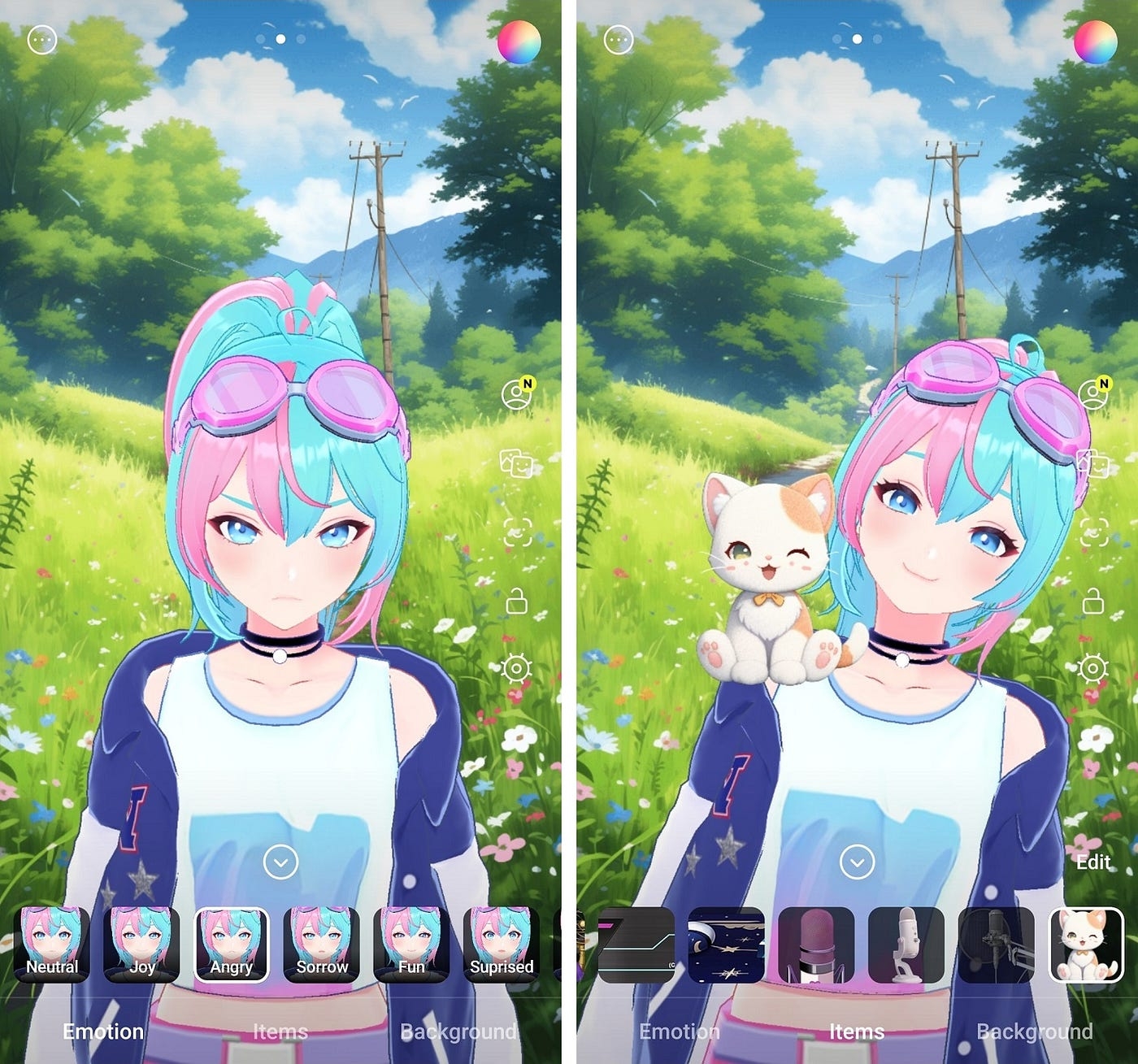
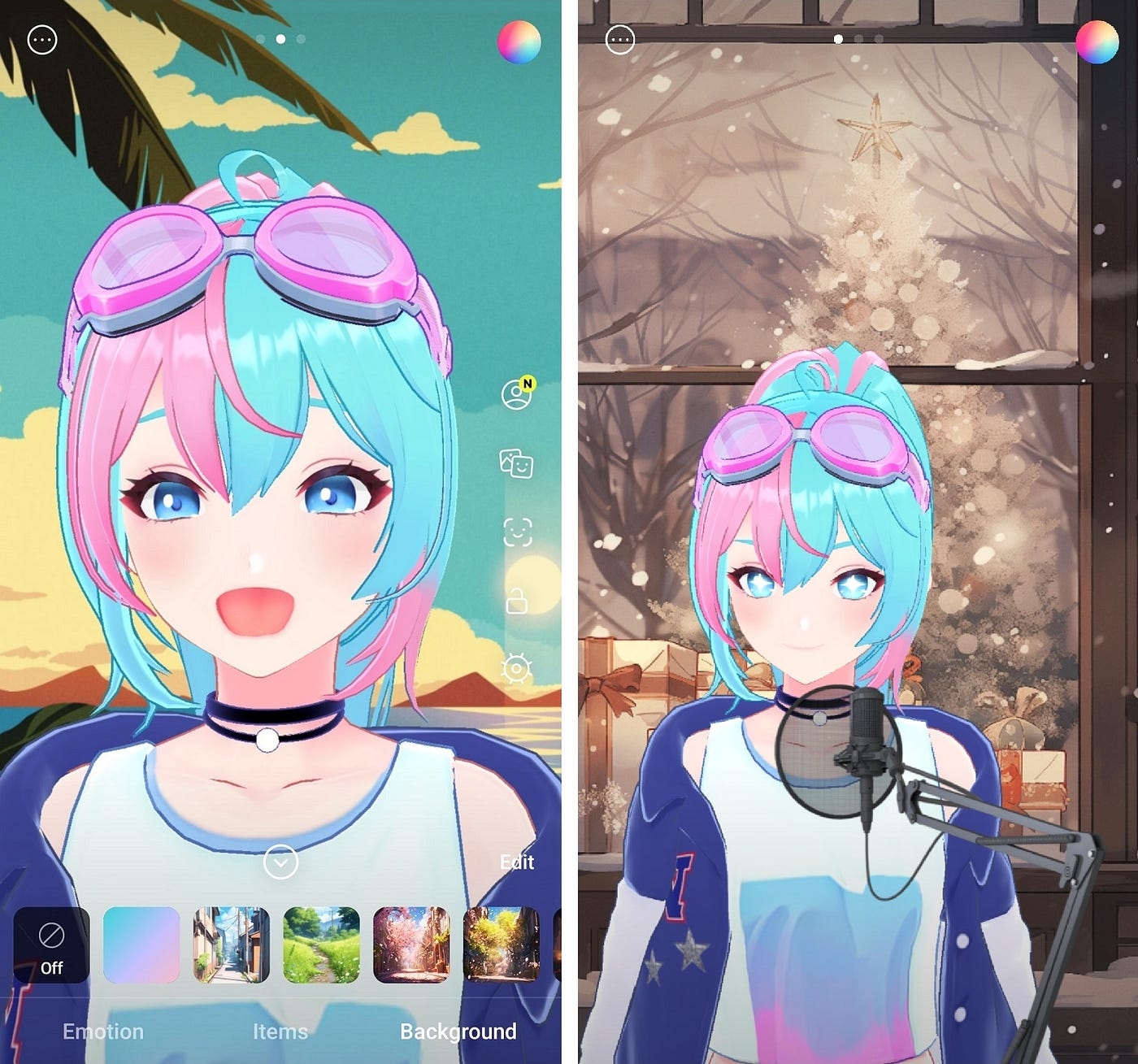
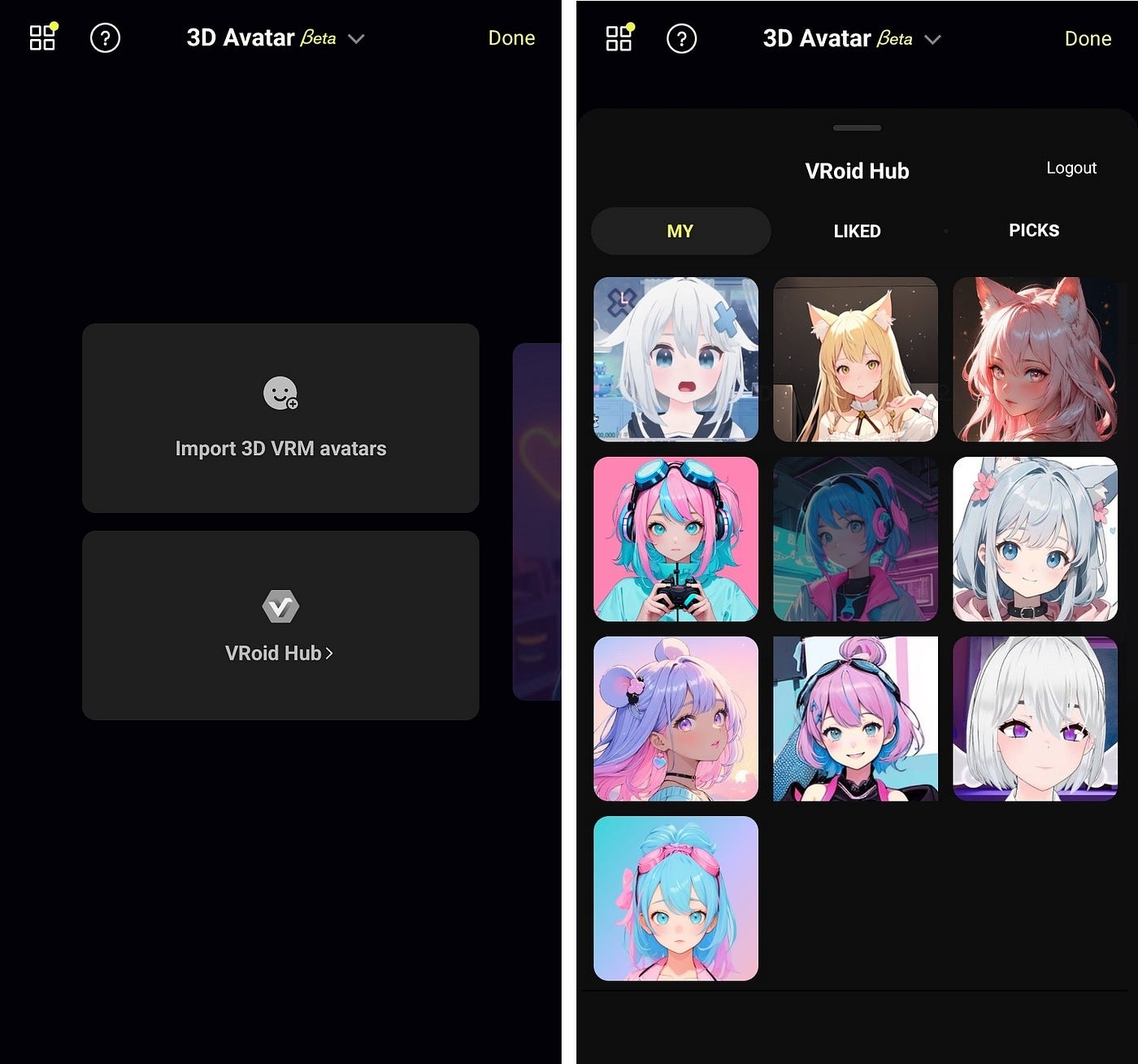


My Studio: Overlay assets to be used for the app screen are provided. Swipe right on the main page to go to My Studio.
Press the Go Live button to start live streaming.
Press Go Live to start streaming from multiple channels.
Widget > PRISM Chat: Use this feature to add to My Studio a chat widget that gathers all viewer chats to be displayed on the screen.
Widget > RTMP Video Source: Use the RTMP URL to display videos from other devices on the PRISM app.
Widget > QR Code: Use this feature to generate a QR code for the URL of your choice.
Widget > Web Page: Use this feature to enter a web page address for a donation service or website to My Studio. Using Web Browser Widget
마지막 업데이트: 25년 7월 3일
iOS
iPhone iOS 16.0 이상
iPad iPadOS 16.0 이상
Android
Android OS 10 이상
Android OS 13 이상
단, 기기 세부 성능에 따라 차이가 발생할 수 있습니다.
iOS
iPhone iOS 16.0 or later
iPad iPadOS 16.0 or later
-
Android
Android OS 10 or later
Android OS 13 or later
Performance may vary based on device specifications


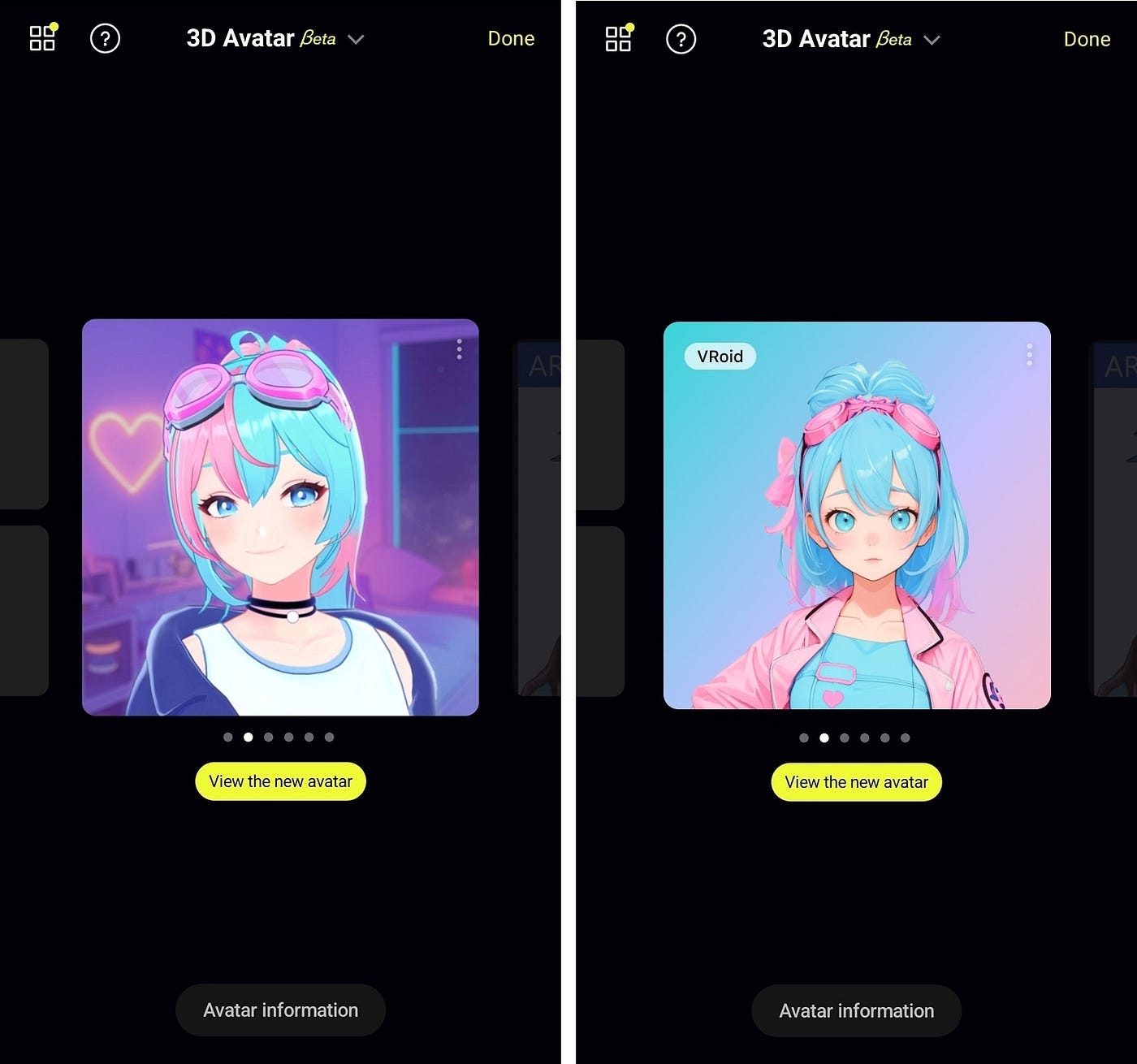
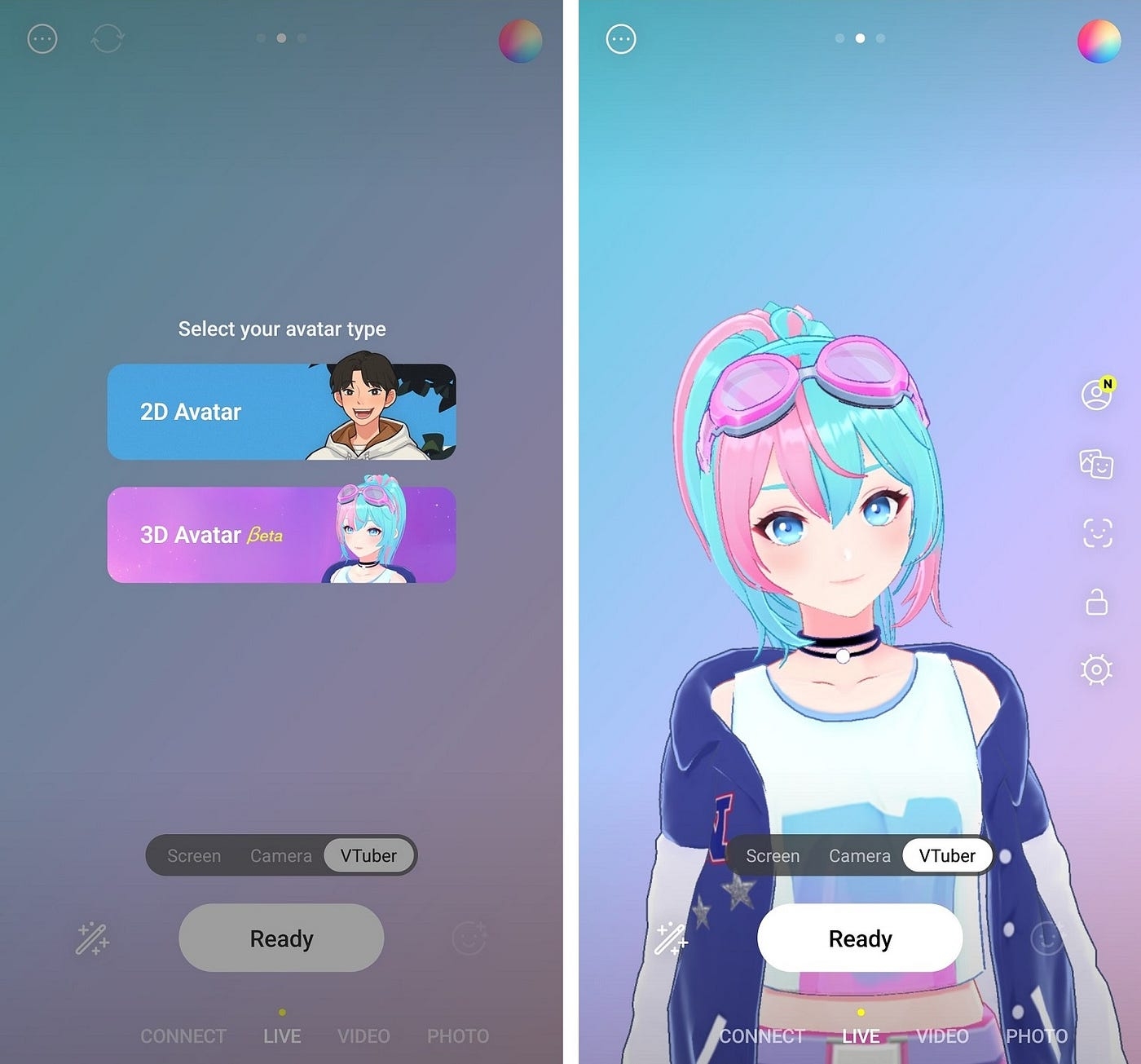
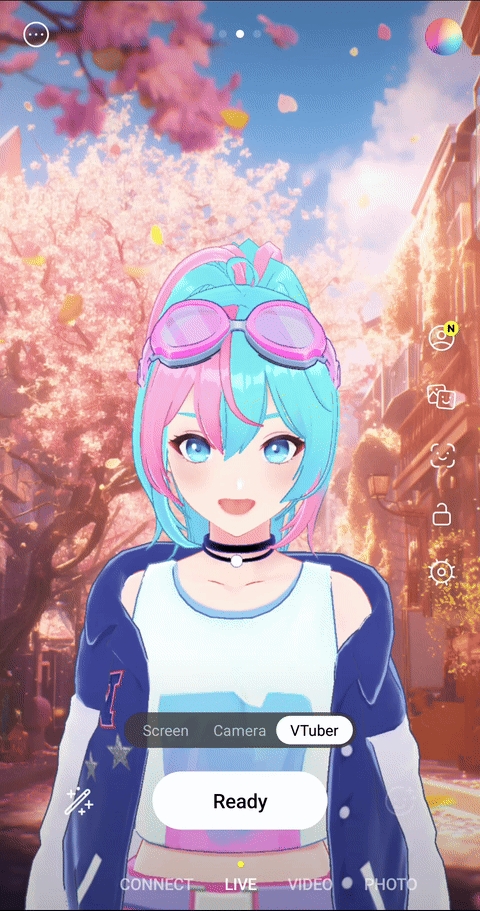
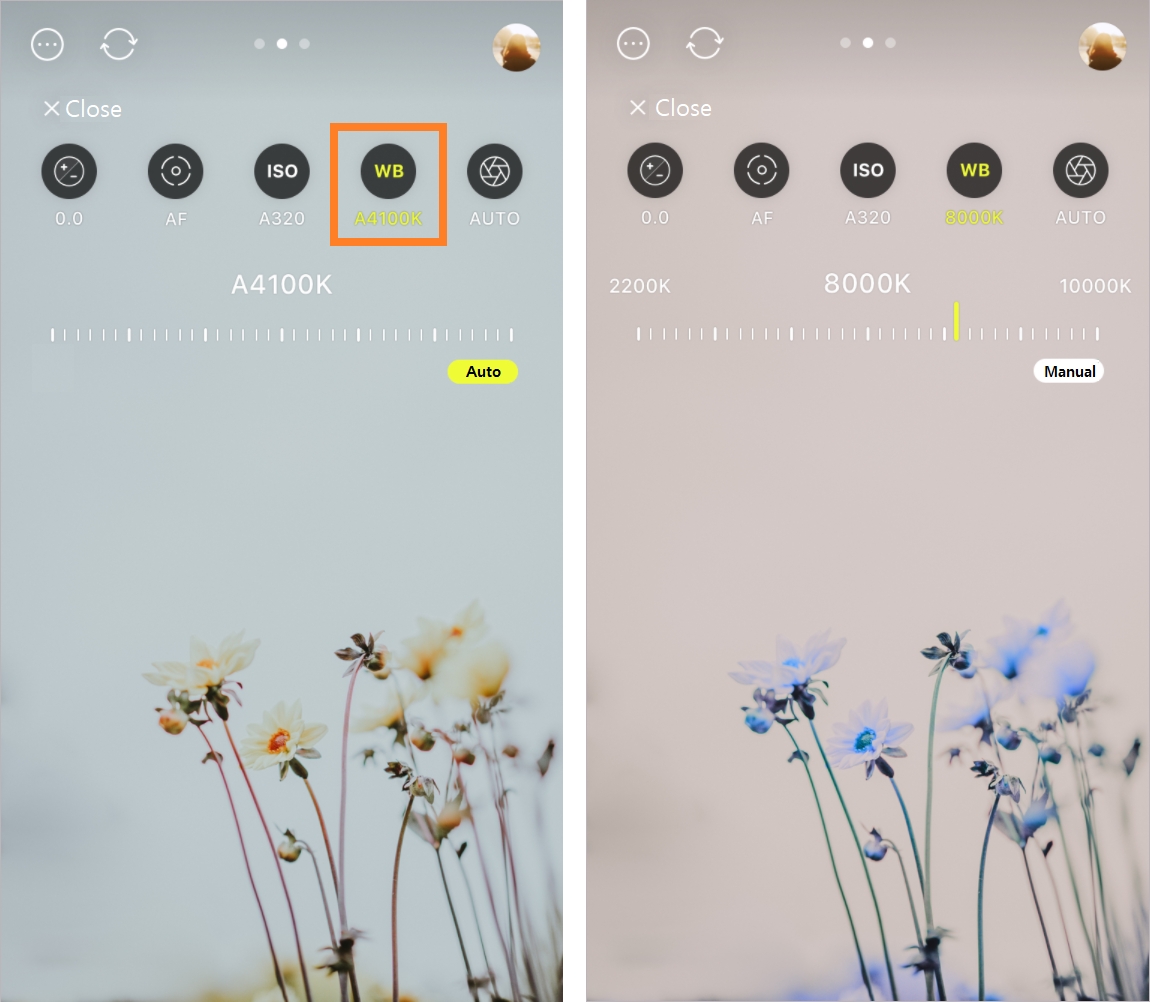
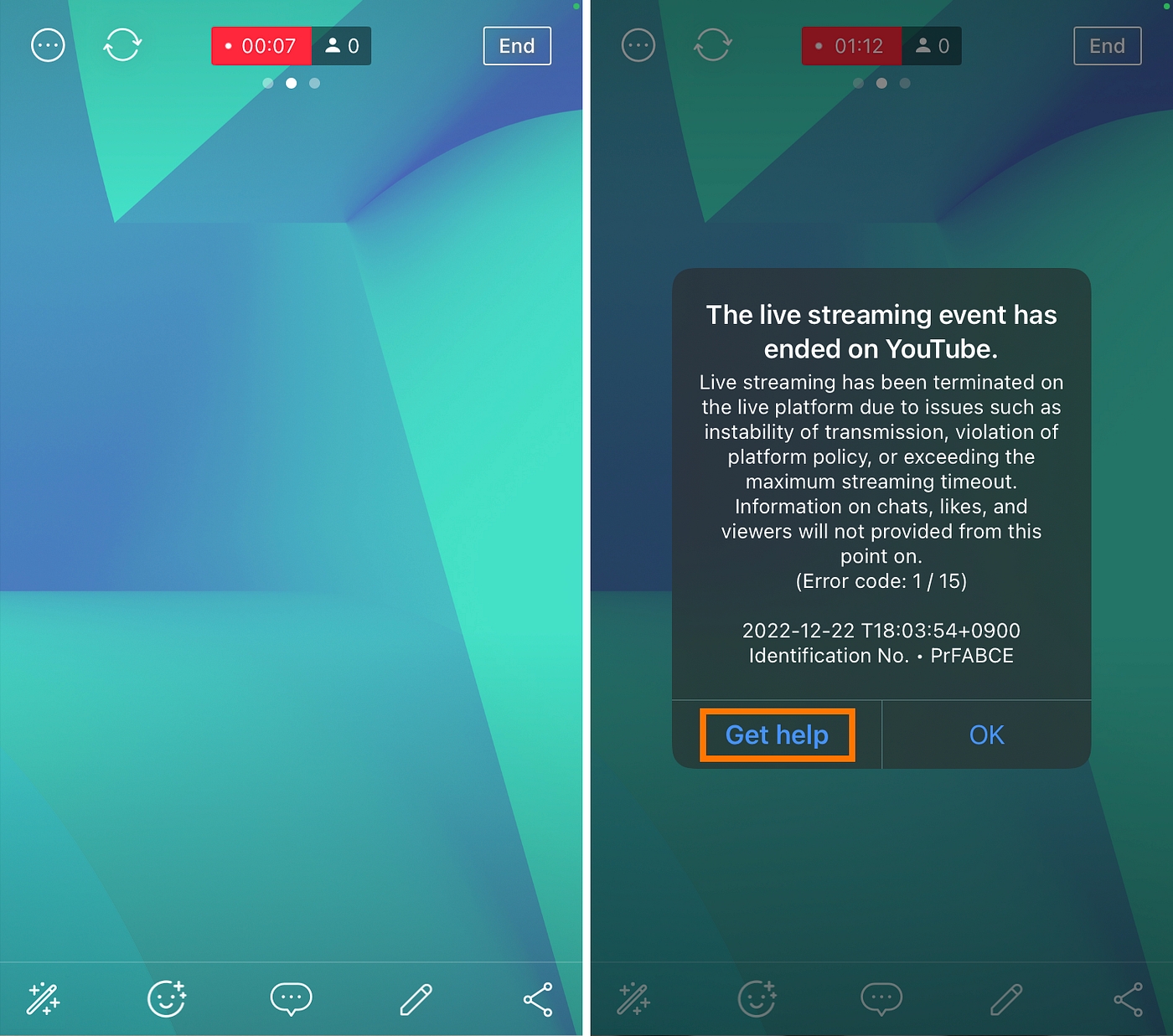


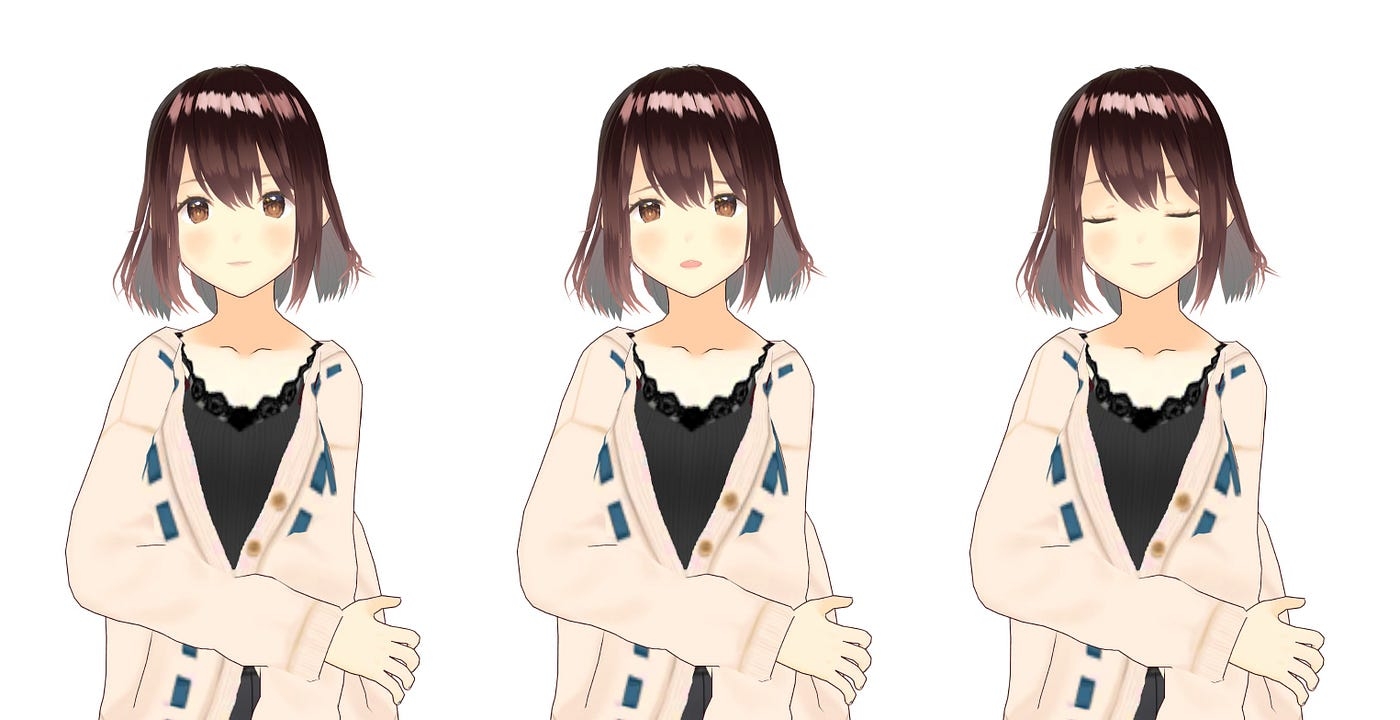
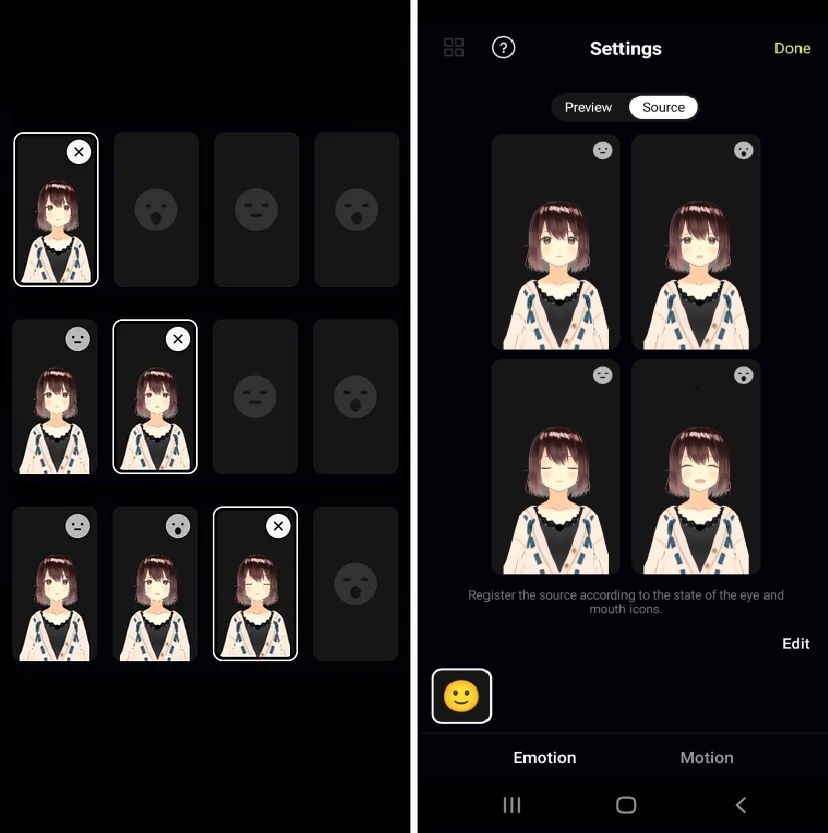
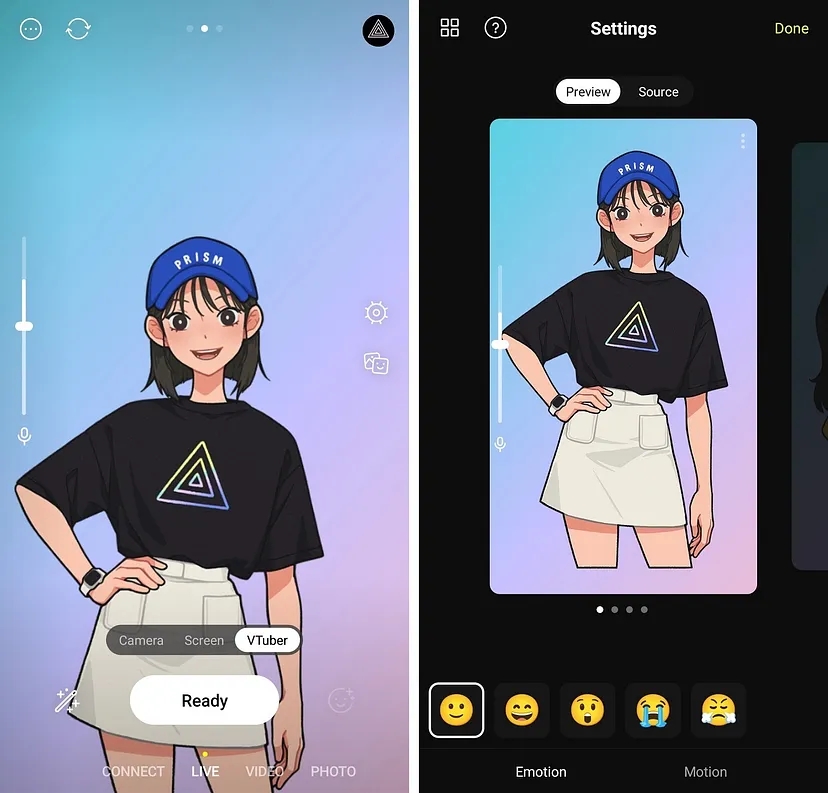
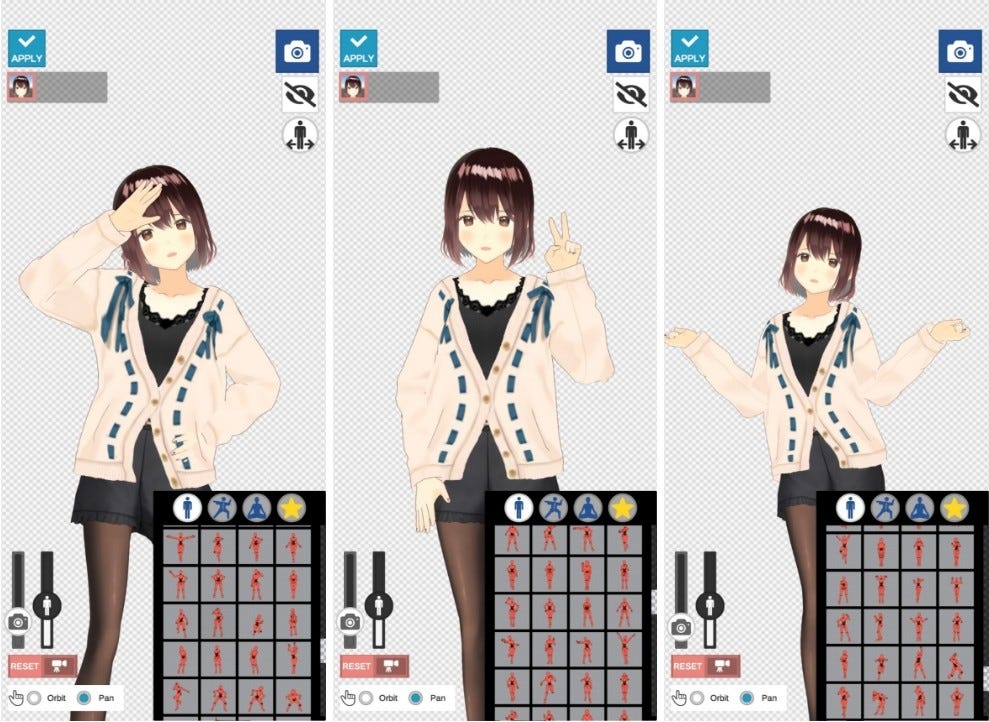
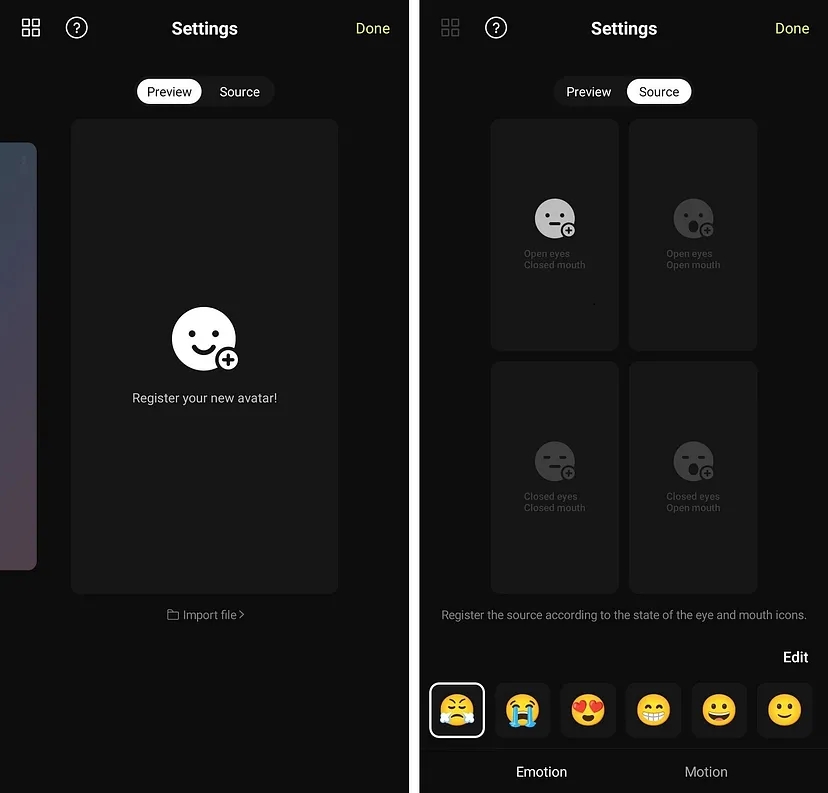
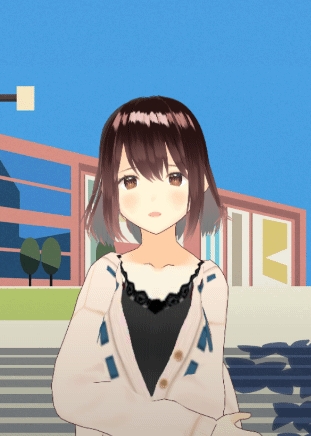
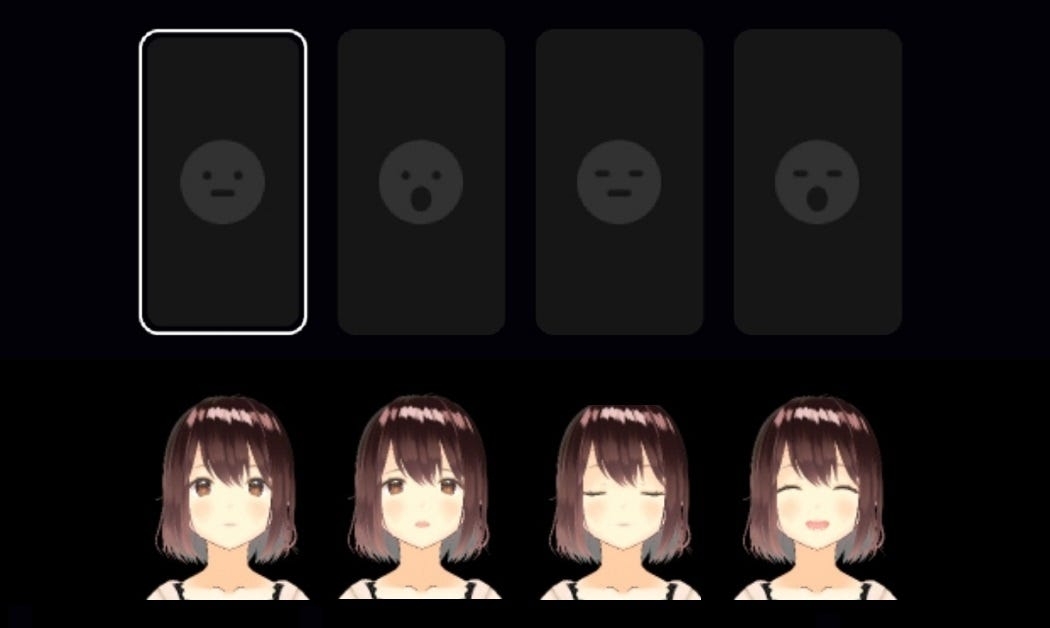
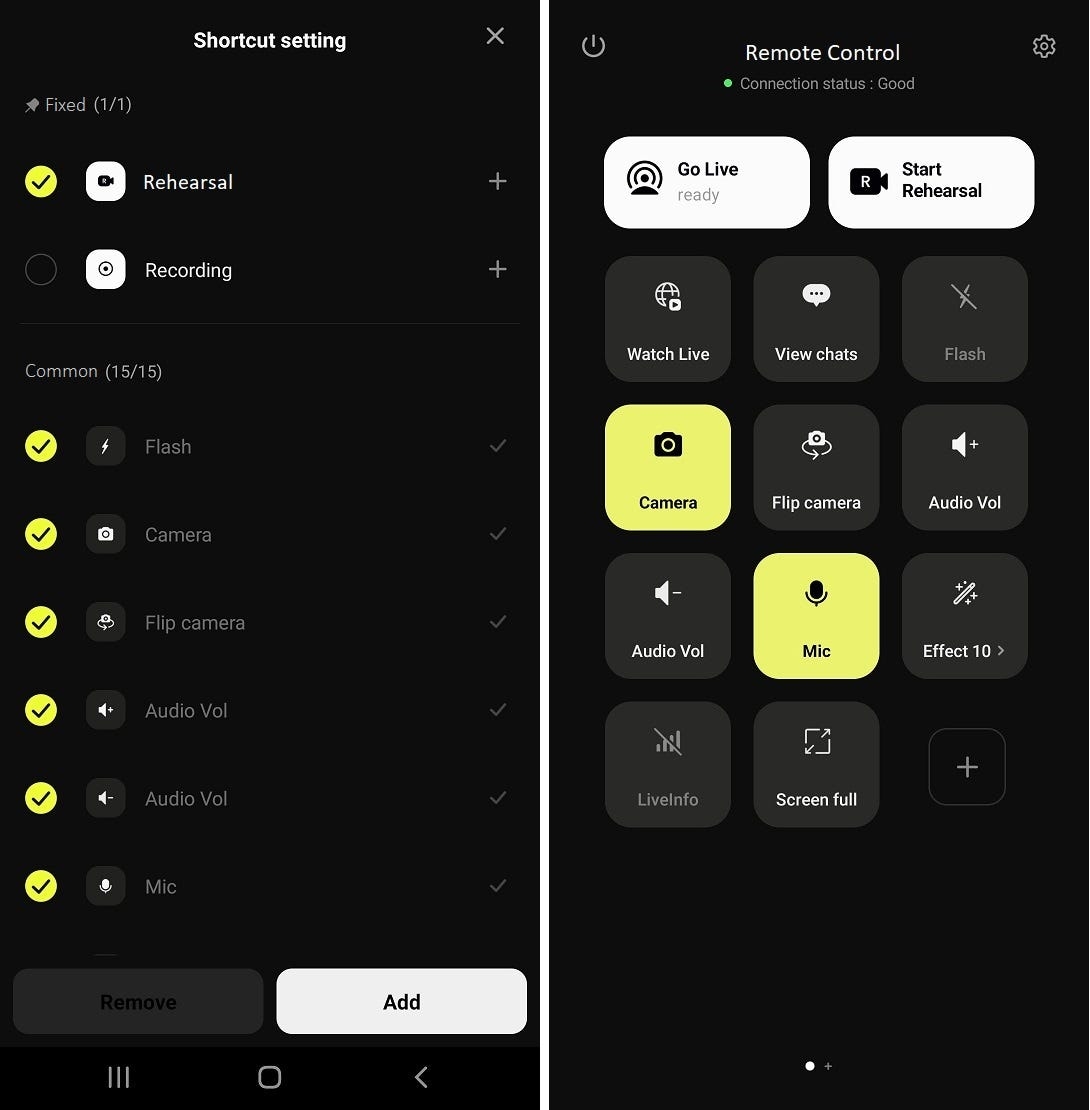
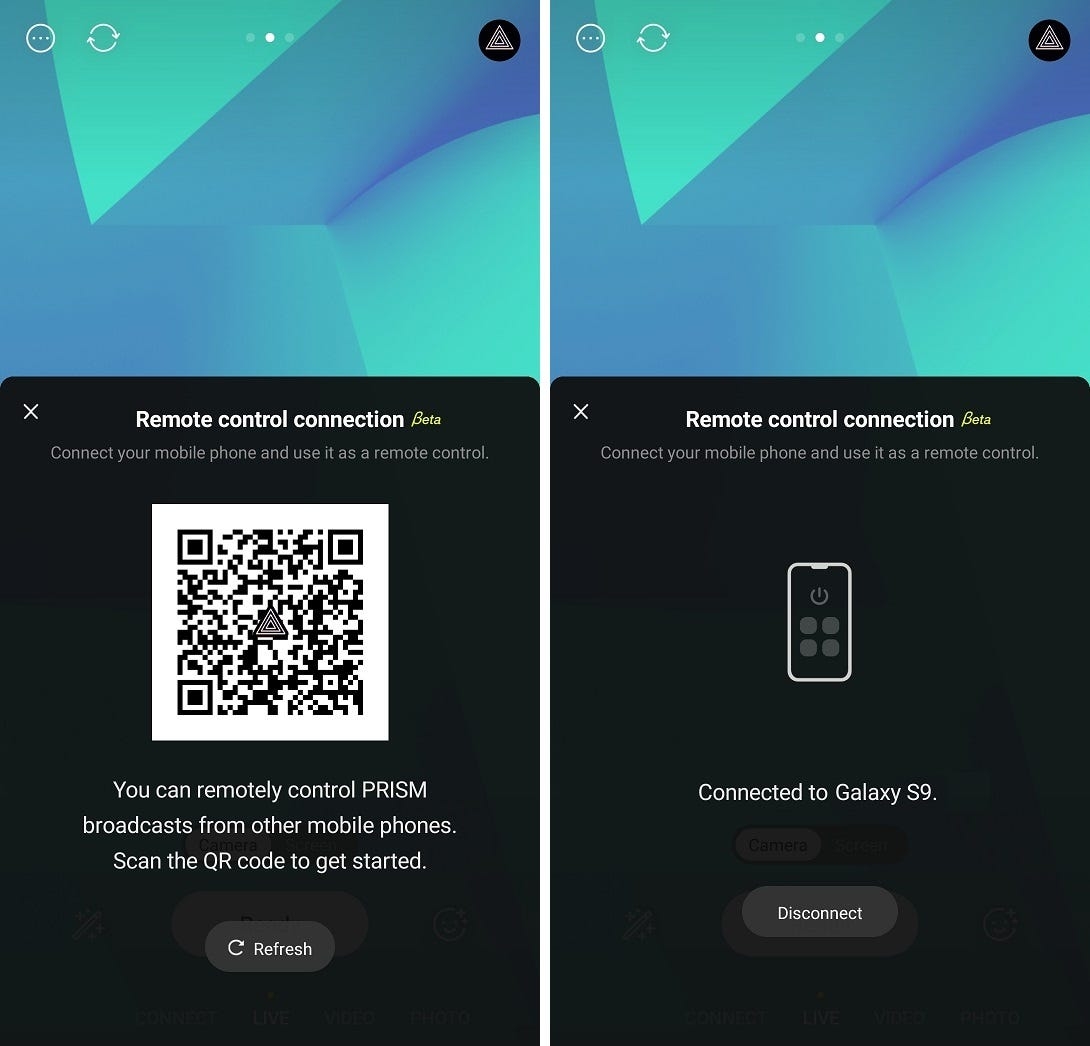
Android, iOS
PRISM app supports Camera-Live using the device’s camera, Screen-Live for sharing your device’s screen, and VTubing-Live with your own character avatar. Among them, the ScreenCast feature is primarily utilized for game streaming, enabling live streaming directly from smartphones by broadcasting the device’s screen.
Furthermore, the ScreenCast feature in the PRISM app allows users to overlay various sources onto the broadcast screen by Scene editing, adjust the device and microphone volume separately, and enable a screensaver to protect private information during live streams.
iPhone: iPhone 12 or later
iPad: 10th generation or later
iPad Pro (11-inch): 3rd generation or later
iPad Pro(12.9-inch): 5th generation or later
iPad Air: 4th generation or later
Mini: 6th generation or later
For devices not included in this list, ScreenCast resolution will be limited to 720p to maintain stable performance.
To enter ScreenCast mode, click on the LIVE tab in the bottom menu, then select Screen mode from the available options (Screen, Camera, VTuber).
On the App Store, there are various portrait and landscape games. The PRISM app allows users to capture the screen in both portrait and landscape modes. Additionally, regardless of the screen orientation, it supports both 16:9 and 9:16 aspect ratios for streaming videos.
Once you have configured your broadcast settings, click Go Live.
On iOS, the ScreenCast feature operates through iOS ReplayKit, so a system popup will appear before streaming begins.
Make sure to turn on the Microphone at the bottom, as it cannot be activated within the PRISM app if the microphone toggle is set to off. However, you can still enable it after starting the broadcast by accessing the device Control Center and clicking the recording widget.
When you’re ready, click Start Broadcast to begin streaming live.
When you start live streaming in ScreenCast mode, the PRISM app interface changes as shown in the image above. At this point, you can switch the PRISM app to the background and launch another app or game to fully utilize the ScreenCast feature.
You can see that the chat button and information edit button are located in the bottom right corner of the screen. Clicking the chat button will open the chat view, allowing you to interact with viewers in real time.
You can adjust both the device’s internal sound and microphone volume to balance audio levels for your stream. The microphone volume can be monitored in real-time using the level meter, helping you ensure clear and appropriate audio levels during your broadcast.
When using ScreenCast, there is a possibility of personal information being exposed, such as account login screens. To prevent this, the Screensaver feature provides screen protection presets and various customization options.
Additionally, the Screensaver auto off timer allows you to automatically turn off the screensaver after a set period once your game has started. You can choose from preset options ranging from 5 seconds to 10 minutes, depending on your preference.
You can set a layout of the screencast to overlay various sources, including images, webpages, and VTube avatars, onto your device’s screen. Additionally, you can adjust the size and position of your device’s screen as if it were just another type of source.
To access the ScreenCast layout, click the Screen settings button.
The navy-colored box represents the area where your device’s screen is captured. The screen capture area varies depending on the Landscape or Portrait layout.
There are four buttons located in the upper right corner of the scene editing screen:
• Add sources
• Manage layers of the sources
• Change layout sets
• Switch screen orientation
Click the screen rotating button to switch between Landscape and Portrait screen capture.
When you click the Plus (+) button, a menu for adding sources appears from the right side of the screen. As seen below, you can add:
Chat
Web(Webpage)
Image
2D Avatar
3D Avatar
QR Code
However, Chat, Web, 2D Avatar, 3D Avatar, and QR Code sources can only be added once per layout. If these sources are already placed on the screen, their add button will be displayed in gray.
When you click the Plus (+) button, a menu for adding sources appears from the right side of the screen. As you can see below, you can add chat, web, image, 2D Avatar, 3D avatar, and QR code source in the menu. Chat, VTuber, and QR code source are can be only added as single source, the add button of already added source disabled.
Once a source is added, you can position, resize, and configure various properties of it.
In this case, the shape of the video streamed through PRISM app’s ScreenCast feature is in a 16:9 video aspect ratio. And if you exceed the safe streaming area, the source will be cropped. This is indicated by the orange-colored box in the image below.
You can use the Layers menu by clicking the Layers button. This feature allows you to lock or unlock layers, ensuring that certain elements remain fixed in place while adjusting others. Additionally, you can change the z-order of sources to determine which elements appear in front or behind others.
The PRISM app allows you to create and save multiple scene editing to suit different streaming needs. To manage your scenes, click the Scene button, where available scenes will be displayed in a list. Click the Plus (+) button to add a new scene.
You can choose from preset options to add a scene, which will then be added to your list of saved scenes. After selecting a scene, you can fine-tune the position of elements to best fit your stream’s aesthetics.
Once you have saved multiple scenes, you can easily switch between them based on your current stream setup. To further manage your saved scenes, click the three-dot menu (⋮) next to a scene, where you will find options to rename, copy, or delete it.
You can place a chat widget on your streaming screen to display real-time viewer interactions. The chat widget offers various customization options through the settings menu, allowing you to adjust its appearance and behavior to match your stream’s style.
You can set chat messages to automatically disappear after a certain amount of time, ensuring a clean and dynamic display. Additionally, you can customize text opacity, chat color, and font styles to enhance readability. The widget also provides multiple design templates, allowing you to choose the one that best fits your stream’s aesthetics.
Web source overlays in live streams are primarily used for displaying donation alerts or other web-based elements. However, due to limitations of the iOS operating system, these overlays are only visible to viewers and will not be displayed on the broadcaster’s screen.
Just like in regular camera live streams, you can overlay images onto ScreenCast streams. You can select images from your device’s gallery.
You can use PNG Tuber characters provided by the PRISM app with the Screencast feature, allowing you to display an avatar that reacts to your voice during game streaming. The character’s mouth movements sync with your voice, creating a more interactive and engaging experience for viewers. For more details about PNG Tuber, refer to the following page:
However, changing the PNG Tuber’s emotions in real time is not supported during game streaming. Instead, you can set a default emotion in the avatar settings menu beforehand. Once configured, your chosen emotion will be applied when using the PNG Tuber in the Screencast feature.
You can use your device’s captured screen as an overlay on your live stream. The captured screen can be placed anywhere in the layout and resized as needed, allowing you to position the screen or game area in the most suitable way for your viewers.
Since the screen source size is typically large, it may be helpful to lock the source in the layer menu after resizing and positioning it. This prevents accidental adjustments and ensures a stable streaming layout.
In the ScreenCast mode of the PRISM Android app, a Floating widget provides easy access to key streaming functions. Using the Chat tab, you can view viewer chats and donations directly on your game screen. The Thumbnail tab allows you to preview how your current layout appears to viewers, ensuring your stream looks exactly as intended. Additionally, you can control audio settings and activate the screen saver from the widget.
Floating widgets are not available on iOS due to OS limitations.
The Floating widget in the PRISM Android app also supports a Front camera overlay, allowing streamers to include their facecam in the broadcast as Picture-in-Picture (PiP). This feature enhances viewer engagement by displaying the streamer’s face alongside the gameplay.
The PiP window is fully adjustable—you can pinch to zoom for resizing and drag to reposition the camera overlay anywhere on the screen for optimal placement.
Unlike the PRISM Android app, which provides real-time information through a Floating widget, the PRISM iOS app does not support this feature due to iOS system limitations.
As an alternative, the iOS app provides real-time notifications for key events such as viewer chats, subscriptions, and Super Chat messages during game streaming. You can customize notification settings in the app’s Settings menu, allowing you to stay informed and interact with your viewers more effectively.